The Reminders app has never been one of the most popular built-in apps, mostly due to its limited functionality in comparison with other reminder and to-do apps available from the App Store.
In iOS 13, Apple overhauled the interface of the Reminders app, adding a new look and new capabilities that may encourage more people to check it out. In this guide, we'll go over all of the new features in the Reminders app and what it can do in iOS 13 and iPadOS.
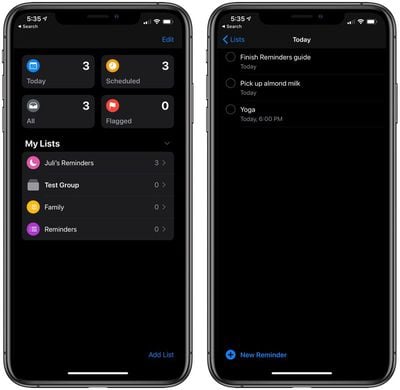
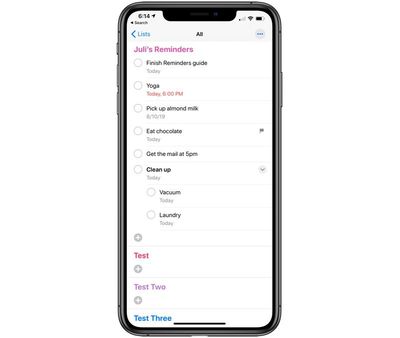
Reminders in iOS 12 and earlier offered a simple no-frills list-style view that organized items by list, but iOS 13 has an entirely new interface that's more intuitive. There are four main Reminders sections, which incorporate all of your reminders across all of your lists so you can see everything that you need to do in one view, whether it's for work or family.
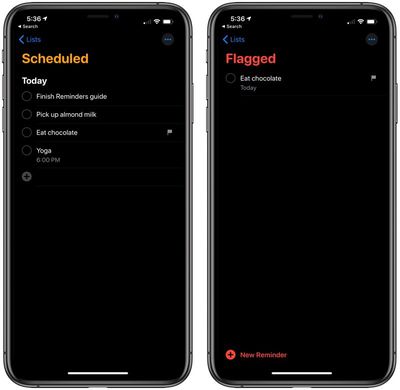
There's a "Today" section for reminders that need to be addressed immediately, a "Scheduled" section for reminders that have a date attached, an "All" section for viewing everything all at once, and a "Flagged" section for your reminders that have a flag added to separate them out.
Along with the four main sections where you can access all of your reminders organized into different views, you can also see your content organized per list using the "My Lists" section. You can use Reminders in either dark mode or light mode, and there are unique looks for both.
Lists and Reminders
As with the previous version of Reminders, you can make as many lists as you need in the Reminders app. You can have separate lists for family, friends, work, and whatever other topics you want.
If you want to keep track of all the household chores you need to do along with your grocery list and your work projects, the Reminders app can handle that. Adding a list is as simple as tapping on the "Add List" button.
All of your lists are displayed individually in the "My Lists" section, while the individual reminders in that list are also available in the different sections of the Reminders app.
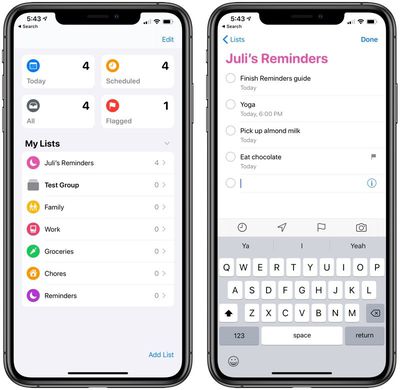
Adding a reminder to a list can be done by tapping into a list and then tapping on the "New Reminder" button, or by tapping into the Today, Scheduled, or Flagged categories at the top of the app and then choosing "New Reminder."
Ultimately, adding, organizing, and accessing lists is a more intuitive in iOS 13 than it was in iOS 12. Reminders located in the Scheduled tab and the Today tab are organized by date and time, but there are no manual sorting tools to allow for different organization.
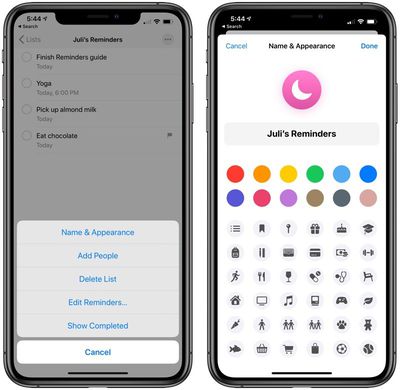
The Reminders app in iOS 13 adds new customization options to your Reminders list. There are additional colors to choose from to color code your lists, and there are also new icons that you can assign to each list for a visual cue.
There are all kinds of icons to choose from, including food, sports, work-related icons, shapes, and more.
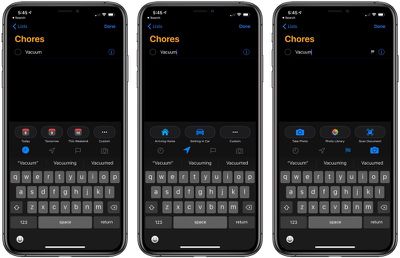
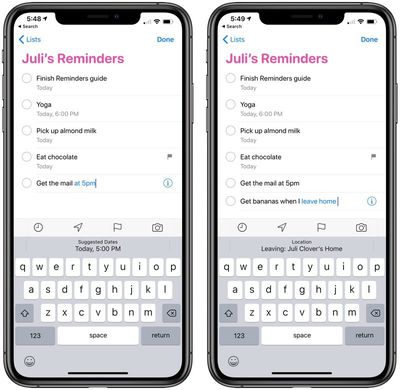
When creating a reminder in the Reminders app in iOS 13, there's a new quick access toolbar that lets you add times, locations, and more to your reminders. There are four available icons, each with a different function:
Clock - Lets you schedule a reminder for today, tomorrow, this weekend, or a custom date.
Arrow - Lets you set a reminder to activate when you're arriving home, getting in the car, getting out of the car, or arriving to any custom location that you choose.
Flag - Lets you add a flag to a reminder so it's easier to locate.
Camera - Allows you to take a photo to add to a reminder, add a photo from the Photo Library, or scan a document. Adding attachments to Reminders is new in iOS 13.
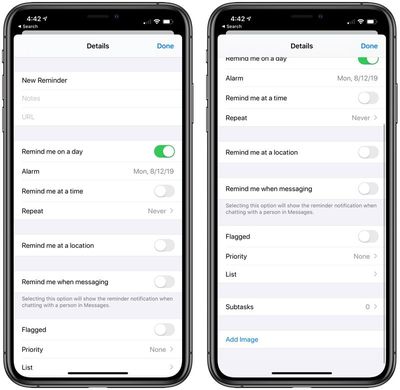
Reminders can also be annotated with notes and URLs to provide additional context, and each reminder can also have subtasks associated with it. Reminders can also be set to repeat, and you can adjust the priority for each one, choosing between Low, Medium, High, or None.
Accessing all of the Reminder options can be done when tapping on the "Custom" option when setting a time or a date for a newly created reminder or by tapping on the "i" icon on an already existing reminder. Some of these options were available in iOS 12, but interface is simpler and more intuitive in iOS 13, making these tools easier to use.
Using the toolbar and interface above, reminders can be set to activate in the following conditions:
When arriving to a location
When leaving a location
At a certain time
On a certain date
When messaging a specific person in the Messages app
You can also combine these conditions when creating a reminder, so you can, for example, set a reminder to get milk on Tuesday at 4:00 p.m. when you arrive at the grocery store.
Sharing a Reminders List
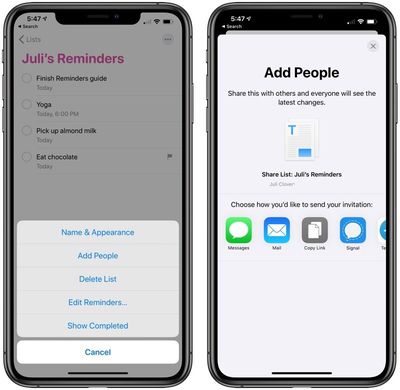
If you tap on the three dots in the top right corner of any list of reminders in the Reminders app, you can add a person, which adds that particular list to their device too, letting them see changes made to the list. This is ideal for something like a shopping list that you might need to share with a spouse or child. This feature isn't new, but its location has changed because of the redesign.
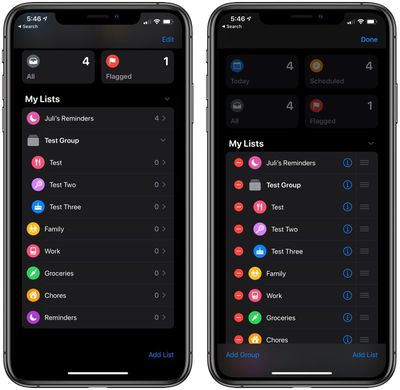
If you have a lot of separate reminders lists, you can group them together in iOS 13 under a single heading. So if you have a grocery list, a drugstore list, and a list for your favorite clothing store, you can aggregate them all into a "Shopping" group that offers better organization in the "My Lists" section of the app.
Groups can be collapsed or expanded, making for a tidier Reminders app with deeper organization than was possible in iOS 12. To add a group, tap on the "Edit" button and then choose the "Add Group" option at the bottom left. You can also use drag and drop gestures to arrange you're lists.
Using drag and drop gestures, you can drag a reminder under another reminder to create a nested reminder in your list, which essentially lets you add smaller tasks under a larger reminder.
If, for example, you have a reminder to do chores, you might also add smaller, more specific reminders underneath for individual tasks like vacuuming and doing the laundry. You need to be in the "All Reminders" section to use drag and drop gestures to rearrange your reminders lists.
Share Sheet Deep Linking
Using the Share Sheet, you can import content from Messages, Mail, and other apps, directly into the Reminders app as a new Reminder. Just select text, choose the "Share" option, and choose Reminders as the destination.
Reminders saved this way will include a deep link to the Mail thread or Messages conversation so you can get back to it quickly.
Siri Improvements
Reminders features enhanced Siri intelligence in iOS 13, which means you can type longer, more descriptive sentences that Reminders will automatically understand and use to provide relevant suggestions.
Siri will also suggest reminders for you. When you're chatting with someone in Messages, for example, and someone mentions getting lunch at noon tomorrow, Siri might offer a suggestion for you to create a reminder.
Mac App and Upgrading
There's also a revamped version of Reminders for the Mac in macOS Catalina, with many of the same features. With the Mac app, you can also create reminders on the desktop that sync to the Reminders app on iOS devices. Below, we have some Mac-specific how tos that cover using the Reminders app on a Mac.
When upgrading the Reminders app on iOS 13 (which you will be prompted to do after upgrading), it's worth noting that it limits functionality on other devices. Reminders on the Mac won't be functional without macOS Catalina, and Reminders on the iPad won't be functional without iPadOS.
iPadOS is available, but there's no specific launch date for macOS Catalina, which is coming on an unspecified October date. Apple's support document has additional information.
Guide Feedback
Have questions about Reminders, know of an iOS 13 Reminders feature we left out, or want to offer feedback on this guide? Send us an email here.
Apple's first foldable iPhone, with a book-style design featuring a 5.4-inch outer display and a 7.6-inch inner display with a minimal crease down the middle.