Apple's iPhones have built-in location tracking features that can let certain people see your location, and in some situations, that can be a major risk to personal safety. Apple recently shared a personal safety manual that teaches people how to protect themselves from being tracked by a stalker, a former loved one, or another malicious person.
This guide has a quick breakdown of the location settings on your iPhone that you can use to check who can see your location, along with instructions on preventing people from tracking you.
Check Who Can See Your Location With Find My
If you have granted location access to your friends or family, they can see where you are through the Find My app. To see who can track your location, open up the Find My app and tap on the "People" tab.
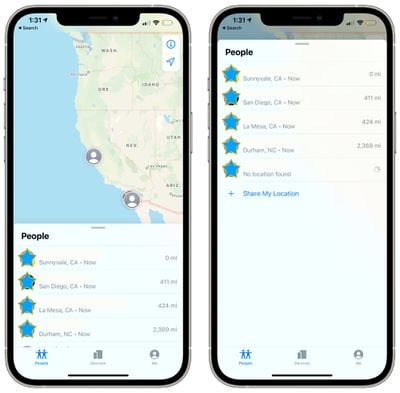
People who have shared their location with you and people you have shared your location with will show up in this list. A person who is able to see your location will be denoted with "Can see your location."
If you tap on any person's name in the list, you can get to settings that will let you stop sharing on an individual basis. Just tap on "Stop Sharing My Location" to block that person from seeing where you are.
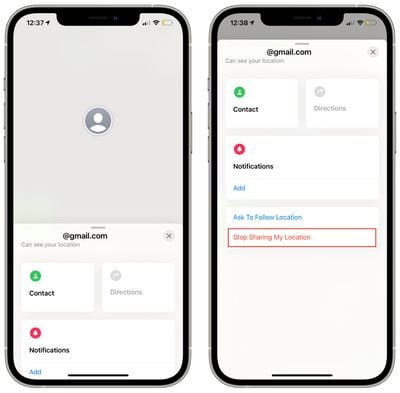
Sometimes people who can see your location do not have the "Can see your location" label, so make sure to check each name in the list.
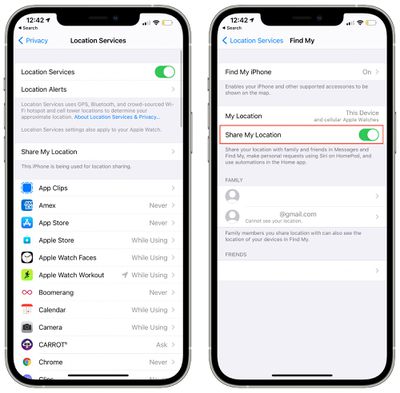
You can also get to these settings by opening up the Settings app, going to the Privacy section, selecting Location Services, and then choosing "Share My Location." This will list family and friends who are able to see your location.
Tap on any name in the list to get to an option where you can toggle off location sharing.
Prevent People From Tracking You With Find My
There are two ways to make sure no one is following your location through the Find My app, through the Find My app itself or through the Settings app on the iPhone. To use the Find My app:
- Open up Find My.
- Tap on the "Me" tab.
- Toggle off "Share My Location."

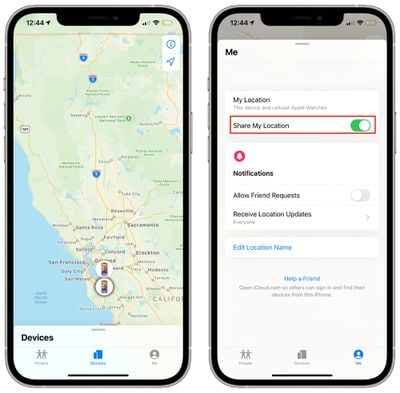
To turn off Location Sharing in the Settings app:
- Open the Settings app.
- Tap on Privacy.
- Tap on Location Services.
- Tap on Share My Location.
- Toggle off "Share My Location."
Protect Location Information When Using Family Sharing
If you have Family Sharing enabled, you will automatically appear in the People tab for each person you are sharing with, but following the steps above to disable location sharing will prevent your family members from seeing where you are.
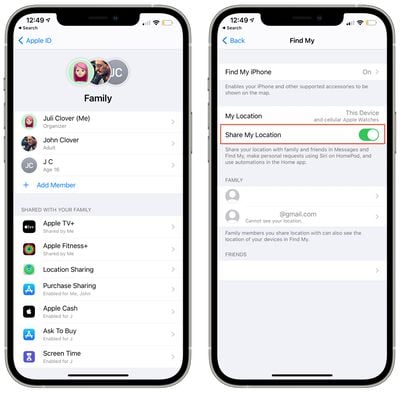
Even with Family Sharing turned on, all parties involved must agree to share location data, and you can double check your Family Sharing settings to make sure location is disabled.
- Open the Settings app.
- Tap on Family Sharing.
- Under "Shared With Your Family," tap on "Location Sharing."
- Make sure "Share My Location" is toggled off, or tap on an individual family member's name to turn off location sharing on a per person basis.
Check to See Which Apps Can See Your Location
Apps can request access to your location, and if you're using social networking apps like Snapchat, Instagram, or Facebook, it's entirely possible that your actions on those sites could have location information attached.
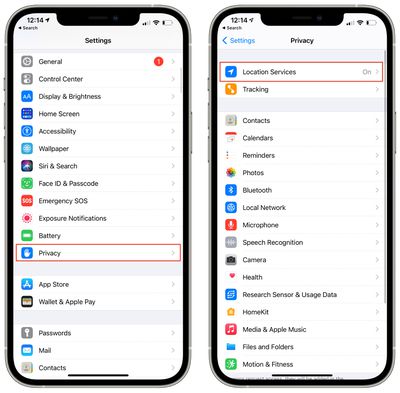
To see which apps have access to your location, follow these steps:
- Open the Settings app.
- Scroll down to Privacy.
- Tap on Location Services.
- Scroll down to see the location permissions for each app you have installed.
- To change location permissions, tap on any app name in the list and select "Never" if you want to make sure an app has zero access to your specific location through iOS.
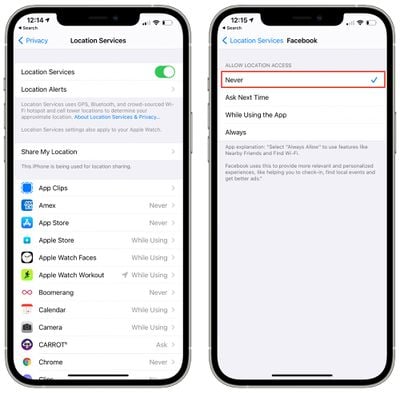
There are other location options such as "Always," "While Using the App," and "Ask Next Time," but these are not ideal if you're aiming to prevent an app from seeing your location entirely.
While Using the App allows your location to be shared when you're actively in an app, but cuts it off when you're not using it. Ask Next Time will prompt the app to ask for location the next time you use it, and Always will leave location access on permanently.
With some apps, you'll also see an option for "Precise Location." If you toggle this off, an app can see your general location, but it is an approximate location rather than your specific location.
Note that even with location services turned off, apps like Facebook can track your approximate location through IP address and other similar means, which is something to be aware of. Most of this tracking is done behind the scenes and is not accessible to individuals.
Turn Off Your Location Entirely (Safest Option)
If you want to be absolutely certain that no person or app can track your location through the GPS and Bluetooth systems built into your iPhone, it's best to turn Location Services off entirely.
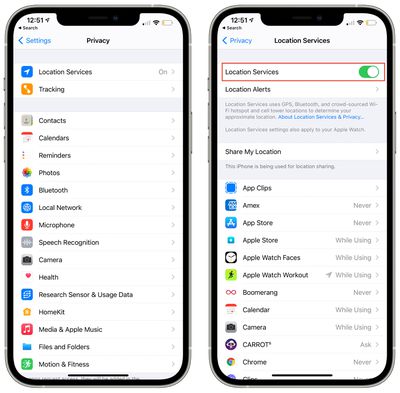
- Open up the Settings app.
- Scroll down and tap on "Privacy."
- Tap on "Location Services."
- Tap the "Location Services" toggle to turn it off.
Additional Device Protection Steps
Apple recommends all users update their software to the latest version of iOS for the best protection, as each iOS update includes security fixes to patch known vulnerabilities and flaws that can be exploited by malicious entities.
If you suspect that someone has accessed your device and may have done something to it, Apple recommends restoring it to factory settings after a data backup. You can find instructions below:
Make sure that only YOUR devices are associated with your Apple ID by opening up the Settings app and tapping your profile name. If you see a device that does not belong to you, tap it and choose "Remove From Account."
Protecting your iPhone is essential to preserving your privacy. Make sure that you have a passcode enabled and that Touch ID or Face ID are enabled depending on which device you're using. You'll also want to make sure that there are no alternate appearances set up under Face ID and no fingerprints that don't belong to you under Touch ID.
It's also important to have a strong Apple ID password and to make sure that your Apple ID login and password are not shared with anyone. If you have shared your Apple ID and need to change the password, it's simple to do, and no one can log into your Apple ID without your knowledge if two-factor authentication is enabled. There is never a need to share an Apple ID, and those who want to share apps or other information should instead use Family Sharing.
Read More
If you are in danger from someone who could exploit your iPhone to learn about your location or to track your movements, it's worth reading through Apple's full personal security document.
Apple's guide also covers making sure shared albums, photos, iCloud information, and Apple Watch activity are kept private, plus it walks through deleting suspicious third-party apps and MDM profiles. Many of the most invasive tracking apps use MDM profiles, and you can check to make sure no unauthorized profiles are installed by opening up Settings, tapping General, and then tapping Profiles & Device Management. If the option is not available, there are no profiles installed on your device.
Using the Find My App
If you want more instruction on how the Find My app works and how to use and disable various Find My features, we have a full Find My guide and how to list with in-depth instructions.
Guide Feedback
Need more help with location services, have questions about the Find My app, know of something we left out, or want to offer feedback on this guide? Send us an email here.