

Digital image and video stabilization features have been included in modern smartphones for a while now, with each new generation offering improved correction for jumps and jitters that typically occur during handheld shooting.
Still, even the latest handsets can't quite match the benefits that can be gained from using a motorized mount specifically designed to reduce vibration and unwanted shake.
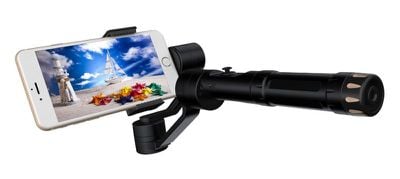
Smartphone gimbals are made for just this purpose. Phone gimbals look similar to selfie sticks, but incorporate special motorized axes that keep shooting balanced and steady by adjusting for tilt, roll and tracking movements.
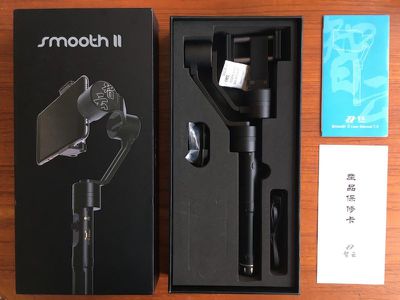
One brand that's been steadily gaining plaudits for its gimbals is Zhiyun. The Chinese firm's gimbals in its Smooth range have been noted amongst video aficionados for their robust design, multiple operational modes, and relative affordability compared to the competition. Here, we looked at the company's latest Z1-Smooth II ($329) to see what advantages a gimbal offers for iPhone owners.
Design and Features
The Smooth II 3-axis stabilizer is designed for phones with screen sizes up to seven inches, and comes supplied with a counterweight to balance phones with a lens attachment or those with weightier screens (5.5-inches and above).
Also in the box is a USB to micro-USB charging cable, a 3400mAh rechargeable removable battery, a quick-start user manual (English), a foam camera protection sticker, and a set of 'contact us' QR codes.
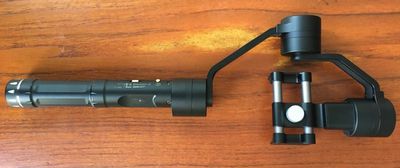
The mount is made from a tough aluminum alloy that feels sturdy yet surprisingly lightweight. The axes flop about a bit when the device is powered off, so it pays to be careful when you're carrying it around (especially with a phone attached), but it still feels like it could take a few knocks.
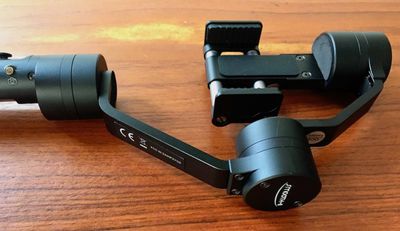
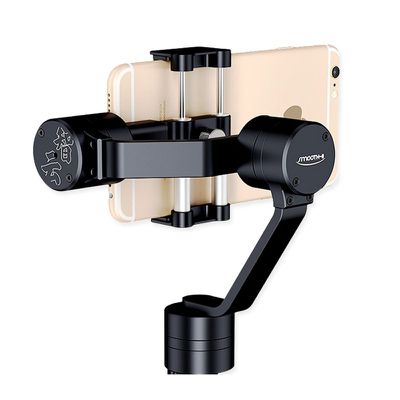
Phones are mounted using the manually adjustable clamp that runs off the tilt axis, which extends from the central roll axis. A thumb screw on the back of the mount lets you tweak the level, based on your phone's center of gravity. The clamp has quite a bit of force, so I wouldn't recommend putting an iPhone into it without a bumper or case, but there's plenty of give to accommodate for this.
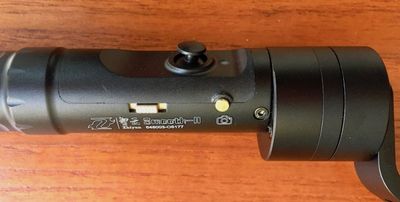
The gimbal has three operating modes that work in different ways to counteract your movements and create smoother, more stable video (more on these below).
The operating modes are controlled from the handgrip by pressing down on the joystick, which also functions as a standby button. There's a separate power switch (which can also start/stop video recording when connected to the iOS app over Bluetooth), an LED power indicator, a micro-USB port, and a shifter lever for camera zoom and front/rear camera switching when using the app.
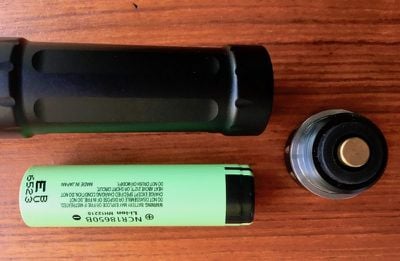
A cap at the end of the handle screws off to provide access to the replaceable 18650 battery, which charges inside the gimbal when the device is plugged into a power source via USB. At the bottom of the handle is also a 1/4-inch screw thread for attaching the gimbal to a tripod, extension rod, or other camera equipment.
Performance
Getting going with the gimbal was easier than I expected, and the quick-start guide was clear and helpful. Sliding an iPhone 6s into the mount was simple, and didn't require me to use the supplied counterweight, which is needed if you want to use any of Apple's 5.5-inch iPhone Plus models. I extended the clamp with my hands, slipped in the handset in the correct orientation, and was good to go.
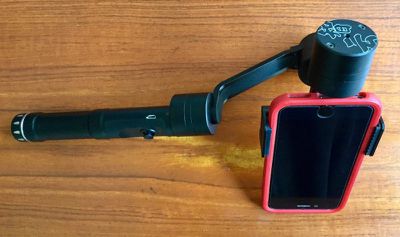
Pressing and holding the power button for three seconds turned on the device, which raised the phone into a level horizontal or "landscape" position. Repeating this turns off the gimbal, which makes the mount fall down limply. This is why it's important to apply the foam camera protection sticker to the pan motor axis, because the phone screen can knock against it unless you power off with the gimbal pointed down towards the floor.
The default Pan Following mode offered instant, no-fuss video stabilization, enabling 360-degree freedom of movement at the lower (pan) axis while keeping the horizon level. This allowed me to control the panning direction of the shot from my wrist while the tilt and roll axes corrected for any unintentional wonkiness.
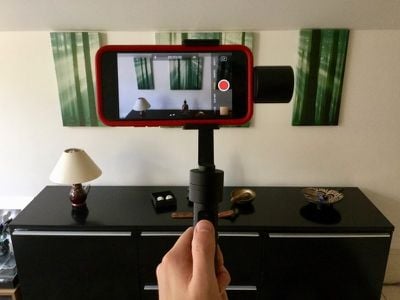
From there, a single press of the joystick enabled Locking mode, which locked the left and right panning motion and kept the camera forward facing regardless of which direction I moved my arm. Panning in this mode is controlled via the joystick, so as long as I didn't press left or right on it I was able to move around freely without affecting the shooting angle, and even come into shot for a selfie, before completing a full 360-degree rotation around the static upper mount.
Pressing up and down on the joystick in both the above modes allowed me to control the vertical tilt of the camera and move the shot up towards the sky and down to the ground. The only drawback is that there isn't any way of controlling the speed of the tilt in these two modes, however the Smooth II compensates for this lack with a third mode, activated with a double press of the joystick.
















































Top Rated Comments
Go to the dji forums and read the complaints about OIS and also how the app failed another guy documenting a big moment at his friend's wedding.
If you have a late model iPhone with OIS, it cannot be turned off, the dji gimbal tries to counteract it and you end up with shakiness around the edges. Both dji and FiLMiC pro turn off software IS, turning off hardware OIS is not possible. The dji tech mods have no other answer. The only solution is to use the telephoto lens on a 7+ that has no OIS at the expense of narrow FoV.
It is less pronounced on the Smooth II, a dji forum member linked video evidence, and a separate youtube commenter who has both confirms it. Zhiyun's app works great, bluetooth connection for button start/stop, different settings for video, face detection, and app guided calibration.
Lastly, this is a 3-axis gimbal. If you walk, ninja technique is a must, no smartphone gimbal corrects vertical bounce. That is unrelated to the OIS shakiness we're talking about.
This Chinese knock off junk is simply that, knock off junk.
But you are still responsible for not shaking the camera around like a mad man. :)
You can spend thousands on a gimbal. But you've still gotta do some work yourself. It's not a miracle cure.
It's still better than holding the camera directly.