

Popular accessory company Satechi offers a wide variety of docks and hubs compatible with Apple's Mac lineup, and I've recently spent some time testing out the company's $150 USB-C Dual Dock Stand that adds a significant amount of connectivity to your Mac while remaining tucked out of sight and even giving your laptop a bit of extra breathing room.
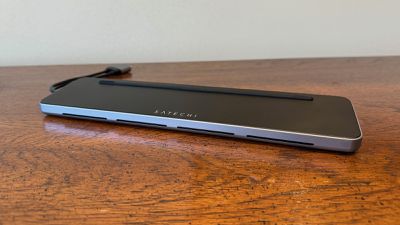
Perhaps the most noteworthy design aspect of the USB-C Dual Dock Stand is right in the name, and that's the fact that it serves as a stand to elevate your Mac laptop on a desk, allowing for extra airflow to help keep things cool and giving a couple extra inches of height to the display to bring it a little closer to eye level and perhaps make for a bit more comfortable typing position if you're using your MacBook's keyboard.
The dock measures right around 12 inches (30 cm) wide, and its wedge-shaped form factor sits nicely under the rear portion of a Mac laptop. Rubber feet on the dock help with stability, and there's a raised rubber ridge on the top surface of the dock for your Mac to sit on without scratching either the Mac or the dock. Openings on the front and back bottom edges of the dock provide some ventilation for the dock itself, but I didn't notice anything getting significantly warm.
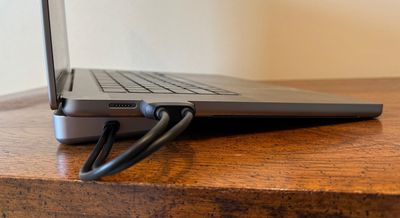
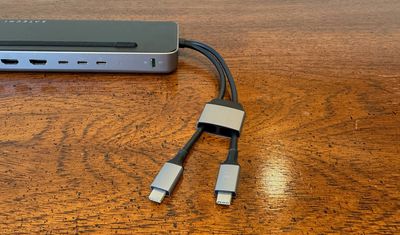
The dock is largely constructed of space gray aluminum with a black top, and there's some clean Satechi branding in white on the top, though all of this will be essentially invisible if you've got your Mac sitting on top of it. A 7.5-inch integrated dual cable sticks out one end of the dock, terminating in USB-C connectors for hooking the dock up to your computer. There's a space gray collar around the two connectors that spaces them perfectly to connect to adjacent USB-C ports on recent Macs with a single motion, or if you've got a compatible machine with different port spacing, the collar can slide back to give you more wiggle room with the individual connectors.
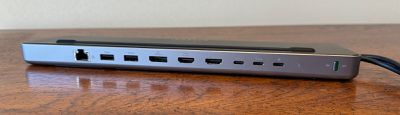
Most of the dock's other features are along the rear side, allowing you to route cables out of sight off the back of your desk. In addition to a color-coded sliding power switch and a white LED that confirms whether the dock has power, the USB-C Dual Dock Stand includes nine ports along the back side. There are two USB-C ports (one supporting up to 10 Gbps and one up to 5 Gbps), two USB-A ports (similarly with one at up to 10 Gbps and one at up to 5 Gbps), and a Gigabit Ethernet port if you need a wired data connection. For display compatibility, there are two HDMI 2.0 ports each supporting up to a 4K display at 60Hz, plus a DisplayPort 1.4 port also supporting up to 4K60Hz.
Depending on your Mac, the USB-C Dual Dock Stand can support up to two external displays, with either both connected via HDMI or one via HDMI and one via DisplayPort. The USB-C ports on the dock do not support video, so you can't connect external displays via that method. If you're running an Apple silicon Mac, you'll need one of the higher-level Pro or Max chips to support dual external displays in addition to the built-in display on your laptop. If your machine has a base M3 chip, you can run two external displays with the laptop lid closed, while machines with the base M1 or M2 chip are limited to one external display.
In addition to Apple silicon Macs, select Intel-based MacBook Pro and MacBook Air models are also supported, as are a handful of Windows machines such as the Microsoft Surface Pro 9 and Surface Laptop Studio, Lenovo Yoga 6 and 7i, Samsung Galaxy Book 3 Ultra, and Dell XPS 15.
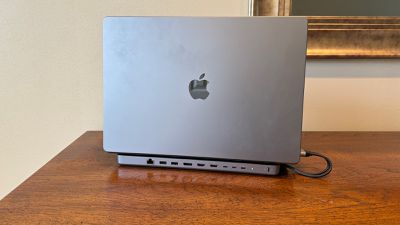
There's one final port on the rear of the dock, and that's a USB-C port for accepting incoming power. The dock can be bus-powered from the connected Mac, but performance under heavy load will be hampered. Using an external power adapter, which isn't provided in the box but should be readily available to most users, the dock can draw up to around 15 watts while providing up to 75 watts of passthrough power to the connected Mac, ensuring you only need one connection to your Mac for everything. I used the 140-watt Apple power adapter that came with my MacBook Pro, and it provided all the power the dock needed while I also saw 69 watts of power going to my Mac, which was plenty to refuel it quickly and keep it charged up during use.
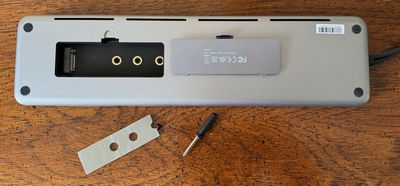
Beyond all of the rear ports. the USB-C Dual Dock Stand has one more trick up its sleeve, and that's a built-in SSD bay, letting you add some external storage (sold separately) to your Mac for backups or extra storage space without taking up any additional physical space. The enclosure accepts M.2 SATA and NVMe SSDs at up to 6 Gbps for SATA drives and 10 Gbps for NVMe drives. SSD sizes of 2242, 2260, and 2280 are all supported, and I used a fast 2 TB WD_BLACK NVMe drive in a 2280 size for my testing.
Installation was fairly simple, requiring easy removal of a cover on the bottom of the dock to access the drive bay and installation of an adhesive thermal pad to prepare for adding the SSD. From there, it was just a matter of sliding the SSD into the socket in the bay, pressing it flat, and securing it with the provided screw and screwdriver. Getting the tiny screw in the proper position down in the drive bay was a little bit of a finicky process, but it only took a couple of minutes to get everything assembled.
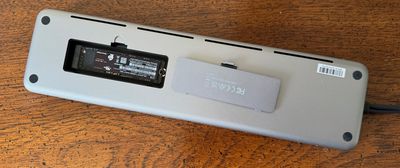
With the SSD installed in the dock, the drive mounts when the dock is connected to the Mac giving you easy to access to however much additional storage you've added. My testing showed write speeds of 975 MB/s and read speeds of 880 MB/s, and while there are certainly external enclosures out there that can support faster speeds with this drive, the performance was quite solid.
USB ports proved to be a bit more of a mixed bag. The ports on this dock are intended to be primarily for data use, so they don't provide significant charging capabilities. They offer enough power to support most low-demand accessories like a thumb drive or even my Stream Deck, but they struggle more with higher-power devices like bus-powered external SSDs. One of my test enclosures worked fine when connected to the 5 Gbps USB-C port on the dock, but my Mac threw up an error about drawing too much power when I connected the enclosure to the 10 Gbps USB-C port. So just be aware that while this dock provides some nice flexibility for USB connectivity, you won't be able to connect high-powered peripherals like Apple's SuperDrive or quickly recharge an iPhone.
Display connectivity is as you would expect, and I had no issues driving a pair of 4K external displays in either the dual HDMI or the HDMI/DisplayPort configuration. Displays hooked up via the dock looked good and I experienced no connectivity glitches. It's worth emphasizing that with no support for USB-C/Thunderbolt displays and a maximum of 4K supported over HDMI and Thunderbolt, you won't be able to use higher-resolution displays like the Apple Studio Display with this dock. But the popularity of 4K options means many users will already be using displays that do work.
I did notice that physically plugging and unplugging some of the beefier connectors like HDMI and DisplayPort from the dock could be a bit tricky as the dock tucked under my MacBook Pro tended to slide around a bit, but I got the hang of stabilizing the dock on its two ends while manipulating the connectors. Fortunately, one of the main points of a dock is to allow all of your peripherals to remain connected, so you shouldn't need to be plugging and unplugging both things very frequently.
Overall, Satechi's USB-C Dual Dock Stand offers a nice set of features for those looking to beef up their MacBook desk setup. It offers enough ports to provide some extra connectivity, plus the onboard SSD bay is a nice inclusion. The dock's form factor means it can be tucked cleanly out of the way while also offering some minor ergonomic benefits. And while it's around a foot long, the fact that it can include an onboard SSD and runs off of either bus power or the USB-C power adapter you probably have in your bag already, it's fairly portable.
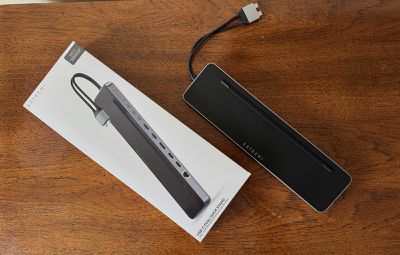
The dock is missing a few features like support for USB-C display connections and an SD card reader, but if its feature set meets your needs, it's worthy of consideration. While you can find some USB-C hubs with dual 4K display support for less, $150 really isn't a bad price considering the extra features this dock brings. Just remember you'll need to spend a bit more for the SSD to go inside it if you want to take advantage of that feature.
The USB-C Dual Dock Stand is available directly from Satechi for $149.99, but B&H Photo has it for $129.99 at the time of this review.
Note: Satechi provided MacRumors with the USB-C Dual Dock Stand for the purposes of this review. No other compensation was received. MacRumors is an affiliate partner with Satechi and B&H Photo. When you click a link and make a purchase, we may receive a small payment, which helps us keep the site running.

















































Top Rated Comments
But I do have several strong reservations:
* Since it is NOT Thunderbolt, you cannot use Apple's Studio Display or Pro Display XDR.
* Since it gobbles up 2 USB-C/Thunderbolt ports on the MacBook, you are effectively gaining only 2 USB ports. I would've preferred more USB-C ports instead of 3 ports for the displays.
* No SD slot.
* The cable is not braided.
* No Silver color option.
The SD slot I don’t care about since most modern MBPs have the slot on the side already which is easier to reach.
Not only should the cable be braided but it should also be angled.
No silver and no space black is a huge miss.
This dock is so close to being perfect for me.