

Logitech in May debuted the Circle View, its newest HomeKit-enabled home security camera equipped with Apple's HomeKit Secure Video feature, providing in-home video monitoring with greater privacy protections.
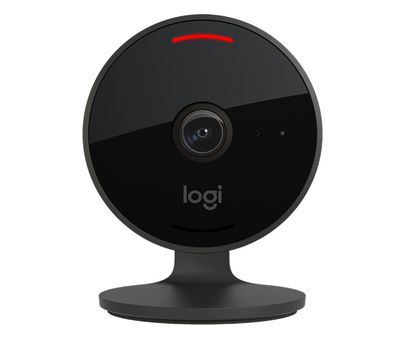
I've used Logitech's Circle cameras in my home for many years now and recently checked out the new Circle View to see how it compares to earlier Logitech home security cameras.
Design
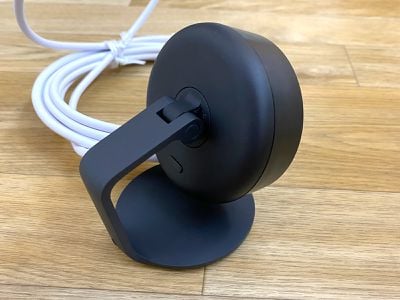
Logitech constructed the Circle View from a black matte aluminum with a hinged stand, and the overall design looks quite nice. It's flatter and more compact than the prior Circle 2, and it looks like a higher-quality accessory without the plastic body.
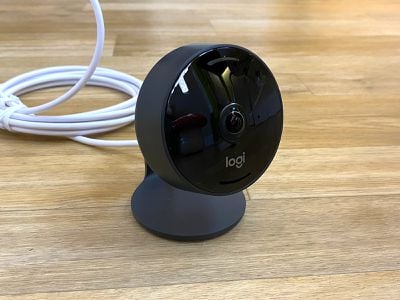
The hinge mechanism can be tilted up and down, and the camera itself can be rotated if you want to adjust the angle further. It's about as versatile as the ball hinge that was on the Circle 2 camera. The hinge allows the camera to tilt all the way down, close to flat, so you can position the camera in such a way to prevent it from seeing anything at all for privacy purposes.
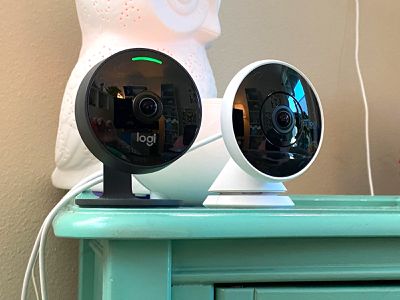
A small button on the back of the Circle View allows it to be switched off entirely without the need to unplug it or use the app to cut power. A front-facing LED (that can be disabled) lets you know when the camera is active.
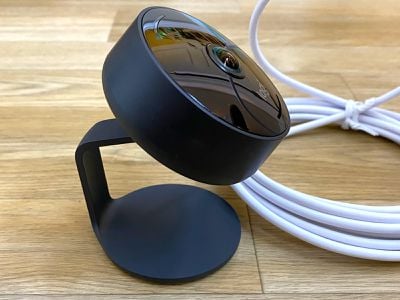
The Circle View is weatherproof so it can be placed outside, but it does need a power source because this is a wired camera. I didn't test the Circle View outside, but I'd be wary of too much moisture exposure. I did spill an entire La Croix on it and then proceeded to knock it three feet down onto a hard surface without breaking it, so it's at least somewhat durable.
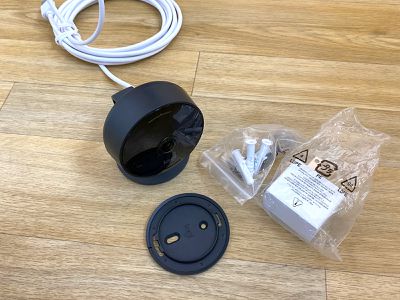
The Circle View has a permanently attached USB-A cable (no USB-C unfortunately) that plugs into a power adapter, but you would need some kind of protected enclosure for the power adapter if you're planning to use it outside because it's not waterproof.
The design allows for placement on a flat surface like a table or on a wall, and it ships with the necessary wall mounting hardware.
Video Quality
The Circle View has a 1080p camera with a 180-degree diagonal field of view, which is identical to the prior-generation Circle 2. Logitech says there's a wider dynamic range that provides more detail in sunlight or shadows, and in my testing, that seems to be accurate.
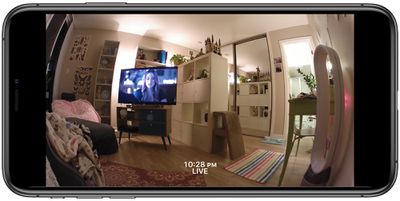
The 1080p video quality of the Circle 2 was already decent for a home security camera, but I can see some minor improvements in lower lighting conditions and in situations where there's a lot of contrast between light and dark areas. The 180-degree field of view is able to capture most of a room, though since this is such a wide field of view, there's some distortion to be aware of.
There are much higher resolution cameras on the market, even 4K, so this isn't the best option if you're looking for the highest possible video quality.
When it's dark, the Circle View switches over to a night vision mode that uses infrared. It offers 15 feet of visibility, so you can continue to monitor a room even if the lighting is poor or non-existent. Night mode works the same as it did with the Circle 2, and it's adequate for capturing footage at night.
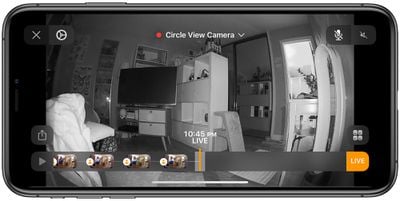
Actually accessing footage from the camera in the Home app is streamlined and quick. Tapping on the camera in the Home app loads the live camera view immediately, and there's generally no pause or wait time, but I have noticed some lagging and stutters when viewing recorded content.
Different security cameras work in different ways, and with the Logitech cameras, recording is not continuous. Video clips are recorded and saved to iCloud when motion is detected.
Setup
Setting up the Circle View is as easy as any other HomeKit product. Open up the Home app, scan the HomeKit code, and follow the instructions to add it to a HomeKit setup.
It's worth noting that the Circle View needs to be connected to a 2.4GHz WiFi network, which can be a hassle when home routers don't distinguish between the 2.4 and 5GHz networks. If setup isn't working, it may be because a 2.4GHz connection is necessary, so make sure to connect the iPhone to a 2.4GHz network before starting the setup process.
HomeKit Secure Video Features
With HomeKit Secure Video, recorded footage is stored in iCloud and it is end-to-end encrypted, which offers greater security and privacy than most other cameras on the market that use their own servers.
I've always been a bit wary of cameras in my home because I don't know how secure the platforms are, and the end-to-end encryption offered by iCloud is reassuring. With iCloud, I'm more confident that my home security cameras won't be breached.
To view the camera remotely when away from home or to get notifications about activity, a home hub is required. Home hubs that work with HomeKit Secure Video include a HomePod with iOS 13.2 or later, an Apple TV with tvOS 13.2 or later, or an iPad with iPadOS 13.2 or later.
There are no subscription fees required to use the Circle View, so there won't be a monthly fee to pay Logitech, but using HomeKit Secure Video does require a higher tier iCloud storage plan.
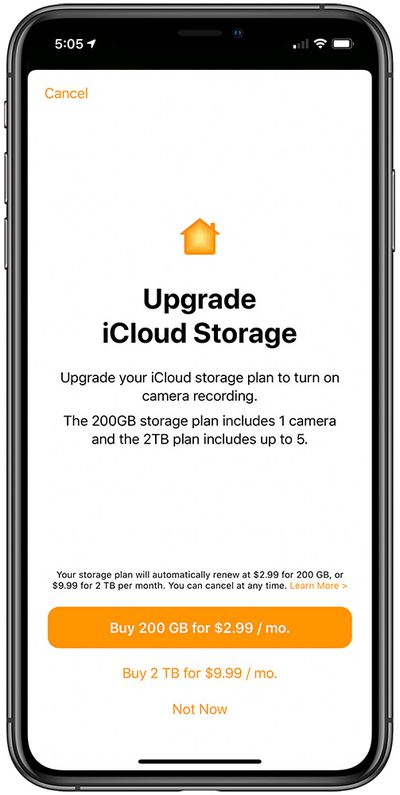
Apple requires a 200GB iCloud storage plan for a single HomeKit Secure Camera and a 1TB iCloud storage plan for up to five HomeKit Secure Cameras, though the data used by storing recordings in the cloud does not count against your overall data storage caps. A 200GB iCloud storage plan is priced at $2.99 per month, while 1TB of storage costs $9.99 per month.
Footage uploaded to iCloud is saved for 10 days, which seems like a good length to me. I've rarely needed footage after a few days in years of using security cameras because recordings can be saved to the Photos app.
You can use the camera in a stream only mode that that allows you to see the live stream as it happens, but without recording footage. Stream only mode is free to use and does not require the upgraded storage plan. As soon as you choose to enable recording in the settings section of the Home app, though, it will require an iCloud plan upgrade. There is no local storage option available.
Home App
I was surprised to find that the Circle View is designed to work solely with the Home app - there's no accompanying app from Logitech and it isn't compatible with the existing Logi Circle app for older Logitech home security cameras.
All streaming video and recorded video is viewed in the Home app, with a live feed available either on the main interface screen for devices that are favorited, or through the interface for each individual room in a HomeKit setup.
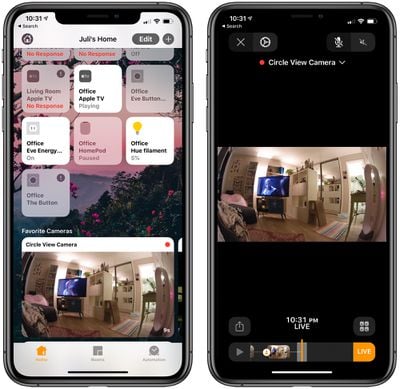
Long pressing on the camera feed brings up some app settings, where you can check for firmware updates, change the room an accessory is in, turn notifications on or off, and more, with details below.
It's unusual for a HomeKit product to have no accompanying app outside of the Home app, so when comparing to the Circle 2, there are missing features, such as the Day Brief that aggregates recorded footage into a minute-long video, and I don't like Apple's recorded footage interface quite as much as Logitech's. The Day Brief has long been one of my favorite Circle features, so I missed it in the Circle View.
The Home app displays footage stored in iCloud in a timeline view with a slider button at the bottom that you can scroll through using swipe gestures. Notable events, such as when a person is detected, are denoted with an icon so if you're scrubbing through a recording, you can see important moments at a glance.
A date slider at the top of the interface lets you choose the day that you want to look through if you have multiple days of footage recorded.
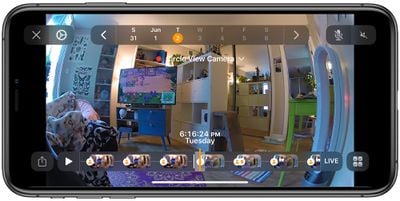
Footage is stored in short snippets (about 15 to 30 seconds) whenever motion or movement is detected, and if you select a snippet, you can share it through the Share Sheet interface, uploading it to a social network, sending it through Messages or Mail, or saving it to the Photos app. You can also delete snippets by tapping on the trashcan icon.
Motion Detection
The Circle View can detect general motion, vehicles, people, and pets. Identifying what's causing the motion, such as a person or a pet, is done with machine learning on the iPhone itself, so it's not being uploaded to the cloud for evaluation as with some other services.
In my experience, the pet and person detection features were accurate. Whenever the camera detected me I got an accurate person detection notification, and it was also great at detecting my cat when she walked by the camera. Since my camera is indoors, I wasn't able to test the vehicle detection.
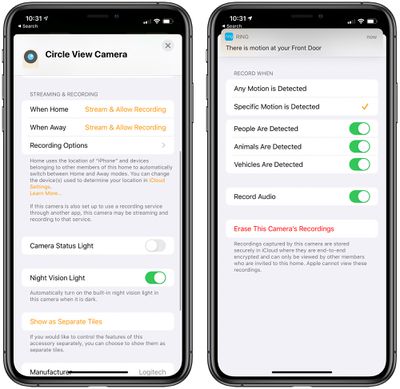
The Circle View camera can be set to record video based on what's detected. So you can set it to record whenever any motion is detected or when specific motion is detected, i.e., a person, an animal, or a vehicle.
A lot of home security cameras have motion zones that you can set up - that's not an option with the Home app. It's all or nothing.
Settings
All of the motion detection options are in the settings section of the Home app for the Circle View camera, which also houses an option to toggle off (or on) audio recording, and an option to erase all of the recordings from the camera stored in iCloud, which is a nice feature that a lot of other home security cameras don't offer.
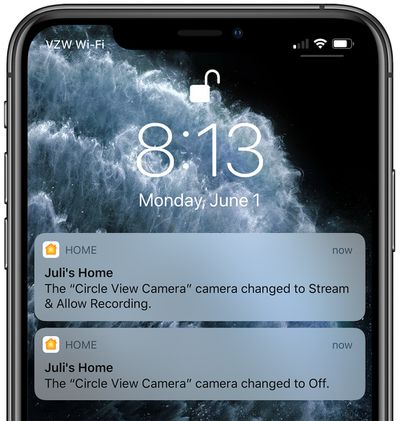
There are also options to change streaming and recording settings based on when you're home and when you're away, and there are a surprising number of granular settings that make the Circle View unique when it comes to privacy.
- Off - Turns video streaming and recording off entirely. The camera does not detect activity, trigger automations, or send notifications.
- Detect Activity - Lets the camera detect activity to trigger automations and send notifications, but no one can view the video stream and nothing is recorded.
- Stream - The Circle View's camera stream can be viewed in the Home app but no video is recorded. Also triggers automations and motion notifications.
- Stream & Allow Recording - Full access. The camera stream can be viewed in the Home app and activity detected by the camera is recorded. Also triggers automations and motion notifications.
Each of these four settings can be enabled separately for when you're home and when you're away (based on your location and using geofencing) so you can turn the camera off when you're home and then automatically set it to record and stream while you're away if desired, or anything in between. As I mentioned before, there's also the physical button on the camera itself that turns it off and stops recording.
There are settings for turning the camera status light off (the light that lets you know that recording is happening) and the night vision toggle for recording at night.
All in all, the Circle View camera offers full control of what's recorded and when it's recorded, and breaks it down so you can easily create different settings for when you're home and when you're away. If you're someone that's concerned about cameras recording while you're in your home, this is a hassle-free way to have a setup that records only when you're gone.
Automations
In the Home app, the Circle View is listed as having three functions that can be broken out and viewed separately or kept as a single tile in the app. It has the video stream, a motion sensor, and a light sensor.
The light sensor and the motion sensor can be used in HomeKit automations to activate a specific scene when motion (or a specific light level) is detected. So, for example, if there's a camera in the living room, it can be set to turn the living room lights on when motion is detected.
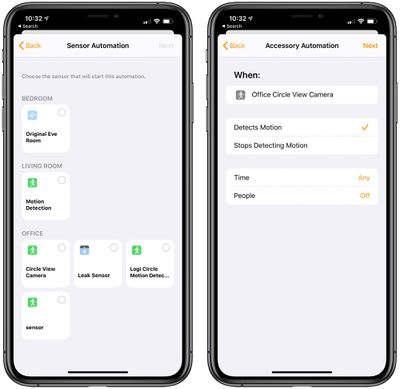
There are quite a few parameters to work with in automations, so motion detection scenes can use time of day, geofencing, and other options to activate other HomeKit products as desired. I set up a scene to turn all of my lights bright red when motion is detected in my office after midnight, which would hopefully scare off any would-be intruders.
The light level setting is useful to turn HomeKit accessories on when the camera detects that it's gotten dark in the room.
Notifications
The Circle View camera can send rich notifications that include a snapshot of what's going on so you can see at a glance if it's something that you need to address. Tapping on a notification plays a clip of what was recorded or goes straight to a live view depending on your camera settings and when you access the notification.
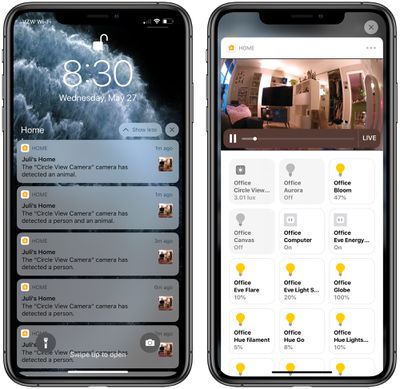
There is an option to turn off snapshots in notifications, which would prevent notifications from being sent with the aforementioned photo. There are also settings for getting notifications when the camera changes from one mode to another (such as on when away and then off when home).
Notifications for the Circle View camera need to be set up carefully because it sends a notification every time motion is detected, and that's a lot of notifications if you're at home. In testing the camera while I was at home, it was sending notifications about every 30 seconds as I moved around my office.
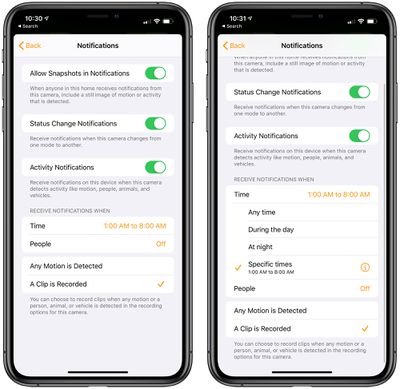
Luckily, there are settings to limit the notifications to specific times, when specific people are out of the house, or both. I set my camera to send notifications from 1:00 a.m. to 8:00 a.m., which is generally when I'm out of my office. If I get a notification between those hours, I know it's something I should take a look at.
Notifications can also be delivered only when you're away from home. There's a further breakdown that allows the Home app to send notifications when any motion is detected or when a clip is recorded after a person, animal, or vehicle is detected, which is the setting that I have enabled.
Bottom Line
If you're looking for a HomeKit-enabled home security camera that has the privacy features of HomeKit Secure Video, the Circle View is worth considering. It's expensive, but recorded footage is kept in iCloud with end-to-end encryption, motion detection is done on device, and the rich notifications are useful.
Quality wise, the 1080p camera captures crisp, clear footage even in low lighting conditions and at night, and the field of view allows for an entire room to be monitored. I missed some of the features that were available with prior Circle cameras, like Day Brief, but the missing options weren't dealbreakers for me.
There's no fee associated with the Circle View except for the higher-tier iCloud plan, and the Home app is easy enough to use for viewing and managing recorded footage, notifications, and other settings.
Privacy is second to none when it comes to the Circle View, and there are multiple ways to prevent the camera from recording when you don't want it to record, so it's ideal for people who are wary of having cameras in the home but still want the security of video footage when away.
How to Buy
The Circle View can be purchased from the Logitech website for $160.
Note: Logitech provided MacRumors with a Circle View camera for the purpose of this review. No other compensation was received.

















































Top Rated Comments
5 years down the road they are likely to be obsoleted by whatever "standards" Apple or Logitech decides to adopt, and of course they won't update older devices because they want to sell you new devices.
Anyone have real world experience to share?
HomeKit requires 2.4Ghz. There's no point to 5Ghz on a dedicated HSV camera like this one. Also HSV is limited to 1080P, so that Arlo 4K camera is way overqualified to be an HSV client.
Solid review, although I think it could have been more explicit that was was really being reviewed was HomeKit Secure Video. Any HSV camera becomes just a dumb client for Apple's HSV infrastructure. This is why there is no Circle app for The Circle View camera -- there wouldn't be anything for it to do, or indeed that it could do since it would have no access to the camera's encrypted video. That's the whole point of HSV.
So, virtually this entire review would be the same for a Circle 2 camera running HSV, or any of the Eufycams that support HSV (or will). The experience is entirely provided by Apple, with the exception that the camera supplies the lens and the video stream. Even then, if the camera is capable of better than 1080P video, it will get dumbed down because HSV is limited to 1080P. So if you're going to run HSV, you might as well get the cheapest camera you think will last, because you'll get exactly the same options and experience as any other HSV camera available.
I really hope Apple announces upgrades to HSV at WWDC later this month.