

People compress electronic files for different reasons – to make them easier to transport electronically, to organize their backups, or to save device storage space, for example.
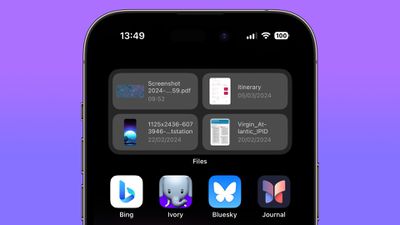
That's why Apple's native Files app supports the common ZIP compression format, which means you can uncompress zipped files downloaded in Safari, or compress several files into one neat zipped package ready for sharing, right on your iOS device. Keep reading to learn how it works.
- Uncompress a Zip File on iPhone and iPad
- How to Compress a File or Folder on iPhone and iPad
- How to Compress Multiple Files in a Single Zip on iPhone and iPad
How to Uncompress a Zipped File on iPhone and iPad
- Launch the Files app on your iPhone or iPad.
- Find the zip file that you want to uncompress.
- Press and hold on the zip file, then select Uncompress from the contextual menu.
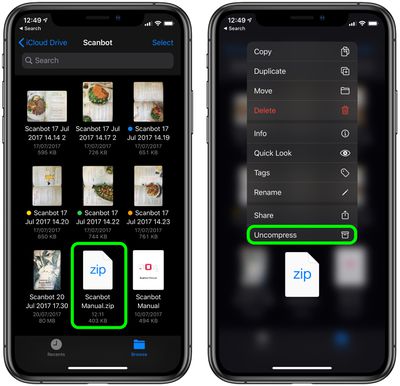
The uncompressed files will be saved in the same location as the original zip file, which is now safe to delete.
How to Compress a File or Folder
- Launch the Files app on your iPhone or iPad.
- Find the file or folder that you want to compress.
- Press and hold on the file or folder, then select Compress from the contextual menu.
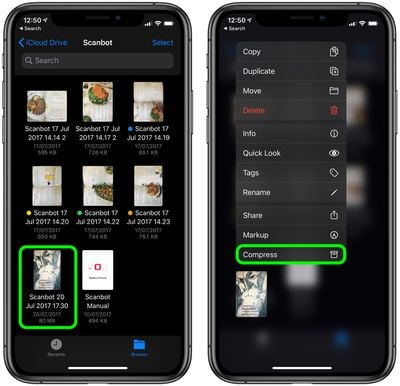
The new compressed zip file containing your file/folder will be automatically saved in the same location as the originals.
Compress Multiple Files in a Single Zip
- Launch the Files app on your iPhone or iPad.
- Find the files and/or folders that you want to compress.
- Tap the ellipsis (three dots) button in the top-right corner of the screen, then choose the Select option in the dropdown menu.

- Tap on the files/folders you want to include in the zip to select them.
- Tap the ellipsis button (three encircled dots) in the bottom-right corner of the screen.
- Select Compress from the pop-up menu.
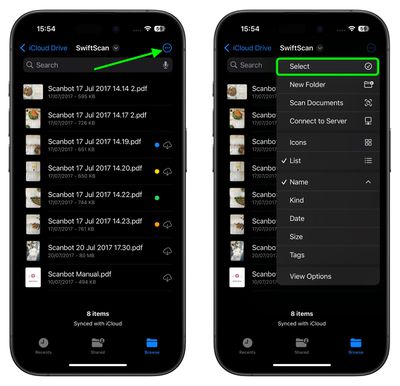
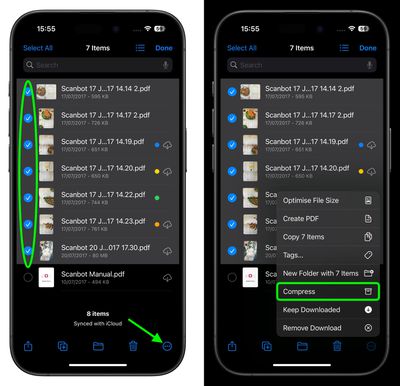
The new compressed zip file containing your files/folders will be automatically saved as "archive.zip" in the same location as the original files. To rename it to something more recognizable, simply press and hold the zip, then select Rename from the contextual menu.

















































