

For $24.99 per year, or about two dollars per month, iTunes Match keeps all of your music in iCloud so you can access any song at any time from any device instead of picking and downloading your favorite playlists every time you sync your device. Plus, Apple will provide you with high quality playback using 256 Kbps AAC DRM free versions of your music, even if your original copy was lower quality.
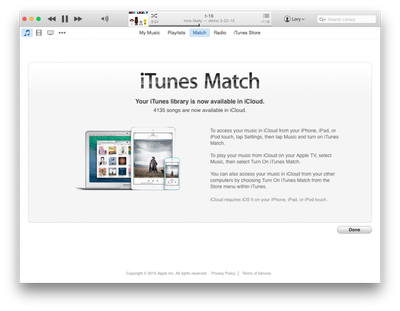
Some users may not be entirely familiar with how the service works, so we've put together this tutorial that explains the process of how to subscribe to and use iTunes Match on your computer and iOS devices.
How iTunes Match Works
In November 2011, Apple released iTunes Match in the United States, gradually expanding availability over time and now offering the subscription service in over 115 countries. The service is designed to let you store up to 25,000 songs in iCloud that can be accessed from any Apple device at any time. Music you have purchased through the iTunes Store does not count against your maximum capacity.
Every song that you've added to your music library in iTunes via CD or digital download, including music from the iTunes Store or another source, can be stored in iTunes Match.
Once you have subscribed to the service, iTunes determines which songs in your collection are available in the iTunes Store, and those songs are automatically added to iCloud. Songs that don’t exist in the iTunes Store already are uploaded to iCloud from your computer. Once songs are made available via iCloud, you can play back music on any device that your Apple ID is connected to. Up to 10 devices are supported.
On a PC or Mac, music is streamed over the air, although you can download songs to your computer by selecting the iCloud download button. On iOS, songs download to your device as they are played, and you can also manually download music by tapping the iCloud download button. You can only stream songs on Apple TV.
How to Match or Upload Songs to iTunes Match
After you have subscribed to iTunes Match, the service will scan your device and automatically add any music that is already available through the iTunes Store. It is similar showing up with your CD collection at a friend’s house and he tells you he already has 89 out of 100 of your albums. Those songs are just there, waiting for you to play.
The other songs will be uploaded from your music library in iTunes to iCloud. This can take some time, depending on how many songs must be uploaded. Once uploaded, they won't have to be added again, so even if you turn off iTunes Match on one of your devices, it will take less than a minute to add iTunes Match back on it.
Any time you add new music, whether from a CD, through the iTunes Store, or from another digital download, it will automatically be uploaded or added to iTunes Match. Once synced, you will be able to access the new music across all of your devices.
The first thing you will need to do is turn on and subscribe to iTunes Match.
On Mac or PC
- Open iTunes and select "iTunes Store" from the options at the top of the window.
- Select "iTunes Match" from the menu on the right side of the iTunes window.
- Click on the "Subscribe for $24.99 per year" button under iTunes Match. Pricing and currency varies from country to country, but the signup process is the same.
- Enter your Apple ID and password to confirm your purchase.
- Wait for iTunes Match to finish scanning your music library and adding songs to iCloud.
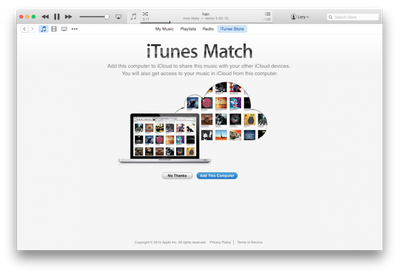
Once you have subscribed to iTunes Match, every computer with iTunes that your Apple ID is associated with will be able to access all of the same music. Follow the instructions above to access your iTunes Match music on additional computers, but during step 3, instead of clicking "Subscribe," you will be prompted to "Add This Computer."
On iOS
- Open the Settings App.
- Select iTunes & App Store from the list of available options.
- Select "Subscribe to iTunes Match."
- Select "Subscribe to iTunes Match for $24.99 per year."
- Enter your Apple ID and password to confirm your purchase.
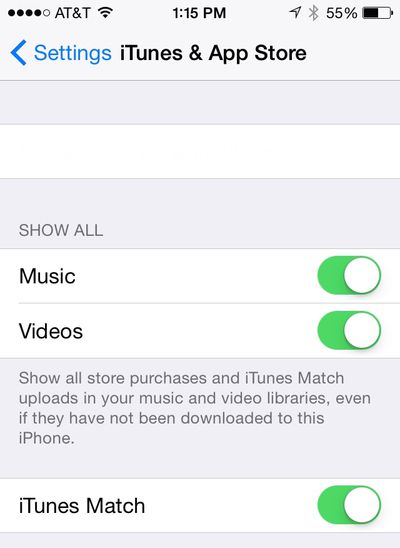
If you have already subscribed to iTunes Match from a different device, instead of seeing "Subscribe to iTunes Match" in step 3, you will see a toggle switch to turn the feature on.
Streaming or Downloading Music Using iTunes Match
Once you have subscribed and your devices are activated, iTunes Match will match or upload all of your music. You will then notice that all of your songs have a small cloud icon next to them. You can either stream your music in iCloud using Wi-Fi or Cellular or download songs from iCloud onto your device for offline listening.
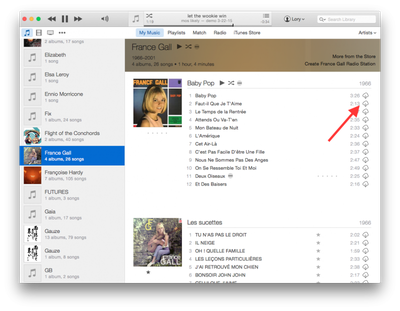
To stream music find the album, artist, or playlist you wish to listen to. Then, tap the song you wish to hear and it will begin playing.
To download music onto your computer or iOS device, tap the cloud icon next to a song or album. This will put the selected songs onto your device so you can listen to them without the need of a Wi-Fi or cellular connection.
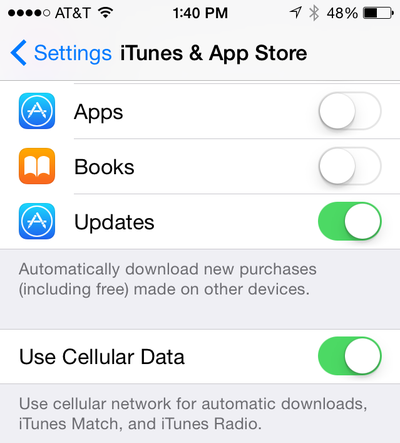
Incidentally, iTunes Match is defaulted to only play when you are on a Wi-Fi network. This restriction is in place to protect you from accidentally going over your Cellular limit. However, you can turn on the ability to use cellular data to stream iTunes Match.
- Open the Settings app on your iOS device.
- Select iTunes & App Store from the list of available options.
- Turn on Use Cellular Data by tapping the toggle switch.
Troubleshooting
Cannot Play Back Songs
The first thing you should do is to ensure all of your music is completely added to iTunes Match. If it is still being added, some songs may not play back. You can temporarily disable iTunes Match on your device and then re-enable it after iTunes Match has completed its uploading process.
There could be an issue with your Internet connection. Make sure your Wi-Fi network is working properly. If you are not connected to Wi-Fi and want to play music using Cellular Data, make sure the feature is turned on by following the instructions above.
Missing Songs
Due to DRM issues, some songs may appear grayed out, or not show up on one of your devices, even though they are in iTunes Match. You may need to authorize your computer to play those songs.
- Open iTunes.
- Click on Store in the menu bar.
- Select "Authorize this Computer."
- Enter your Apple ID and password.
- Click Authorize.
- Click on Store again.
- Select "Update iTunes Match."
Missing Album Artwork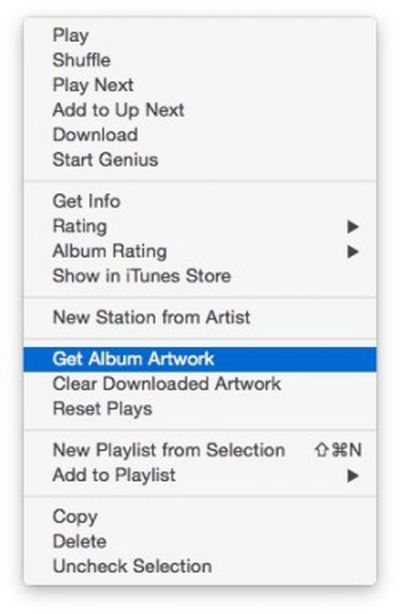
If songs in your music library have artwork that is missing when you download them onto another device, try these instructions to restore the images:
- Open iTunes on your computer.
- Right-click or control-click on an album that is missing artwork.
- Select "Get Album Artwork" from the list of available options.
- Click on Store in the menu bar.
- Select "Update iTunes Match."
- Once iTunes Match has finished updating, launch the Music app on your device.
- Find the songs that are missing artwork and delete them by swiping to the left on those songs.
- After deleting the songs, download them again from iCloud by tapping the download icon.
Duplicate Playlists
If you see playlists displayed twice on your iOS device, you will probably need to delete duplicates on iTunes manually.
- Open iTunes on your computer.
- Select the Playlists tab in iTunes.
- Select the playlist you wish to remove from the list on the left side of the window
- Right-click or control-click on the selected playlist.
- Select Delete from the available options.
- Open the Music app on your iOS device. It should be gone. However, it may take a few minutes to remove if your Internet connection is slow.
If you have any other issues or problems using iTunes Match, leave us a comment and we and our forum community will see what we can do to help.















Top Rated Comments
It's safe to say we won't be going that far. ;)
We have such a great forum community here dedicated to discussion and troubleshooting, so we thought how-tos would be a natural extension of what people are already talking about in the forums and why many people even come to MacRumors in the first place.
It's still early and we're still feeling out what directions to take with these, but so far they are proving fairly popular.
Not every article is going to appeal to every reader, but we're hoping to develop a good mix to target the vastly different types of people who visit the site on any given day. Feedback (particularly constructive) is always appreciated. :)
Dude. You are spewing hate. Chill
I bet you more people visit macrumors for help then apple.com. So while your comment may be valid for you, it probably helps a lot of other users.
Sure, but a 100% streaming service and iTunes Match aren't the same thing.