Despite strong competition from the likes of Telegram and Signal, WhatsApp remains the most popular messaging platform by a mile. At the last count in 2020, the Facebook-owned service had more than 2 billion WhatsApp users around the globe and rising.
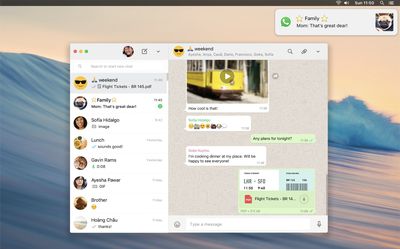
If you consider that it had 1.5 billion users in 2018 and 1 billion in 2016, then the number of active WhatsApp accounts has been increasing at half a billion every two years.
In 2018, the service said it was host to 64 billion encrypted messages on its most successful day. While the vast majority of these messages will have been exchanged over smartphones, it is possible to use WhatsApp on a Mac. Keep reading to learn how.
How WhatsApp Works on Mac
There are two principle ways that you can access your WhatsApp account from your Mac. You can use the WhatsApp website for a web-based experience, or if you don't like the sound of that, you can use a separate chat client instead.
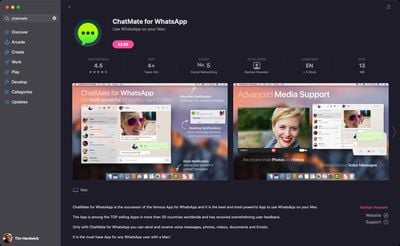
WhatsApp offers its own free WhatsApp Desktop app available on the Mac App Store, where you'll find other third-party WhatsApp clients also available, such as FreeChat and ChatMate. Which one you choose is a matter of preference, because they all basically do the same thing – let you access and participate in your WhatsApp conversations on your Mac.
How to Use WhatsApp on Your Mac
- Open a browser on your Mac and navigate to the WhatsApp Web website. Alternately, launch WhatsApp Desktop for macOS or a third-party WhatsApp-supporting app.
- Launch WhatsApp on your iPhone.
- Tap Settings.
- Select WhatsApp Web/Desktop.
- Tap the big blue Link a Device button.

- Point your iPhone's camera at your Mac's screen to capture the QR code shown on the WhatsApp Web website or within the desktop app you're using.
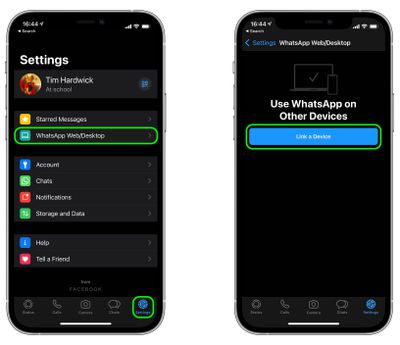

Once the QR code is scanned and the sync is complete, you'll be able to see all the conversations that you've had on your iPhone right there on your Mac. You'll also have the ability to send and receive text and voice-based messages, get involved in group chats, and have access to all of the other things that you're used to doing on your iPhone, just now on your Mac's desktop as well.
How to Unlink WhatsApp on Your Mac
You can unlink your WhatsApp account from the computer you're using anytime by following these steps.
- Launch WhatsApp on your iPhone.
- Tap Settings.
- Select WhatsApp Web/Desktop.
- Under "Device Status," select the browser or app that you previously linked your account to.
- Tap Log Out.
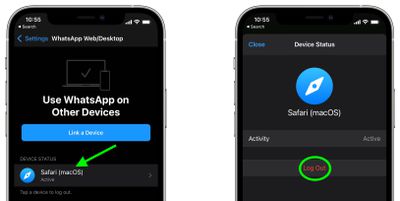
Now that you've unlinked your account from the computer, nobody else who later uses it will have access to your WhatsApp conversations.