In iOS 26, Apple has extended Visual Intelligence to work with content that's on your iPhone, allowing you to ask questions about what you're seeing, look up products, and more.
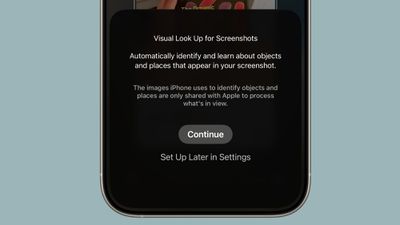
visual lookup ios 26
Visual Intelligence started out in iOS 18.2 as a Camera Control button function that can describe what you are looking at, get details about a restaurant or business, translate text, and the like.

But in iOS 26, Visual Intelligence is no longer just for learning more about your physical surroundings. You can also use the feature to analyze content on your iPhone screen, simply by pressing the same buttons you use to take a screenshot.

You can search across apps, go straight to relevant websites, add an event to your calendar, and more. Keep reading to learn what you can do with it. Note that Visual Intelligence is an Apple Intelligence feature of iOS 26 that's exclusive to the iPhone 15 Pro, iPhone 16 series, and iPhone 17 series (including iPhone Air).

Use Visual Intelligence With Screen Content

Start by taking a screenshot: Quickly press and release the iPhone's Side button and the Volume Up button at the same time.
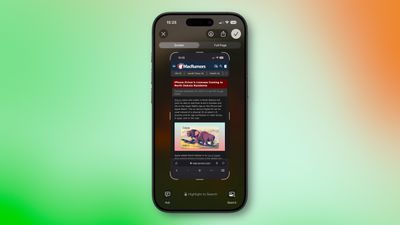
screenshot ios 26
Once the screenshot interface appears, you'll see Visual Intelligence options along the bottom. The options offered up will depend on the content, but they let you interact with what you've just captured in several ways.

  • Search for Similar Items: Tap Search to look up the selected item on the web. This is useful when you want to find matching products, related images, or more information about what's in the screenshot.
  • Highlight and Search a Specific Item: If only part of the screenshot interests you, swipe your finger over that area to highlight it, then tap Search. The search will focus on the highlighted object rather than the whole image.
  • Ask a Question About What's Onscreen: Tap Ask to open a text box where you can pose a question to ChatGPT about the screenshot's contents. For example, you can ask for an explanation of a term or details about an object.
  • Add an Event to Your Calendar: If the screenshot includes a date or event information, tap Add to Calendar to create a new calendar entry without leaving the screenshot view.
  • Open a Website: When the screenshot contains a web link, you'll see tappable links at the bottom that will take you straight to the relevant site.
  • Summarize Text: Tap Summarize to generate a concise summary of the visible text.
  • Listen to Text: Tap Read Aloud to have the text in the screenshot spoken to you.
  • Identify Plants or Animals: If the screenshot contains a plant or animal, tapping its tag will reveal its name and further information about it.

When you're done with the screenshot, you can either tap ✖ to discard it or ✔ to keep it in your Photos library.

Top Rated Comments

cbaca51 Avatar
19 weeks ago
Wish there was a dedicated app to access this and having to screenshot a screenshot if I wanna search a screenshot. Very annoying
Score: 3 Votes (Like | Disagree)
Fraserpatty Avatar
19 weeks ago
I know this is a dumb question please bear with me. Is this an iPad feature also?
Score: 2 Votes (Like | Disagree)
nikhsub1 Avatar
18 weeks ago
Wow, just made a discovery! If your language in Siri is Britain, You can NOT turn apple intelligence on - the toggle disappears! Once I set the language to US English, the toggle slider appeared. Wild.
Score: 1 Votes (Like | Disagree)
macdaddy43 Avatar
18 weeks ago
Very poor implementation of “Apple Intelligence”. This is literally google reverse image search that has been around for AGES, or you can upload it to a competent AI (ChatGPT) and get an actual response.

I’ve tried it probably a dozen times already and every single time it has either been completely inaccurate, or completely irrelevant. This is just another Apple Intelligence gimmick, locking basic computing behind AI. For those of you that don’t have Apple Intelligence, I promise, you aren’t missing out on anything.
Score: 1 Votes (Like | Disagree)
jm22381 Avatar
19 weeks ago
I can't believe that what is a glorified Google Lens can't be used on older iPhones.
Score: 1 Votes (Like | Disagree)
Alhagar Avatar
19 weeks ago
I am most excited about add to calendar but cannot for the life of me get it to work even when there are clearly dates and times on the screenshot. What does the “Add to Calendar” button look like? Can someone share a screenshot? Thanks!
Score: 1 Votes (Like | Disagree)

Popular Stories

Aston Martin CarPlay Ultra Screen

Apple's CarPlay Ultra to Expand to These Vehicle Brands Later This Year

Sunday February 1, 2026 10:08 am PST by
Last year, Apple launched CarPlay Ultra, the long-awaited next-generation version of its CarPlay software system for vehicles. Nearly nine months later, CarPlay Ultra is still limited to Aston Martin's latest luxury vehicles, but that should change fairly soon. In May 2025, Apple said many other vehicle brands planned to offer CarPlay Ultra, including Hyundai, Kia, and Genesis. In his Powe...
Apple Logo Black

Apple's Next Launch is 'Imminent'

Sunday February 1, 2026 12:31 pm PST by
The calendar has turned to February, and a new report indicates that Apple's next product launch is "imminent," in the form of new MacBook Pro models. "All signs point to an imminent launch of next-generation MacBook Pros that retain the current form factor but deliver faster chips," Bloomberg's Mark Gurman said on Sunday. "I'm told the new models — code-named J714 and J716 — are slated...
iOS 26

iOS 26.3 and iOS 26.4 Will Add These New Features to Your iPhone

Tuesday February 3, 2026 7:47 am PST by
We are still waiting for the iOS 26.3 Release Candidate to come out, so the first iOS 26.4 beta is likely still at least a week or two away. Following beta testing, iOS 26.4 will likely be released to the general public in March or April. Below, we have recapped known or rumored iOS 26.3 and iOS 26.4 features so far. iOS 26.3 iPhone to Android Transfer Tool iOS 26.3 makes it easier...
Apple MacBook Pro M4 hero

New MacBook Pros Reportedly Launching Alongside macOS 26.3

Sunday February 1, 2026 5:42 am PST by
Apple is planning to launch new MacBook Pro models with M5 Pro and M5 Max chips alongside macOS 26.3, according to Bloomberg's Mark Gurman. "Apple's faster MacBook Pros are planned for the macOS 26.3 release cycle," wrote Gurman, in his Power On newsletter today. "I'm told the new models — code-named J714 and J716 — are slated for the macOS 26.3 software cycle, which runs from...
iOS 26 Home Feature

Apple Gives Final Warning to Home App Users

Tuesday February 3, 2026 8:55 am PST by
In 2022, Apple introduced a new Apple Home architecture that is "more reliable and efficient," and the deadline to upgrade and avoid issues is fast approaching. In an email this week, Apple gave customers a final reminder to upgrade their Home app by February 10, 2026. Apple says users who do not upgrade may experience issues with accessories and automations, or lose access to their smart...