How to Use Screen Time on Mac - MacRumorsOpen MenuShow RoundupsShow Forums menuVisit ForumsOpen Sidebar
Skip to Content

How to Use Screen Time on Mac

by

With the release of macOS Catalina, Apple introduced Screen Time functions that enable users to keep track of their usage and place self-imposed limits on the time they spend using their Mac. Screen Time also serves as a parental control system, since it can be used to place restrictions on what a child can access, who they can contact, and how long they spend on apps, websites, and more.
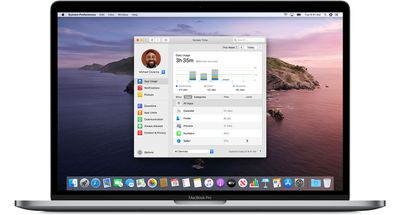
macos catalina 10 15 4 screen time hero
This article explains how to use Screen Time on your Mac and covers the following subjects. Click one to go straight to it.

How to Enable Screen Time on Mac

Make sure that your Mac is running macOS Catalina, then follow these steps:

  1. Launch System Preferences from your Mac's Dock, from the Applications folder, or from the Apple menu bar ( -> System Preferences...).
  2. Select Screen Time in the preference panel.
    sys prefs

  3. Click the Options button in the bottom-left corner.
  4. Click the Turn On button in the top-right corner.
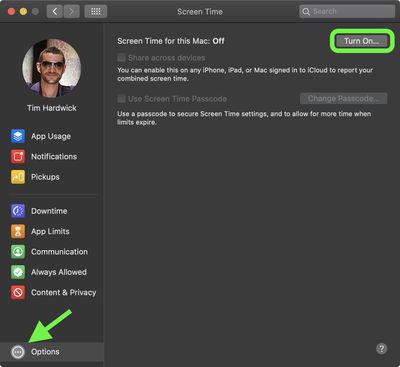
    turn on screen time mac

How to Disable Screen Time on Mac

To stop using Screen Time on Mac, follow these steps:

  1. Launch System Preferences from your Mac's Dock, from the Applications folder, or from the Apple menu bar ( -> System Preferences...).

  2. Select Screen Time in the preference panel.
  3. sys prefs

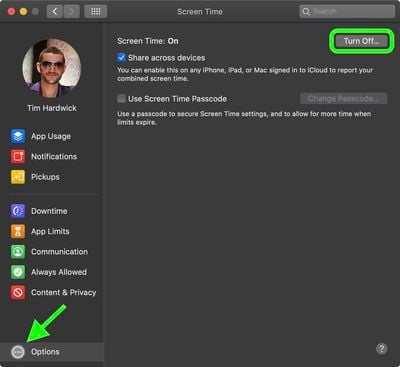
  4. Click the Options button in the bottom-left corner.
  5. Click the Turn Off button in the top-right corner.
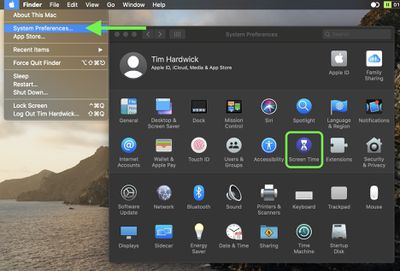
  6. turn off screen time mac

How to Use a Screen Time Passcode on Mac

Setting a password in Screen Time on Mac allows you to secure your settings. You can also use the password to extend the allotted time for users.

  1. Select Screen Time in System Preferences.

  2. Click the Options button in the bottom-left corner.

  3. Check the box next to Use Screen Time Password, then enter a passcode to use.
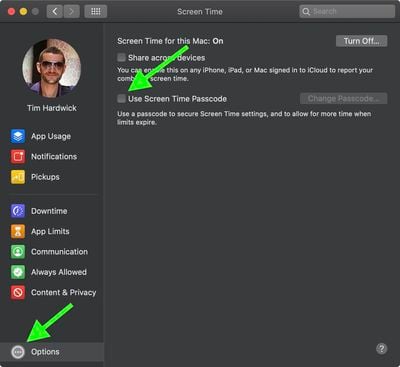
    screen time

How to Share Screen Time Across Devices on Mac

Sharing Screen Time across all of your devices allows you to get a more accurate idea of how much time you spend online. First though, you have to enable sharing:

  1. Select Screen Time in System Preferences.
  2. Click the Options button in the bottom-left corner.
  3. Check the box next to Share Across Devices.
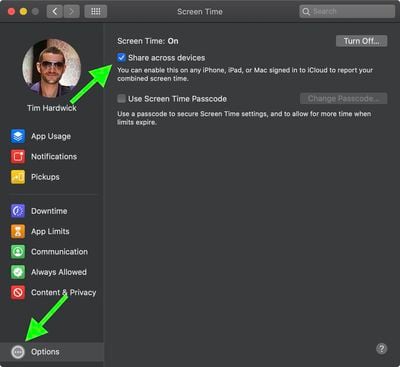
    screen time

How to View App Usage in Screen Time on Mac

  1. Select Screen Time in System Preferences.
  2. Select App Usage in the sidebar.
  3. Check your app usage. You can break it down by day, by app, or by category. If there are limits, you'll see those here, too.
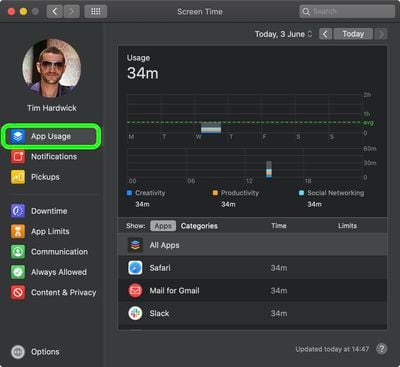
    screen time

How to Limit Usage in Screen Time on Mac

Screen Time allows you to set limits based on app categories. Here's how to go about it:

  1. Select Screen Time in System Preferences.
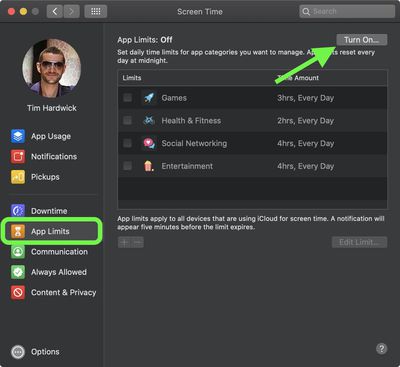
  2. Select App Limits in the sidebar.
  3. Click the Turn On button to activate App Limits.
  4. Click the plus (+) button to add an app category.
    screen time

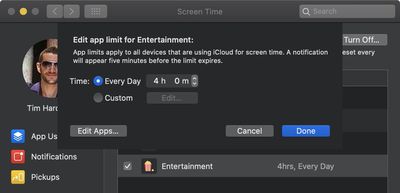
  5. Highlight the app category, then set the limit using the radio buttons. You can choose to set limits Every Day or create your own Custom schedule.
    screen time

  6. Repeat steps 5 to 6 for each app category you want to limit.

  7. Click Done to finish.

You can remove app limits by unchecking the box next to each app category you added, or you can turn off app tracking entirely by clicking the Turn Off... button in the top-right corner.

How to Approve Screen Time Requests on Mac

Screen Time shows Requests when you have unanswered requests from a child account. Here's how to find them:

  1. Select Screen Time in System Preferences.
  2. Select Requests in the sidebar.
  3. Any requests for more time will appear under Requests. To manage a request, click Don't Approve or choose Approve..., then select one of three options from the dropdown: Approve for 15 minutes, Approve for an hour, or Approve all day.
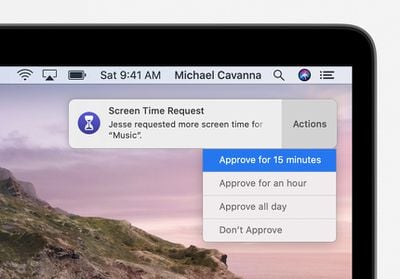
    screen time

Requests for approval also arrive as notifications, and you can approve directly from the notification.

How to Schedule Downtime in Screen Time on Mac

During Downtime, only apps you choose to allow will be accessible, as well as phone calls, when applicable. Follow these steps to set up a Downtime schedule:

  1. Select Screen Time in System Preferences.
  2. Select Downtime in the sidebar.
  3. Click the Turn On button to activate Downtime.
  4. Click the radio button next to Every Day or Custom depending on the schedule you want to set.
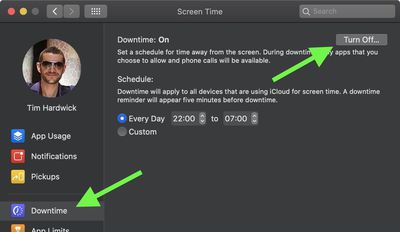
    screen time

Every Day activates Downtime at the same time each day, while Custom allows you to adjust the time for each day of the week or turn off Downtime for certain days by unchecking the box next to them.

How to Set Always Allowed Content in Screen Time on Mac

You can allow certain things on your Mac such as communication with specific people or launching particular apps, regardless of other restrictions you might have set up. Here's how:

  1. Select Screen Time in System Preferences.
  2. Select Always Allowed in the sidebar.
  3. Check the box next to each item you want to always allow.
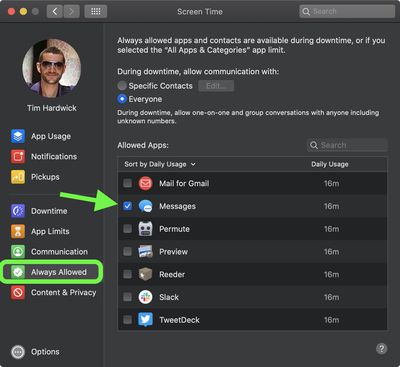
    screen time

How to Set Content and Privacy in Screen Time on Mac

To restrict content and adjust privacy controls in Screen Time, follow these steps:

  1. Select Screen Time in System Preferences.
  2. Select Content & Privacy in the sidebar.
  3. Click the Turn On button in the top-right corner to activate Content & Privacy.
  4. Use the tabs to select options for Content, Stores, Apps, and Other.
  5. Check the boxes next to the items you want to allow.
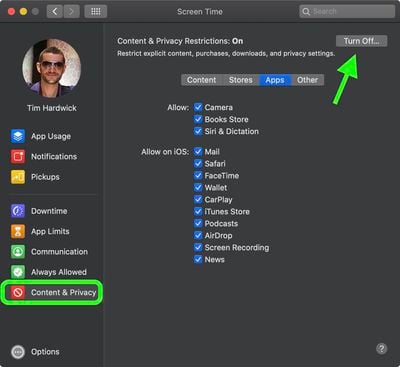
    screen time

With the release of macOS Catalina 10.15.4, Apple added new Screen Time options to let parents control who their children are able to contact on Mac. To learn more, check out our dedicated article detailing the new options.


Popular Stories

Apple MacBook Pro with PROLED XDR Display family lineup feature

Apple Announces OLED MacBook Pro With Touch Display

Wednesday October 28, 2026 10:11 am PDT by
Apple today announced a new high-end MacBook Pro, which is available in 14-inch and 16-inch sizes. The new device has a PROLED XDR display that supports touch gestures, and a glowing rear Apple logo. Pricing on the MacBook Pro starts at $2,899 for the 14-inch model and $3,399 for the 16-inch model. Apple says the MacBook Pro has the "world's best display in a pro laptop." The PROLED...


iPhone Duo Display Cracking

Apple Alerts Stores to iPhone Duo's Display Cracking Issue

Friday October 30, 2026 3:20 pm PDT by
In a memo shared with Apple Stores and Apple Authorized Service Providers this week, and later obtained by MacRumors, Apple provided technicians with guidance on how to diagnose and address the iPhone Duo's inner display cracking issue. If a customer reports the issue, Apple advised technicians to inspect the iPhone Duo and repair or replace it in accordance with their standard procedures....
iPad mini OLED feature 1

Apple Executive Comments on New iPad Mini Lacking 120Hz Display

Thursday October 29, 2026 1:47 pm PDT by
While the new iPad mini has an OLED display, the device does not support ProMotion, meaning the display's refresh rate is limited to 60Hz instead of 120Hz. ProMotion support would have allowed for the iPad mini's refresh rate to automatically adjust from 10Hz to 120Hz depending on the content being displayed, but evidently Apple has kept the feature exclusive to the iPad Pro among iPad...
Latest Stories
Apple Watch Ultra 4 Hits All-Time Low Price With Amazon's $99 Discount
7 hours ago
Reminder: Apple's Big Discount on Beats 360 Ear Cushions Ends Today
7 hours ago
Here's a New Tour of Apple's HomeView Software
7 hours ago
Apple Reveals New iPad Mini's Battery Capacity
9 hours ago
Top Stories: Apple's Big MacBook Pro, iPad mini and iMac Updates
10 hours ago
'Pluribus' Season 2 Reportedly Starts Production Today
17 hours ago
iPhone 18 Pro Sales Surge in China, Offsetting Decline in U.S. and Japan
17 hours ago
HomeView Software 27.2: Wallpapers, Control Center, and More
1 day ago
Apple Alerts Stores to iPhone Duo's Display Cracking Issue
1 day ago
iOS 27.3 Will Enable These Apple Intelligence Features in China
1 day ago
Apple Says iOS 27.3 Beta Coming Next Week
1 day ago
Apple's Flash Storage Suppliers Are Finally 'Getting Their Revenge'
1 day ago
14 New Things Your iPhone Can Do in iOS 27.2
1 day ago
iPhone Duo Review: One Week Later
1 day ago
Samsung Mocks iPhone Duo Display Cracks in New Ad Campaign
1 day ago
The MacRumors Show: OLED MacBook Pro, iPad Mini 8, and More
1 day ago
MacBook Pro With Touch Display: 15 More Details Revealed
1 day ago
Russia Places Apple on State Surveillance Registry
1 day ago
Halloween Weekend Brings Discounts on Apple Accessories and Pre-Orders
1 day ago
Apple Has Released More Than 25 New Products in the Past Two Months
1 day ago
Local Code Launches as Free, Private AI Assistant Tool for Mac
1 day ago
Apple Acquires Ascend.io
1 day ago
HomePod Mini 2 Launches Today: All the New Features
1 day ago
AirTag 2 4-Pack Drops to New Low Price of $69.99
1 day ago
Rian Johnson's iPhone Camera App Goes Viral
1 day ago
Where Did All the iPhone Duos Go? Mostly to Apple's Stores
2 days ago
Apple's Touchscreen MacBook Pro Could Ship 1.5M Units in 2027
2 days ago
New Apple TV 4K and iPad Mini: RAM Amounts Revealed
2 days ago
Apple Executive Comments on New iPad Mini Lacking 120Hz Display
2 days ago
Here's a Hands-On Look at HomePod Mini 2's New Two-Tone Colors
2 days ago

🔗 Related Apple News & Rumors

Stay updated with the latest Apple ecosystem news and verified rumors