

Apple includes a Safe mode in its Mac startup options that can help you work out if a problem is being caused by software that loads as your Mac boots up. It's particularly useful for resolving issues that don't seem to be linked with a particular app.
Safe mode achieves this first by preventing software from launching during the boot process. This can include login items, inessential system extensions, and third-party fonts. It then runs a First Aid check of your Mac's startup disk and deletes some system caches that can be created again.
Keep reading to learn how to start your Mac in Safe mode.
How to Use Your Mac's Safe Mode
- Power on or restart your Mac, then immediately press and hold the Shift key as your Mac starts up.
- Release the key when you see the login screen.
- Log in to macOS.
- You may be asked to log in again. On either the first or second login window, the words Safe Boot should appear in the upper-right corner of the window.
If the problem you're having still happens in safe mode, reinstall macOS and make sure that your Apple software and third-party apps are up to date. Likewise, if your Mac restarts several times and then shuts down while starting up in safe mode, the best course of action is to start again fresh and reinstall macOS plus any third-party apps you use.
If the problem you're having doesn't occur in Safe mode, it's possible that the issue has been resolved. Restart your Mac normally, then test for the issue again.
My Mac Issue Hasn't Gone Away - What Now?
If the issue returns after a normal boot, a startup item is the likely culprit. Make sure your Apple software and any third-party apps you use are up-to-date. If that doesn't solve the problem, try logging in with another user account. Alternately, try selectively deactivating your login items to narrow down the possibilities. The following steps show how.
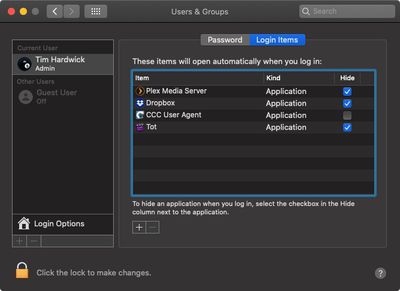
- Click the Apple () symbol in the menu bar and select System Preferences....
- Click Users & Groups.
- Click the padlock icon and enter your password to make changes.
- Click your account name below Current User, then click Login Items at the top of the window.
- Make a list of the login items for later reference.
- Select all of the login items, then click the minus (-) button to remove them.
- Restart your Mac (Apple menu -> Restart).
- If this solves the problem, return to the Users & Groups preferences pane, re-add the login items one at a time, then restart your Mac after adding each one.
When the problem occurs again, follow the steps above to remove only the last login item you added.

















































