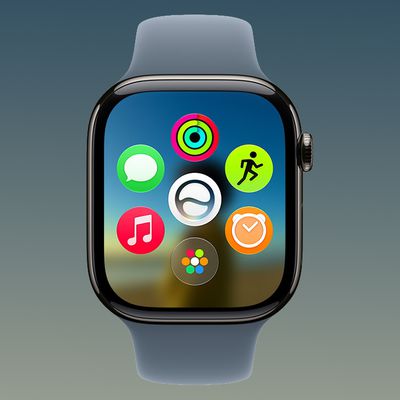
Apple in watchOS 7 introduced a new Memoji and Animoji watch face that lets you display an Animoji or custom-created Memoji on your wrist.
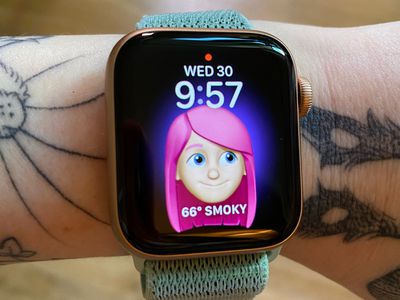
The Memoji watch face is available on the Apple Watch Series 4 and later.
Enable the Memoji Watch Face on Apple Watch
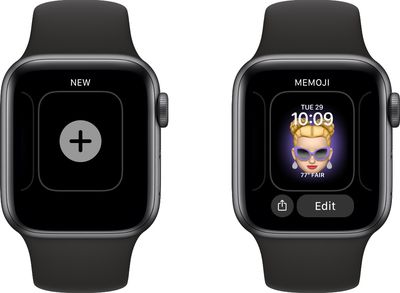
- Long press on the display of the Apple Watch.
- Scroll all the way to the left and tap on the "+" button to add a new watch face.

- Use the Digital Crown or a swipe gesture to scroll down until you get to the Memoji watch face.
- Tap it to enable it.
- Long press on the display of the Apple Watch again.
- Tap Edit.
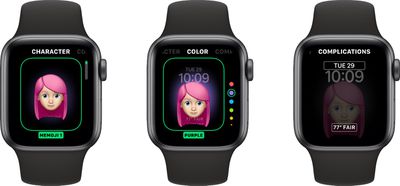
- Use the Digital Crown to select a pre-created Memoji or one of the available Animoji options.
- Swipe to the left to change the background color.
- Swipe to the left again to select your complications.
- Tap on the Digital Crown when done, then the watch face to clear the Edit menu.
Note that you can create Memoji on the Apple Watch using the Memoji app, or you can create them through the Messages app on iPhone or iPad.
For Animoji, Apple offers an option to choose a single Animoji character or multiples. If you choose the multiple Animoji option, the watch face will cycle between all of the available Animoji characters.
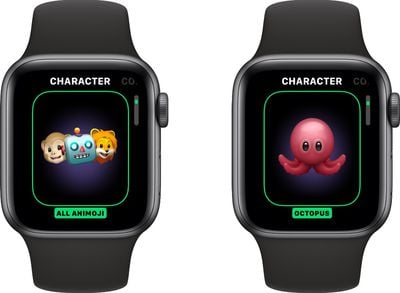
If you've created multiple Memoji, you can do the same thing with your Memoji characters, but there's no option to mix Animoji and Memoji.
Memoji and Animoji characters will animate when you raise your wrist or when you tap on the watch face.
Enable the Memoji Watch Face on iPhone
- Open the Apple Watch app on iPhone.
- Tap the Face Gallery icon at the bottom of the app.
- Scroll down to Memoji and tap it.
- Choose a background color, a Memoji or Animoji character and set your complications.
- When finished, tap "Add" to add it to your watch face as the active face.
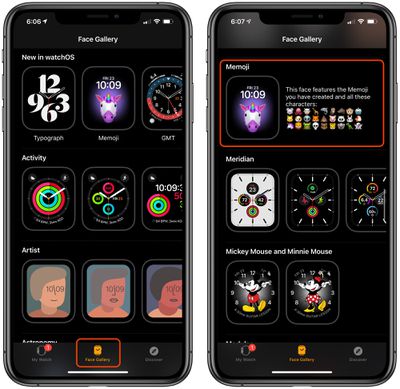
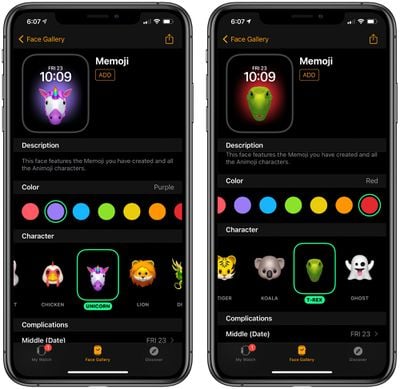
To edit any of the options you created in the Face Gallery, just tap on the watch face under "My Faces" and it will open up an interface with all of the available options.
If you want to learn how to create a Memoji right on Apple Watch, make sure to check out our how to on the new Memoji app.