How to Use App Limits and Downtime in iOS 12 - MacRumorsOpen MenuShow RoundupsShow Forums menuVisit ForumsOpen Sidebar
Skip to Content

How to Use App Limits and Downtime in iOS 12

by

In iOS 12, Apple's digital health push includes a couple of special new features for iPhone and iPad users who want to cut down on their app usage: App Limits and Downtime. In this article, we'll show you how to use them.

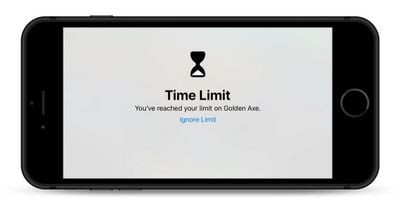
App Limits allows you to set specific time limits on a particular app category (games, for example). When you've spent the designated time using the app category, iOS sends you an alert notifying you of the fact. Of course, you're free to ignore these alerts, but the idea behind them is that they'll help you manage your time better.
how to set app limits in ios 12
The second feature, Downtime, enables you to set a daily schedule for when you'd rather not use your iOS device at all. Once activated, the feature restricts device usage to phone calls and any apps you've specifically exempted from Downtime. Like App Limits, you can override these restrictions – they're more like good guidance than anything else, and can still help if you honestly want to self-regulate your mobile usage.

How to Set Individual App Limits in iOS 12

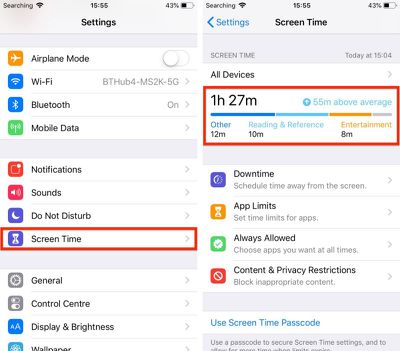
  1. Launch the Settings app on your iPhone or iPad.
  2. Tap Screen Time.
  3. Tap the Screen Time graph for this device. Alternatively, tap All Devices.
    ios 12 app limits

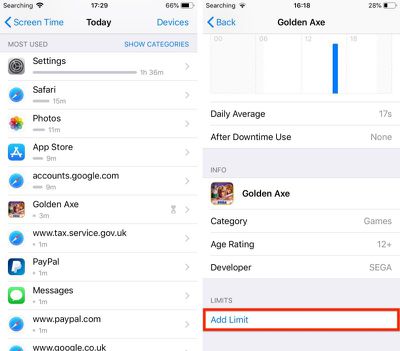
  4. Scroll down to the Most Used list and tap an app you want to set a limit for.
  5. Tap Add Limit at the bottom of the menu.
    IMG 0075

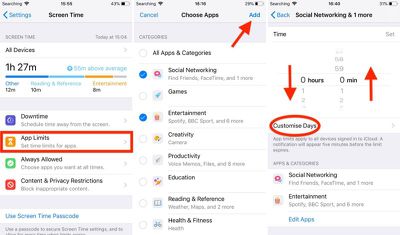
  6. Select a time limit using the hour and minute wheels. If you want to set different limits for particular days of the week, tap Customize Days.
  7. Tap Add to apply the app limit.

How to Set App Category Limits in iOS 12

  1. Launch the Settings app on your iPhone or iPad.
  2. Tap Screen Time.
  3. Tap App Limits.
  4. Tap the categories in the list that you'd like to include in the limit, or select All Apps & Categories.
    ios 12 app limits 1

  5. Tap Add in the upper right of the screen.
  6. Select a time limit using the hour and minute wheels. If you want to set different limits for particular days of the week, select Customize Days.
  7. Tap Back when you're done.
  8. Add another limit if desired, or tap Screen Time to return to the main Screen Time menu.
When you're approaching a designated limit, iOS will alert you in advance with a standard notification. When you finally reach the limit, the alert will take over the screen.
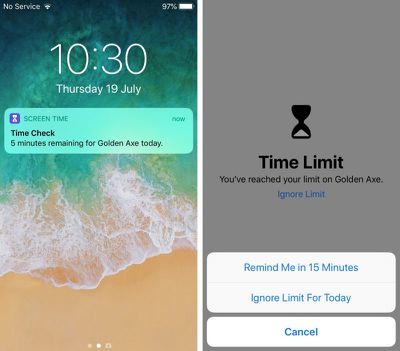
ios 12 app limit warnings
If you want to override the custom limit, simply tap Ignore Limit. You can then select either to Reminded Me in 15 Minutes or Ignore Limit for Today.

To delete app category limits and individual app Limits at any time, go to Settings -> Screen Time -> App Limits, tap on the limit you want to remove, then tap Delete Limit.

How to Use Downtime in iOS 12

  1. Launch the Settings app on your iPhone or iPad.
  2. Tap Screen Time.
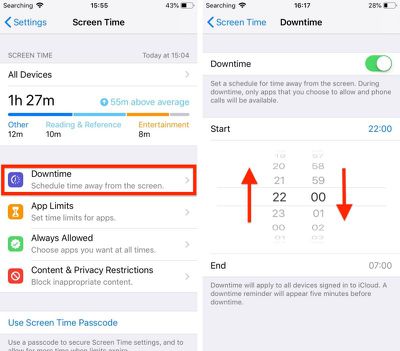
  3. Tap Downtime.
    ios 12 downtime

  4. Slide the Downtime toggle to enable it.

  5. Select a Start and End time using the dropdown hour and minute wheels.
How to Exempt Certain Apps From Downtime

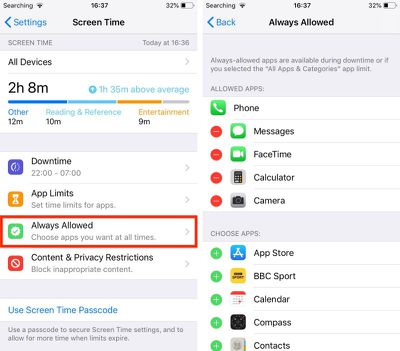
If there are particular apps which you'd like to remain accessible during Downtime, you can add these to your Allowed Apps list, located in Settings -> Screen Time -> Always Allowed.
ios 12 downtime 1
Simply tap the green plus buttons beside apps that you want to add to the list, or the red minus buttons to remove them.
Related Forum: iOS 12

Top Rated Comments

108 months ago
Only if you give them the passcode you set up when you enable Time Limit.

No, I just tested it. There is no passcode required to tell it to ignore the time limit.

Edit: Oh, you're right! You have to turn on the Content and Privacy Restrictions (under a different menu item) to make it prompt them for a password.

This will actually let me give my daughter an iPad now. :-)
Score: 4 Votes (Like | Disagree)
108 months ago
They were SO close to having something that works for kids. As it works now, the kids can just ignore the limit...
If your kids have separate devices and their own appleID set up as part of the family, they will need to request permission from you to extend their time limit.
Score: 3 Votes (Like | Disagree)
Billberryjuice Avatar
105 months ago
A few things this still needs:

- bug fixes: not tried it on many other apps but on Safari when the limit has run out and I “ignore for 15 minutes”, instead of getting 15 minutes it will lock down again basically every time I change page or tap on something (on iPhone 6S). Looking at the Screen Time data, I guess this is something to do with the way it logs time for individual sites.

- A simpler way to set restrictions on individual apps: the current way almost feels like it’s unintentional by the way it’s hidden, completely unintuitive

- Categories editing

- Finer Downtime control: what if I want different rules for the weekend? The app restrictions allow custom limits by day, why not here? Ideally they would add even finer control than this (e.g. the ability to set two or more Downtime slots per day)

- Better implementation of “Share Across Devices”: on my main iPhone I spent ages adding apps to Always Allow, setting up Downtime and app limits, and turned on SAD, before moving on to my other phone and iPads - switching on SAD on another device should have picked up the settings I already changed on the first device and brought them to the second - nope, the opposite happens and the settings on the first seem to be wiped away. Thankfully, a way around this is to turn SAD off again on the first device and its own settings should come back. It looks like the way to get your settings to apply across all devices (without redoing them n times) is to turn on SAD on all the other devices *first*, then turn it on on the device that you changed all the settings of, as it seems the last one you switch it on for pushes its settings to all the others.

- Second thing on Share Across Devices: it seems that the only way to see all of your devices in your Screen Time bar chart is to enable SAD across all of them - but what if I want to set different limits for each but still be able to see the data from all of them in one place? Currently this doesn’t seem possible.

- (edit) Third thing on Share Across Devices: turning it on caused some old Apple apps to appear on my home screen for my iPhones in random places (e.g. top right corner) - one was iTunes Store and the other I forget but both were promptly deleted again. I can only guess why this happened but clearly wasn’t intentional!


TLDR: I like it but it needs some work.
Score: 1 Votes (Like | Disagree)
105 months ago
As a parent, there has to be way to completely ban an application. Currently, you have to assign at least 1 minute of time. This is not a good parental control.

Also, there is too much "security" based on Apple's view of app categories. If I want my child to use one "Social Networking" app and not others, there isn't a good way to do that except granting "Always Available". Then the downtime limits don't apply.

It looks like Our Pact or other parental controls will still be required in IOS 12.
You can download Apple Configurator on your Mac (if you have one) and create a configuration profile that blacklists certain apps.
Score: 1 Votes (Like | Disagree)
shareef777 Avatar
105 months ago
All I can say is it’s about damn time. This feature is AMAZING! I’m able to lock down my two younger sons iPads and my daughters iPhone. They can request more time (similar process to requesting app purchases), and I can grant an extra 15min, 1hr, or remainder of the day. Single greatest iOS feature addition since the App Store!!!
[doublepost=1537408914][/doublepost]
would be good to know how this works with family sharing. Eg can kids be set up so they can't ignore the limits? If they hit a limit can they request an extension from the parent?
Yep, they can request more time per app, and you can approve for an additional 15min, 1hr, or remainder of the day.
[doublepost=1537408946][/doublepost]
They were SO close to having something that works for kids. As it works now, the kids can just ignore the limit...
You can set a password to prevent that.
Score: 1 Votes (Like | Disagree)
KC in KC Avatar
108 months ago
They were SO close to having something that works for kids. As it works now, the kids can just ignore the limit...
As a parent, there has to be way to completely ban an application. Currently, you have to assign at least 1 minute of time. This is not a good parental control.

Also, there is too much "security" based on Apple's view of app categories. If I want my child to use one "Social Networking" app and not others, there isn't a good way to do that except granting "Always Available". Then the downtime limits don't apply.

It looks like Our Pact or other parental controls will still be required in IOS 12.
Score: 1 Votes (Like | Disagree)

Popular Stories

Apple HomeView lineup feature1

Apple Announces 'HomeView' Smart Home Hub

Tuesday October 13, 2026 6:00 am PDT by
Apple today announced the "HomeView," an all-new kind of smart home hub featuring a 7-inch Liquid Retina display and Siri AI. Apple's senior vice president of Worldwide Marketing Greg Joswiak said: Apple HomeView is designed to be shared by everyone in the home yet feel completely personal to each user. It recognizes your face to shift from a household screen to your own experience,...
Apple TV 4K 4th Generation feature4

New Apple TV 4K Announced With A19 Chip, Updated Siri Remote, More

Tuesday October 13, 2026 6:08 am PDT by
Apple today announced the fourth-generation Apple TV 4K, with key features including an A19 chip, Siri AI support, an updated Siri Remote that has Find My support with Precision Finding, built in far-field microphones, support for surround sound with four HomePods in front and rear pairs, and more. The A19 chip in the new Apple TV 4K delivers up to 50% faster CPU performance and up to twice...
iOS 26 Home Feature

RIP, homeOS

Tuesday October 13, 2026 9:39 am PDT by
MacRumors was first to reveal the name "HomeView" last week, after discovering a trademark filing from a secretive shell company that we correctly suspected was linked to Apple. Apple was likely behind a "homeOS" trademark filing as well, but the company ultimately decided to stick with generic "HomeView software" naming, just like it refers to the HomePod's operating system as "HomePod...
Latest Stories
Apple TV 4K and HomePod Mini Price Increases 'Much More Striking' Than New Features
4 minutes ago
The MacRumors Show: Was HomeView Worth the Wait?
1 hour ago
Apple Refers to HomeView as 'HomePodDevice' in Legal Document
2 hours ago
Apple Pre-Orders Kick Off With First Discounts on HomeView and Apple TV 4K
3 hours ago
Developers Question Scope of Potential Apple Antitrust Settlement
4 hours ago
iPhone Duo Resold for $5,000 on eBay After Selling Out
4 hours ago
Massive Discounts Hit 2026 MacBook Pro With Up to $800 Off
4 hours ago
iPhone Duo is Sold Out for Christmas as Shipping Estimates Slip to 2027
4 hours ago
Didn't Pre-Order an iPhone Duo Yet? Wait Times Are Significant Now
5 hours ago
First Apple TV 4K Pre-Order Discount Arrives at Amazon
5 hours ago
iPhone Duo Pre-Order Deals: The Best Carrier Offers From AT&T and T-Mobile
6 hours ago
iPhone Duo Now Available to Pre-Order From Apple
6 hours ago
iPhone 18 Pro vs. iPhone Duo Buyer's Guide: Which Should You Choose?
8 hours ago
Apple Store Down Ahead of iPhone Duo Pre-Orders
8 hours ago
Oops, Apple's Website Just Hinted at iPad Mini 8
17 hours ago
OLED MacBook Pro Won't Get M7 Chips Until Late 2027
19 hours ago
Apple Pledged $25 Million to Trump's White House Ballroom
21 hours ago
Touchscreen MacBook Pro Could Launch on November 6
22 hours ago
New Withings Users Must Pay $99/Year for Apple Health Syncing
22 hours ago
Meta and Apple Bring Muse Spark Open AI Model to Mac Studio
1 day ago
iPad Mini 8: Apple Has Tested Both 60Hz and 120Hz ProMotion Displays
1 day ago
Apple TV 4K 2022 vs. 2026 Buyer's Guide: All Differences Compared
1 day ago
Apple CEO John Ternus on Early Foldables: 'Kind of Cheap and Crappy'
1 day ago
Greg Joswiak Says Apple Isn't Focused on Making AI for 'Lunatic Fringe'
1 day ago
Amazon Offers $120 Discount on AirPods Max 2, $50 Off AirPods Pro 3
1 day ago
Apple CEO John Ternus Featured on Cover of TIME Magazine: 'New Era'
1 day ago
Apple Announces Deadline to 'Get Ready' to Pre-Order the iPhone Duo
1 day ago
MKBHD is 'Not Convinced' About Apple's New HomeView, Here's Why
1 day ago
Apple's Wall-Mounted HomeView Ships Without a Power Adapter
1 day ago
Rare Apple-1 With Steve Jobs Letter Sells for $1.15 Million
1 day ago

🔗 Related Apple News & Rumors

Stay updated with the latest Apple ecosystem news and verified rumors