How to Unpair Powerbeats Pro Earphones From iPhone, Apple TV, Apple Watch, or Mac - MacRumorsOpen MenuShow RoundupsShow Forums menuVisit ForumsOpen Sidebar
Skip to Content

How to Unpair Powerbeats Pro Earphones From iPhone, Apple TV, Apple Watch, or Mac

by

This article explains how to unpair Apple's fitness-focused Powerbeats Pro earphones from a number of different Apple devices.

Bear in mind that when you unpair ‌Powerbeats Pro‌ from an iPhone, Apple Watch, Mac, or Apple TV (fourth-generation or later), this also automatically unpairs the wireless earphones from all other devices linked to the same iCloud account.
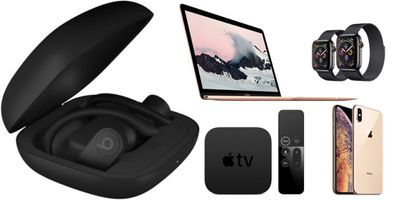
unpair powerbeats pro mac apple watch iphone apple tv
Other devices you may have paired them with that aren't linked to ‌iCloud‌ (older Apple TVs, Windows PCs or Android devices, for example) will remain unaffected unless you manually unpair them one by one via their respective Bluetooth settings.

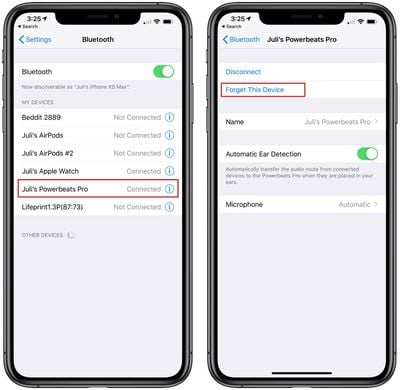
How to Unpair Powerbeats Pro From iPhone or iPad

  1. Launch the Settings app.
  2. Tap Bluetooth.
  3. Tap the "i" icon next to your ‌Powerbeats Pro‌ in the Devices list. disconnecting Powerbeats Pro from iPhone
  4. Tap Forget This Device.
  5. Tap Forget Device in the pop-up message to confirm.
Note that unpairing ‌Powerbeats Pro‌ from your iPhone also unpairs them from your Apple Watch, however you can also individually unpair ‌Powerbeats Pro‌ from Apple Watch without unpairing them from your iPhone.

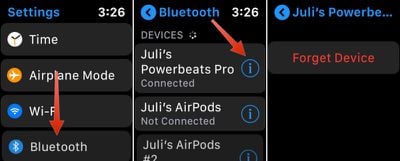
How to Unpair Powerbeats Pro From Apple Watch

  1. On your Apple Watch, launch the Settings app.
  2. Tap Bluetooth.
  3. Tap the "i" icon next to your ‌Powerbeats Pro‌ in the list. disconnecting Powerbeats Pro from Apple Watch
  4. Tap Forget Device.

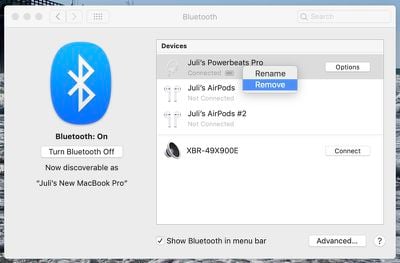
How to Unpair Powerbeats Pro From Mac

  1. On your Mac, click the Apple icon in the menu bar and select System Preferences....
  2. Click the Bluetooth icon in the preference pane.
  3. Right-click (or Ctrl-click) your ‌Powerbeats Pro‌ in the Devices list.
  4. Click Remove in the contextual menu that appears. disconnecting Powerbeats Pro from Mac
  5. Click Remove again to confirm.

How to Unpair Powerbeats Pro From Apple TV

  1. On your ‌Apple TV‌, launch the Settings app.
  2. Select Remotes and Devices -> Bluetooth (or General -> Bluetooth on third-generation ‌Apple TV‌ or earlier models).
  3. Select your ‌Powerbeats Pro‌ in the Devices list.
  4. Select Forget Device.
  5. If necessary, select Forget Device again to confirm.

Remember that if you decide again later that you want to re-pair ‌Powerbeats Pro‌ to your iPhone, iPad, Apple Watch, Mac or ‌Apple TV‌, the pairing information is synced across all the devices linked to your ‌iCloud‌ account.

Popular Stories

iOS 27 Next to iPhone

Here's When iOS 27 Rolls Out Today in Every Time Zone [Update: It's Out]

Sunday September 13, 2026 3:00 am PDT by
Update 10:04 a.m.: iOS 27 is rolling out now, though it may take a bit for all users to see it, so keep checking! Apple is about to release iOS 27, which will finally deliver more advanced Siri AI capabilities as well as a variety of other refinements, improvements, and new features to iPhones. It's Apple's biggest software update of the year, and Apple announced at Wednesday's iPhone event...

iOS 27 Icon iPhone

iOS 27 Available Now With These 8 New Features

Monday September 14, 2026 9:00 am PDT by
Update — 10 a.m. Pacific Time: Apple has released iOS 27. During its iPhone 18 Pro and iPhone Duo event last week, Apple announced that iOS 27 will be released widely on Monday, September 14. iOS 27 should be available around 10 a.m. Pacific Time / 1 p.m. Eastern Time today via the Settings app, under General → Software Update. Below, we have highlighted eight new features and...
Apple iCloud Plus expansion hero

iCloud+ Now Includes Apple TV, Apple Arcade, and Curated Apple Music Stations in Over 100 Countries

Tuesday September 15, 2026 1:43 am PDT by
Apple today announced a new subscription initiative that turns paid iCloud+ subscriptions into a broader services bundle in more than 100 countries. In select countries, Apple says every paid iCloud+ plan, including the cheapest 50GB tier, now includes Apple TV and Apple Arcade "at no additional cost," while family sharing extends the storage, TV and Arcade access to up to five people....

🔗 Related Apple News & Rumors

Stay updated with the latest Apple ecosystem news and verified rumors