

Even though most developers work their hardest to ensure that the programs you download onto your Mac run smoothly, sometimes, things go wrong. One issue that may arise is an app using an exorbitant amount of energy or memory, causing your Mac to overheat or suffer severe battery drain.
Sometimes, simply closing an app doesn't do the trick. For example, if a program includes a helper tool, that tool may be the culprit. Closing the program may not solve the problem.
We've got a troubleshooting guide for finding out which apps are using the most percentage of processes on your computer.
Check Energy Consuming Apps
If you experience a fast drain on your MacBook's battery, it may be caused by certain programs running in the background. While you may have intended to run something like Spotify, it is possible that you have a program open that you didn't know about.
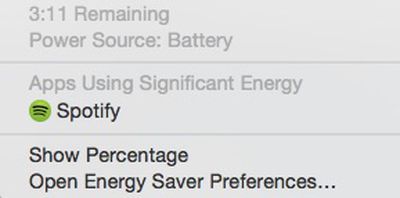
You can quickly check to see which apps are using a significant amount of energy by left clicking on the battery icon in the upper right corner of your laptop's tool bar. From the dropdown list, wait a few seconds until your Mac finishes collecting power usage information. Any apps that are using a lot of energy will be listed.
You can then find the app by searching in Finder and quit the program. Or, you can right click on the app to open Activity Monitor.
Using Activity Monitor
Sometimes, issues causing overheating come from programs that are overusing memory and CPU. The Activity Monitor provides information on how activities are affecting your Mac based on CPU, Memory, Energy, Disk, and Network.
CPU
The CPU pane can help you identify processes that affect your Mac's performance, battery, temperature, and fan. Click the "%CPU" column to sort percentages and see which apps are using the highest percentage.
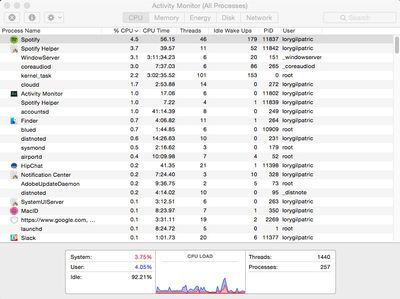
Individual CPU usage should not be very high. Processes should use less than one percent when not actively in use. Most apps that are in use should not be using more than 10 percent, and that is for such programs as content streaming (like Spotify or Plex). If a program is using a large percentage of your CPU (above 50 or 60 percent) it is probably the culprit.
Memory
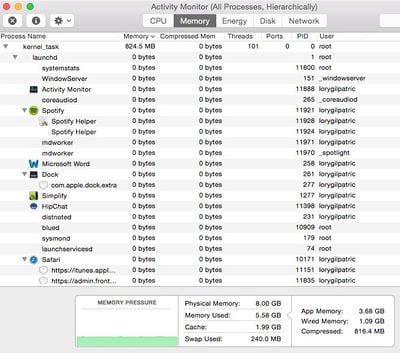
The memory pane shows how memory is being used on your Mac. Apps using a lot of memory will affect your startup drive. Click the "Memory" column to sort memory usage. If a process is using an excessive amount of memory, it might affect the performance of your Mac.
Energy
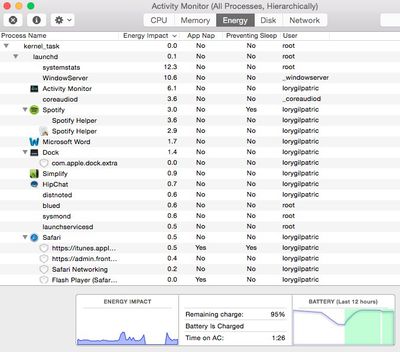
The energy pane shows how much energy is being used altogether, and by individual processes. Click the "Energy Impact" column to sort energy consumption. Processes at the top of the list are using the most energy. If a process seems to be gobbling up more energy than you think they should, even when it is closed, there may be a problem with the program.
Disk
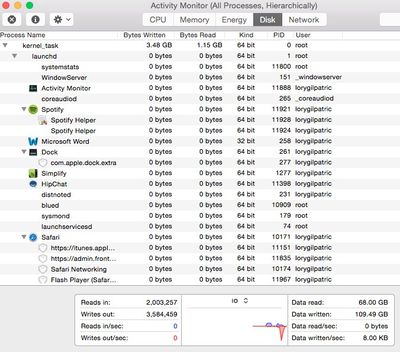
The disk pan shows the amount of data being written to and read by your disk. It also provides information on the amount of times your Mac accesses the disk to read and write data.
Network
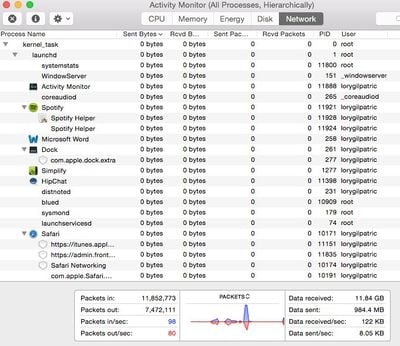
The network pane shows how much data your Mac is sending or receiving over your network. You can check which processes are sending or receiving the most data from this view.
Quitting a Process
If you've discovered the process that is overworking your Mac, you can quit it from Activity Monitor. Highlight the item by selecting it. Then, click on the X in the upper left corner of the screen.
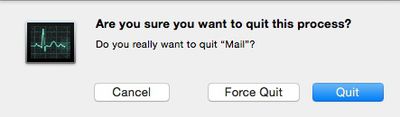
You will be provided with the option to quit the process, force quit, or cancel the action. If you quit a process that that could cause data loss or is being used by another process, it won't quit. Nothing will happen.
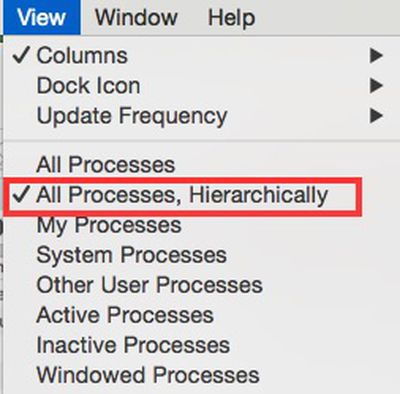
If you force quit a process that is being used by another application, it may cause a problem with its performance. You can check to see if a process is being used by another program by changing the window view. Select View from the tool bar. Then select "All Processes, Hierarchically" from the dropdown menu. This will repopulate the processes by their main program.
If there's a process that's overusing your Mac's CPU, memory, or energy and you can't quit it without possibly affecting the performance of the main program it is being used with, the best option is to contact the app's developer.
If you experience an unusual amount of overheating and your Mac's fan starts running continuously, or if your battery is suffering an unusual amount of drainage, troubleshoot the problem by checking the Activity Monitor and shutting down processes that are not in use.


















































Top Rated Comments