How to Set Up a System-Wide Word Count Service on Your Mac - MacRumorsOpen MenuShow RoundupsShow Forums menuVisit ForumsOpen Sidebar
Skip to Content

How to Set Up a System-Wide Word Count Service on Your Mac

by

In this article, we're going to show you how to create a system-wide service that enables you to get an immediate word count and character count in TextEdit, Safari, Mail, or indeed any app on your Mac that lets you highlight text. It offers a handy home-made solution if you often find yourself pasting into a blank Word or Pages document for no other reason than to find out how many words are in a text selection.
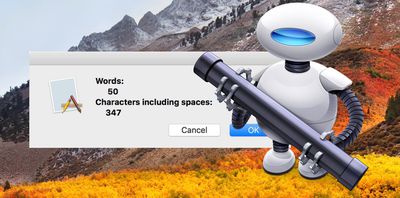
word count automator service 2
The steps below will guide you through the process of creating your own word count service using the macOS Automator app. It's a simple procedure to follow and should only take five minutes, but if you'd rather use a third-party solution, then check out WordCounter, a free Mac menu bar utility from Onekerato.

How to Create a Word Count Service in Automator

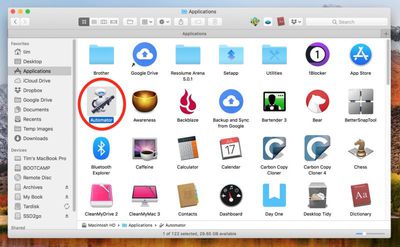
  1. Launch Automator from the Applications folder.
    1 Automator

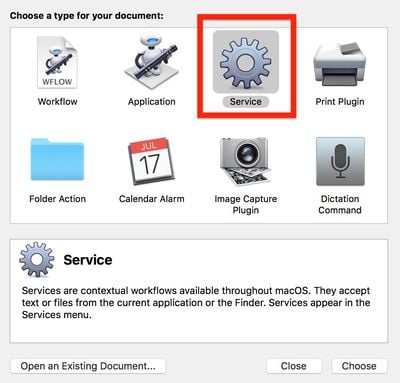
  2. Click New Document.

  3. Choose Service as the type of your document.
    2 Automator document type

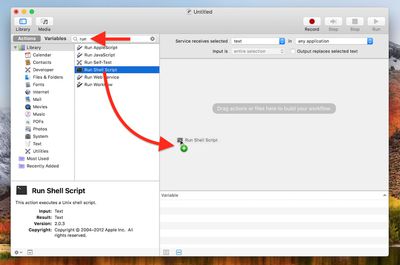
  4. Type "run" into the Library search field at the top of the Automator sidebar, then drag the Run Shell Script action into the empty workflow area.
    automator drag shell script

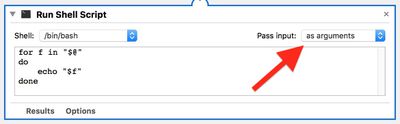
  5. In the Run Shell Script action window, change the Pass Input: option to as arguments using the dropdown menu.
    automator run shell script

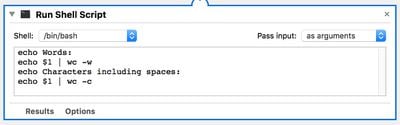
  6. Clear the text in the shell script box (highlight the text with your mouse cursor and hit Backspace) then copy and paste the following text into the same area:

    echo Words:

    echo $1 | wc -w

    echo Characters including spaces:

    echo $1 | wc -c
    automator word count script

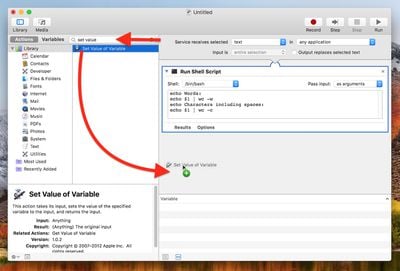
  7. Clear the Library search field at the top of the Automator sidebar and type "set value", then drag the Set Value of Variable action into the workflow area.
    automator set value of variable

  8. Click the Variable: dropdown menu and select New Variable....

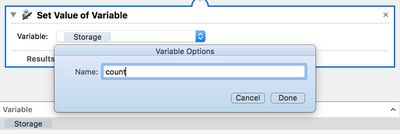
  9. In the blue dialog that appears, click inside the Name: input field. It may default to "storage", but you can rename it – we'll call it "count". Click Done, and you should now see "count" (or whichever name you used) appear in the variable list below the workflow area.
    automator variable name

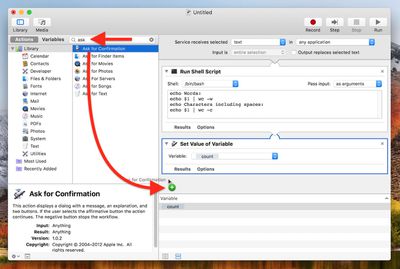
  10. Clear the Library search field at the top of the Automator sidebar again, and this time type "ask", then drag the Ask for Confirmation action into the workflow area.
    drag ask for confirm

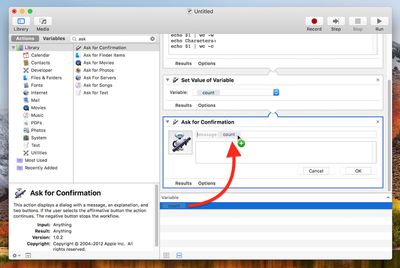
  11. Now, drag your "count" variable from the variable list up to the "Message" title in the Ask for Confirmation action.
    drag count variable

  12. In the Automator menu bar, select File -> Save..., call your new service "Word Count", and click Save.
Next time you want to get a word count and/or character count for some text you've highlighted, simply right-click (or Ctrl-click) on the text and select Services -> Word Count from the contextual dropdown menu.
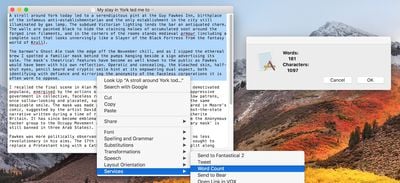
word count
You can assign a key shortcut to it for even faster access. To do so, launch System Preferences, select the Keyboard pane, and click the Shortcuts tab. Select Services from the sidebar and you should find Word Count near the bottom of the list. Just click it, select Add Shortcut, and finally, enter your custom key combination.
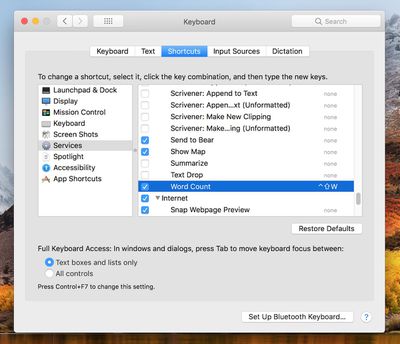

word count shortcut

Top Rated Comments

109 months ago
Srsly guys... I don't think I'll need this. But you rock! Keep these guides and tutorials coming!!! They are MUCH appreciated!

Score: 11 Votes (Like | Disagree)
109 months ago
Srsly guys... I don't think I'll need this. But you rock! Keep these guides and tutorials coming!!! They are MUCH appreciated!
Was gonna say exactly this till I saw your post. Reminds me of MacOXSHints.
[doublepost=1526030048][/doublepost]
Or get WordService for free from the App Store to give you text stats and so much more:
https://itunes.apple.com/app/wordservice/id899972312?mt=12
Maybe but this also teaches you stuff.
Score: 6 Votes (Like | Disagree)
fairuz Avatar
109 months ago
Automator is one of the many amazing productivity features in macOS that few know about. It's saved me so much time.
Score: 2 Votes (Like | Disagree)
IJ Reilly Avatar
109 months ago
Or get WordService for free from the App Store to give you text stats and so much more:
https://itunes.apple.com/app/wordservice/id899972312?mt=12
Beat me to it. I've used this indispensable collection of services for over 15 years. Can also be downloaded here:

https://www.macupdate.com/app/mac/10523/wordservice
[doublepost=1526061714][/doublepost]
Maybe but this also teaches you stuff.
I learned that I don't have to do it myself. ;)
Score: 2 Votes (Like | Disagree)
97 months ago
Has anyone actually checked how exact this is? I'm testing it now and the "characters including spaces" count seems to always be one more than it should be, regardless of the text or the program that I'm using the action in (e.g. safari, textedit, etc). Can anyone confirm if it's working 100% properly or not on their mac?

I know it's not a 'huge deal', and I can just manually deduct 1 myself, but it'd be interesting to know if anyone else is experiencing this and if so, if there's a way to get it exact. The exact character count is what I'm using this function for, because I use sites which limit titles & descriptions to exact character counts; and some sites, for some reason, don't actually tell you how many characters you've entered, just that you've "exceeded the maximum number of characters".

Thanks
Score: 1 Votes (Like | Disagree)
ArtOfWarfare Avatar
109 months ago
There are definitely existing Sublime plugins for word count. I'm using this one ('https://github.com/titoBouzout/WordCount')and it's great.

Of course. There's plenty of plugins for Sublime for anything lots of people need to do.

I was saying that, more generally, I write plugins for Sublime when I regularly need to do something with text in some specific way. As opposed to writing a MacOS service, where it'll only work on Macs.
Score: 1 Votes (Like | Disagree)

Popular Stories

iOS 27 Next to iPhone

Here's When iOS 27 Rolls Out Today in Every Time Zone [Update: It's Out]

Sunday September 13, 2026 3:00 am PDT by
Update 10:04 a.m.: iOS 27 is rolling out now, though it may take a bit for all users to see it, so keep checking! Apple is about to release iOS 27, which will finally deliver more advanced Siri AI capabilities as well as a variety of other refinements, improvements, and new features to iPhones. It's Apple's biggest software update of the year, and Apple announced at Wednesday's iPhone event...
iOS 27 Icon iPhone

iOS 27 Available Now With These 8 New Features

Monday September 14, 2026 9:00 am PDT by
Update — 10 a.m. Pacific Time: Apple has released iOS 27. During its iPhone 18 Pro and iPhone Duo event last week, Apple announced that iOS 27 will be released widely on Monday, September 14. iOS 27 should be available around 10 a.m. Pacific Time / 1 p.m. Eastern Time today via the Settings app, under General → Software Update. Below, we have highlighted eight new features and...
Apple iCloud Plus expansion hero

iCloud+ Now Includes Apple TV, Apple Arcade, and Curated Apple Music Stations in Over 100 Countries

Tuesday September 15, 2026 1:43 am PDT by
Apple today announced a new subscription initiative that turns paid iCloud+ subscriptions into a broader services bundle in more than 100 countries. In select countries, Apple says every paid iCloud+ plan, including the cheapest 50GB tier, now includes Apple TV and Apple Arcade "at no additional cost," while family sharing extends the storage, TV and Arcade access to up to five people....

🔗 Related Apple News & Rumors

Stay updated with the latest Apple ecosystem news and verified rumors