How to Use the Sound Recognition Accessibility Feature in iOS 14 - MacRumorsOpen MenuShow RoundupsShow Forums menuVisit ForumsOpen Sidebar
Skip to Content

How to Use the Sound Recognition Accessibility Feature in iOS 14

by

In iOS 14 and iPadOS 14, Apple has added an accessibility feature called Sound Recognition that enables iPhones and iPads to listen for certain sounds, like a doorbell or a baby crying, and alert the user if they're detected.
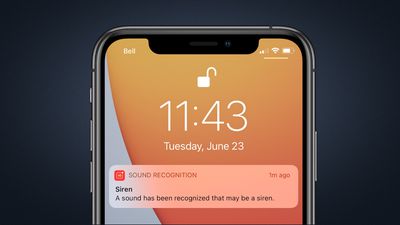
ios 14 sound recognition notification
The feature is designed to help people that are hard of hearing, but Apple cautions that it shouldn't be relied upon in circumstances where the user may be harmed or injured, in high-risk or emergency situations, or for navigation.

With that caveat in mind, here's how to enable Sound Recognition on a device running iOS 14 or iPadOS 14.

How to Enable Sound Recognition on iPhone and iPad

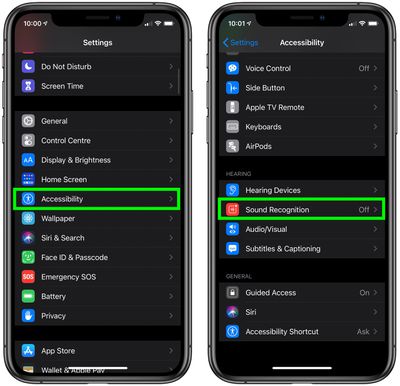
  1. Launch the Settings app on your device.
  2. Tap Accessibility.
  3. Under Hearing, select Sound Recognition.
    settings

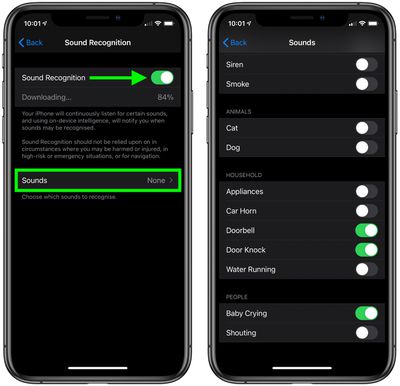
  4. Toggle the switch for Sound Recognition to the green ON position and wait a moment for the feature to download. Note that enabling the option requires 5.5MB of on-device storage.
  5. Tap Sounds.
  6. Select which sounds you want your device to listen for by toggling the switch next to each option.
    settings

Once the feature is enabled, your iPhone or iPad will continuously listen for the sounds you selected, and using on-device intelligence, will notify you when those sounds are recognized.

How to Add Sound Recognition to the Control Center

Once you've enabled Sound Recognition, you can add it to your device's Control Center to make it easier to switch on and off.

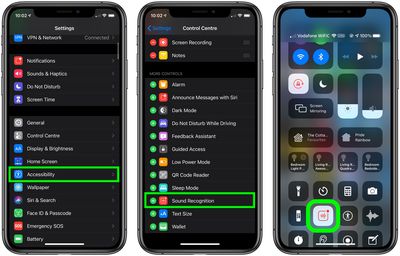
  1. Launch the Settings app on your iPhone or ‌iPad‌.
  2. Tap Control Center
  3. Under More Controls, tap the green plus (+) button beside Sound Recognition to add it to the list of Included Controls above. You can use the hamburger handles on the far right of the controls list to arrange them in the order you want.
    settings

Once that's done you can access the Sound Recognition button by launching Control Center on your iOS device: On an ‌‌iPad‌‌ or with a Home button, double-tap the Home button; on ‌iPhone‌ 8 or earlier, swipe up from the bottom of the screen; and on a 2018 iPad Pro or ‌iPhone‌ X and later, swipe down from the upper right of the screen.

Tap the Sound Recognition button to turn it on or off. You can also long press the button and change which sounds your device should listen for.


Related Forum: iOS 14

Top Rated Comments

80 months ago
They need to add a sound recognition for me cursing when I can't find my phone. That'll be much faster than using Find My Phone on the computer.
Score: 9 Votes (Like | Disagree)
CarlJ Avatar
80 months ago

They need to add a sound recognition for me cursing when I can't find my phone. That'll be much faster than using Find My Phone on the computer.
This is one of the less often mentioned awesome bits in the Apple Watch: swipe up on the face, tap the "Ping iPhone" button, iPhone immediately makes noise.
Score: 5 Votes (Like | Disagree)
80 months ago
Would the notifications also show up on an Apple Watch? May be nice to have iPhone "listening" for the door when I am stuck in my temporary office in basement and I know a package is coming.
Score: 4 Votes (Like | Disagree)
80 months ago

This is one of the less often mentioned awesome bits in the Apple Watch: swipe up on the face, tap the "Ping iPhone" button, iPhone immediately makes noise.
And . . my most USED feature.

The Apple Watch. . . Raison d'etre!
Score: 3 Votes (Like | Disagree)
hortod1 Avatar
80 months ago
Seat behind you on an airliner - baby crying.

Siri - hey there’s a baby crying
Score: 3 Votes (Like | Disagree)
ConfusedChris Avatar
80 months ago
It would be good to be able to record sounds that you want it to listen for. For example, a tone the washing machine makes when it is finished. A letter posted through the letterbox, the dog scratching at the door, ...


Assumes, of course, that a device was near enough etc. Perhaps HomePod would be best.

edit: There could be an online library of generic sounds to choose from. Machine learning would tweak it to your particular sound.
Score: 2 Votes (Like | Disagree)

Popular Stories

Apple Event Logo

Apple Working on All-New Operating System

Wednesday July 29, 2026 11:39 am PDT by
Apple is developing an all-new operating system that is essentially a mix of tvOS, watchOS, and iOS, according to Bloomberg's Mark Gurman. In a report this week, he said the operating system will feature a grid of icons, widgets, and apps, along with customizable clock faces. The new software platform is intended for Apple's long-rumored smart home hub. With built-in facial recognition,...
imac video apple feature

Apple Made Its Second-Biggest Acquisition Ever This Year

Wednesday July 29, 2026 12:03 pm PDT by
Apple this year acquired Israeli startup Q.ai for close to $2 billion, according to the Financial Times. That would make this Apple's second-biggest acquisition ever, after it paid $3 billion for the popular headphone maker Beats in 2014. This is also the largest known Apple acquisition since the company purchased Intel's smartphone modem business and patents for $1 billion in 2019. Q.ai...
Dynamic Island iPhone 18 Pro Feature

iPhone 18 Pro: Twelve Changes Coming to Apple's Next Flagship

Thursday July 30, 2026 3:43 am PDT by
We're less than two months out from the launch of Apple's premium next-generation smartphone lineup, and while we're not expecting a dramatic change in terms of functionality, there are still several enhancements rumored to be coming to the iPhone 18 Pro and iPhone 18 Pro Max. One thing worth noting is that Apple is reportedly planning a major change to its iPhone release cycle this year,...

🔗 Related Apple News & Rumors

Stay updated with the latest Apple ecosystem news and verified rumors