

One of the main focal points of the Apple Watch is communication, and as such, it offers a Messages app much like the one on the iPhone. It's not quite as robust as the Messages apps available on other iOS and Mac devices, but Messages on Apple Watch lets you send pre-made replies, animated and non-animated emoji, and full voice-to-text messages.
For those of you who want to learn the ins and outs of creating and responding to messages on the Apple Watch, we've written up a detailed tutorial on the Messages app. Plus we've also got some tips on customizing the available options for communicating with others.
Sending a Message
 Press the Digital Crown to go to the Home screen on Apple Watch.
- Open the Messages app.
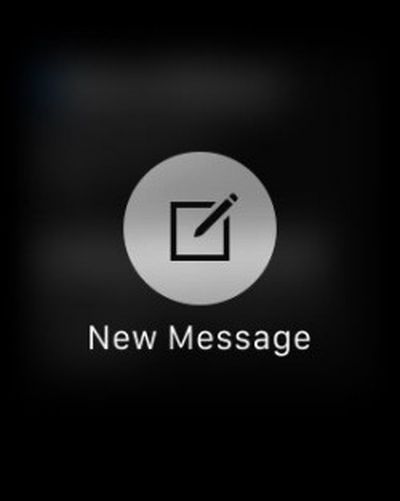
- Firmly press on the Messages list until the icon for New Message appears.
- Tap "New Message."
- Tap "Add Contact" to select the recipient.
- Tap the icon to add a contact. (It looks like the silhouette of a person with a plus (+) symbol next to it.)
- Select a contact. Then, select the phone number or Apple ID you wish to use for that person.
- Tap "Create Message."
- Use the Default Replies, Emoji, or Dictate Text to send the message.
Sending a message can also be done quickly by tapping the button underneath the Digital Crown to bring up your friends list, where you can select a favorite contact. From there just tap the Message icon to get to the messaging options. If you've already got a list of conversations available in the Messages app (which you likely do if you use Messages on the iPhone), you can also just click there to continue a conversation from your wrist.
Responding to a Message
 With Messages on Apple Watch, you will get an alert when you receive a new iMessage or text message. To read it, simply raise your wrist. You can also view and respond to text messages directly from the Messages app.
- Press the Digital Crown to go to the Home screen on Apple Watch
- Open the Messages App.
- Select the message you wish to read.
- Turn the Digital Crown to scroll to the bottom of the message.
- Tap "Reply."
- Use the Default Replies, Emoji, or Dictate Text to send the message.
Customizing Default Replies
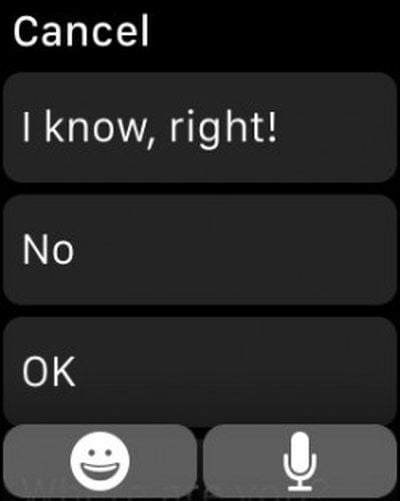 When responding to a text message on Apple Watch, Apple gives you a half dozen auto-reply phrases, like "OK" or "Sorry, I can’t talk right now." However, those phrases aren't exactly personal. For example, I don't think I've ever told someone that I can't talk right now. You can change the six phrases to be something a bit more akin to your personality.
- Open the Apple Watch app on your iPhone.
- Tap My Watch.
- Scroll down to Messages and select it.
- Tap "Default Replies."
- Select one of the grayed out messages, like "What's up?"
- Type your customized message in the text field.
On Apple Watch, when replying to a text message, the newly customized phrases will be listed.
Customizing Animated Emoji
 There are three different animated emoji on Apple Watch: a smiley face, a heart, and a hand. Each one can be slightly altered to appear different. For example, the smiley face can become a frown or the fist-bump can become a wave.
- Under the Reply section of a message, tap the emoji icon.
- Swipe left or right to select the emoji you wish to use.
- When selected, turn the Digital Crown to view the different animation options, like a breaking heart or a crying face.
- If you force press on the animated smiley face or heart emoji, you can change their color.
- Tap Send.
It is important to note that you can send the emoji to an iOS device or Mac and the animated emoji will be displayed, but those platforms do not directly support sending animated emojis return without copying and pasting a previously received one. You can also send standard emoji to people from the Apple Watch by swiping all the way left to the fourth page of emoji options.
Sending Full Texts Using Dictate Text
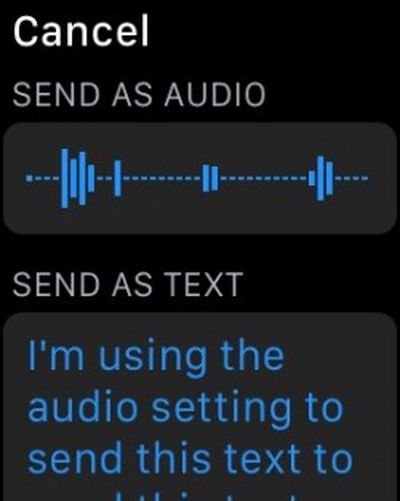 For responding to messages that require more than an emoji response or canned text, you can reply using the Dictate Text feature. This makes it possible for you to send longer messages by speaking text aloud, which is then sent as an audio message or converted to text. The Apple Watch's dictation feature is quite robust and it's a great way to quickly respond to messages.
- Under the Reply section of a message, tap the microphone icon.
- Begin speaking. Don't forget to include punctuation. For example, if you wish to add an exclamation point, speak the words, "Exclamation point."
- A sample sentence might be "I'm going to the grocery store period Do you need anything question mark." That'll translate into "I'm going to the grocery store. Do you need anything?"
- When finished, tap Done.
- You can choose to send it as an audio clip or as a text, but if you plan to send as audio, you'll want to skip dictating the punctuation.
Spend some time experimenting with the text to speech feature -- you'll likely find it useful. With that option plus custom pre-selected responses, you may find yourself sending messages more and more from your wrist instead of pulling out your iPhone. There are also several other ways to communicate more intimately with people on the Apple Watch, including taps, sketches, and heartbeats, and those options are also well worth exploring.

















Top Rated Comments
The fact these things even need to be said says to me the watch is too complicated and hard to use. I mean really a guide for responding to text messages?
Just my thoughts.
EDIT: Since some people didn't get what I was trying to say. This article is unnecessary, the watch is not hard to use. I was being perhaps a bit too sarcastic and it went over your heads. I thought I made that clear with "As cool as it is that MacRumors is making these articles and I respect the writers and staff." and [I]"I mean really a guide for responding to text messages?"[/I] but clearly not.
I'm 71 years old and consider myself pretty computer savvy, but each and every OS has it's own peculiarities and deviations, so I enjoy these little "how to" articles. Keep them coming. Even if one is not needed, overall, they all help.
When I first got my iPad, I took it to England (where I was working at the time). One of the people I worked with told me her husband had drawn an iPad out on paper, and was practicing on the paper version. It wasn't available in the UK yet. I gave her the box mine had come in, with the full-sized photo of the iPad on the front. I worried that it might be condescending, but she said he was really grateful.
The first computer I ever saw in person was a TRS-PC. A pocket computer with less than 1K RAM. My father let me play with it, and I was hooked. He wouldn't let me take the computer out of his sight, but he loaned me the instruction manual, which I read cover to cover.
These articles are p*rn for those who want an Apple Watch but haven't yet got one. If they had a Watch, they'd be figuring it out on their own, as you say, no problem. But they don't (yet). When they get their own, they'll pick it up even quicker than a novice, because they'll have already gone through the motions in their mind.
And that right there is the problem with these posts. If you spend more than two minutes using the watch you'll see these posts are wholly unnecessary and are simply filler on a slow news day. It gives a very inaccurate impression of the watch which is quite intuitive to use.