 Since iOS 11, Apple's stock Notes app has featured an impressive built-in tool for scanning documents and saving them as a note. In iOS 13, Apple has added a similar tool to the Files app that lets you scan documents and save them as PDFs in the location of your choosing.
Once you've scanned a document, you can save it anywhere in iCloud Drive, or in any third-party cloud services that you've associated with the Files app. The following steps guide you through the process of scanning something and saving it in your preferred location.
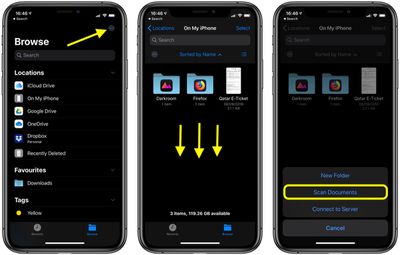
- Launch the Files app on your iPhone or iPad.
- On the Browse screen, tap the ellipsis button (the circle containing three dots) at the top-right corner of the screen. Alternately, navigate to the folder in which you want to save your scans, then swipe down on the screen to reveal the folder options bar and tap the ellipsis button on the left.
- Select Scan Documents from the pop-up menu.

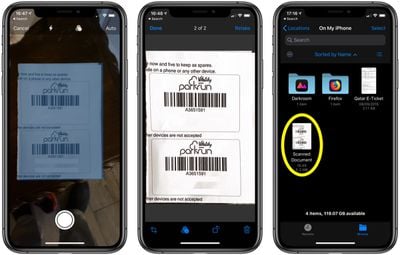
- By default, the camera will try to detect a document in the viewfinder and automatically capture it. If you don't want this to happen, tap Auto in the top-right corner of the camera interface to change to the Manual setting.
- Tap on the three circles at the top to choose color, grayscale, black and white, or photo for your scan. The default option is color.
- Tap on the flash icon if you need to adjust the flash options. The default is auto, which will cause the flash to go off if you're in a room with low light.
- Focus the camera on your document, making sure the yellow box is lined up with the edges of your document.
- When it's aligned, tap the camera shutter button to snap a photo.
- Adjust the edges of your scan to get a perfect alignment. The app will automatically correct for any tilting.
- If the scan is to your liking and you don't want to scan any more pages, tap Done, then tap Save when you're returned to the scanning interface. If you want to try the same scan again, choose Retake.
- If you initiated the scan from the Browse screen of the Files app, you'll be asked to select a folder in which to save your scanned documents. Otherwise, your scanned document(s) will be automatically saved as a PDF in the folder you previously navigated to.
Apple's document scanning tools are well engineered and impressive, producing dozens of clear, clean scans in our tests, with excellent performance on everything from photos to documents. Apple's scanning tool rivals even well-established third-party document scanners and can easily replace them.