Save Time Resizing Images on Mac With a Quick Action - MacRumorsOpen MenuShow RoundupsShow Forums menuVisit ForumsOpen Sidebar
Skip to Content

Save Time Resizing Images on Mac With a Quick Action

by

Resizing images in macOS is easily done in the Preview app, but if your daily workflow requires you to scale images to a specific size – for uploading to a blog, for example – then using an image resize Quick Action is a much faster way of getting the job done.
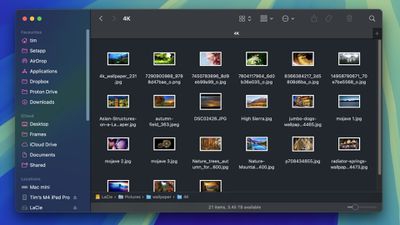
finder images folder
In this article, we'll show you how to use the Automator app to create a simple Quick Action that, once saved, will have you resizing images in just a couple of clicks, without even going near an image editing app. Keep reading to learn how it's done.

Create a Resize Image Quick Action

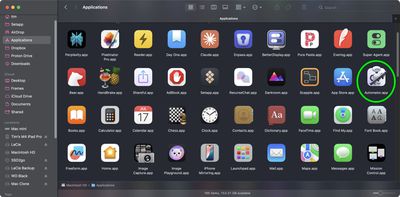
  1. Launch Automator from the Applications folder.
    finder automator

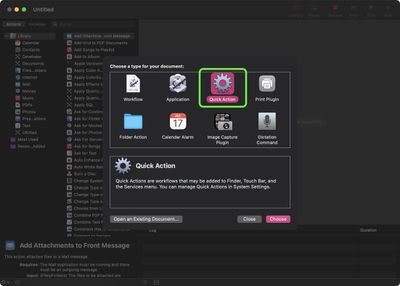
  2. Click New Document, then choose Quick Action as the type of your document.
    automator

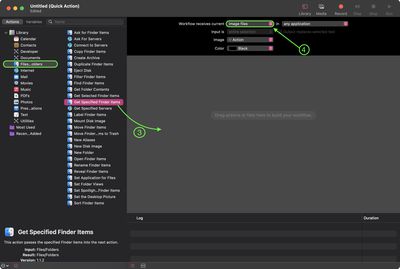
  3. Select Files and Folders in the Actions sidebar, then drag Get Specified Finder Items to the workflow area.
  4. Click the Workflow received current dropdown at the top and select image files from the menu.
    automator

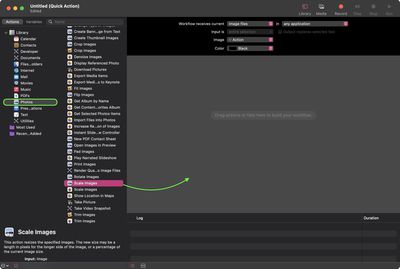
  5. Select Photos in the Actions sidebar, then drag Scale Images to the workflow area.
    automator

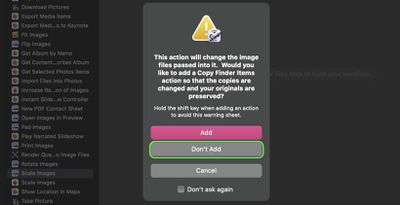
  6. Automator will prompt you to add a Copy Finder Items Action to save the original files in a separate folder. We're sticking to a simple workflow of resizing images here, so we click Don't Add.
    automator

  7. In the Scale Images action panel, type the width that you want to resize your images to. We're going to use 1200 pixels.
    automator

  8. In the Automator menu bar, select File ➝ Save..., call your new Quick Action "Resize Image", then click Save.
Use Your New Quick Action

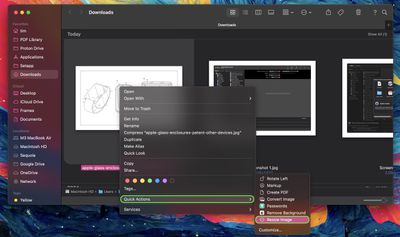
Next time you want to resize an image, simply right-click (or Ctrl-click) the item in Finder and select Quick Actions ➝ Resize Image from the contextual dropdown menu. You can also drag a selection box over several images and resize them all in one go using the Quick Action.
automator

Add a Keyboard Shortcut

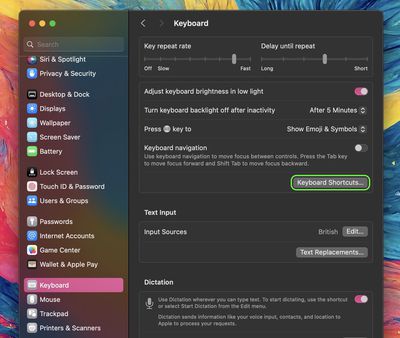
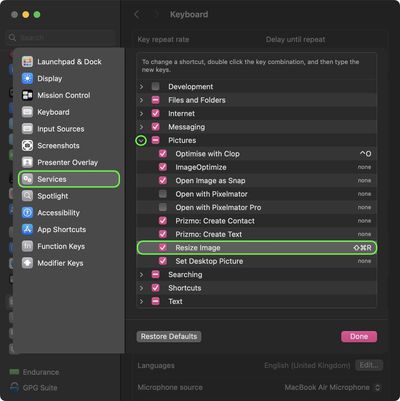
Why not assign a key shortcut to your image resize Quick Action to speed up the process? To do so, launch System Settings, select Keyboard in the sidebar, then click the Keyboard Shortcuts... button.
automator
Select Services from the sidebar, expand the "Pictures" checklist, and you should find Resize Image near the bottom of the list. Double-click the line item where it says "none", then enter your custom key combination. Click Done when you're finished.
settings
By integrating this Quick Action into your macOS workflow, you should be able to efficiently resize images with just a few clicks, saving you time and enhancing your productivity.


Top Rated Comments

18 months ago
this is the contents we would like to see. not kuo/gurman advertisements.

Score: 25 Votes (Like | Disagree)
18 months ago
Love these kind of articles on MR! 👍
Score: 16 Votes (Like | Disagree)
neotint Avatar
18 months ago
More recipes and playbooks like this, thanks. Great reminders. Btw are these saved to iCloud and part of one's account, or just part of current OS install and would need to be redone over and over with each machine? Is there way to save them for reimport use on other/new machines?
Score: 5 Votes (Like | Disagree)
mrnoark Avatar
18 months ago

Articles like this are really useful but, we’ve had Shortcuts app on the Mac for several years already… why are we still relying on Automator? I’m just genuinely curious. What can Automator do that Shortcuts can’t?
Automator has way more functions, like AppleScript, Watch Me Do (action recording) and Folder Actions.

Here’s a MacRumors article ('https://www.macrumors.com/how-to/turn-macos-folder-into-image-converter-how/') to achieve similar functions with Folder Actions.
Score: 4 Votes (Like | Disagree)
18 months ago
A bit saddened from seeing how few Mac users don't know what the Mac can do.
Score: 3 Votes (Like | Disagree)
18 months ago

Very useful. For example, 2048px is supposed to be best size to preserve quality for Facebook.
Anything you upload to Facebook is good for Facebook.
Score: 2 Votes (Like | Disagree)

Popular Stories

Apple Event Logo

Apple Working on All-New Operating System

Wednesday July 29, 2026 11:39 am PDT by
Apple is developing an all-new operating system that is essentially a mix of tvOS, watchOS, and iOS, according to Bloomberg's Mark Gurman. In a report this week, he said the operating system will feature a grid of icons, widgets, and apps, along with customizable clock faces. The new software platform is intended for Apple's long-rumored smart home hub. With built-in facial recognition,...
imac video apple feature

Apple Made Its Second-Biggest Acquisition Ever This Year

Wednesday July 29, 2026 12:03 pm PDT by
Apple this year acquired Israeli startup Q.ai for close to $2 billion, according to the Financial Times. That would make this Apple's second-biggest acquisition ever, after it paid $3 billion for the popular headphone maker Beats in 2014. This is also the largest known Apple acquisition since the company purchased Intel's smartphone modem business and patents for $1 billion in 2019. Q.ai...
Dynamic Island iPhone 18 Pro Feature

iPhone 18 Pro: Twelve Changes Coming to Apple's Next Flagship

Thursday July 30, 2026 3:43 am PDT by
We're less than two months out from the launch of Apple's premium next-generation smartphone lineup, and while we're not expecting a dramatic change in terms of functionality, there are still several enhancements rumored to be coming to the iPhone 18 Pro and iPhone 18 Pro Max. One thing worth noting is that Apple is reportedly planning a major change to its iPhone release cycle this year,...

🔗 Related Apple News & Rumors

Stay updated with the latest Apple ecosystem news and verified rumors