iOS 16: How to Find, Merge, and Delete Duplicates in Your Photo Library - MacRumorsOpen MenuShow RoundupsShow Forums menuVisit ForumsOpen Sidebar
Skip to Content

iOS 16: How to Find, Merge, and Delete Duplicates in Your Photo Library

by

In previous versions of iOS, relying on your iPhone to automatically track down duplicate photos in your Photo Library wasn't an option, and if you wanted to purge your device's storage of duplicates you had to download a third-party app to do it for you.

iOS 16 Photos and Camera Guide Feature
In iOS 16, however, that's no longer the case, because the Photos app will now automatically detect any duplicates in your library and collate them together for your inspection.

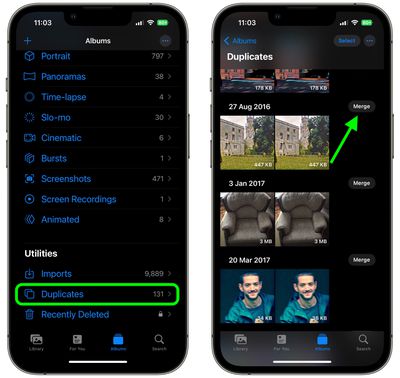
Finding duplicates is easy, since Apple has added a new Duplicates album under the "Utilities" section of the ‌Photos‌ app. Simply tab the Albums tab and scroll down to find it. (Bear in mind that the album only appears if you do indeed have duplicate images on your iPhone.)
photos
Inside the Duplicates album, you'll see duplicates listed in chronological order, with a Merge button beside each set. You can tap this button to merge duplicate sets into an individual photo. Even if you take two photos together that are very similar, Apple's merging feature will intelligently keep the highest detail and the most metadata, creating the best possible image.

If, for example, you have one copy of a photo that's high resolution and a second copy that has more metadata, the ‌‌Photos‌‌ app will combine the best qualities from both photos into a single image.

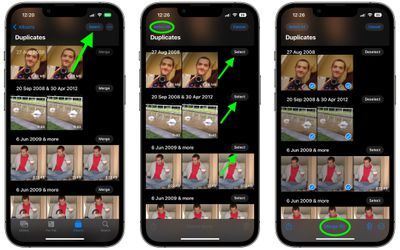
You can also merge several sets of duplicates – or all the duplicates in your Photo Library – simultaneously, by following these steps.

  1. In the Duplicates album, tap Select at the top of the screen.
  2. Individually tap the duplicates that you want to merge, or tap Select All at the top-left of the screen.
  3. Tap Merge at the bottom of the interface. Alternatively, you can delete the duplicates using the trash icon at the bottom-right.
photos

Note that after updating to ‌iOS 16‌, your ‌iPhone‌ will continually scan for duplicates, so duplicate images may show up over time and may not be available right when the update is installed.

Popular Stories

apple intelligence photos tools

Apple to Bring AI Reframing and Editing Tools to Photos App

Monday June 8, 2026 11:16 am PDT by
Apple today announced new AI-powered photo editing tools coming to the Photos app as part of Apple Intelligence, including an upgraded Clean Up tool, a new Extend tool, and a new Spatial Reframing feature. Spatial Reframing allows users to reposition the virtual camera angle of a photo after it has already been taken. By touching and dragging, users can adjust the framing and perspective of...
iOS 26 Glass Photos Feature

Apple Photos Finally Gets a Slideshow Maker

Monday June 8, 2026 5:04 pm PDT by
Apple today announced new slideshow features coming to the Photos app, allowing users to play any set of photos and videos as a slideshow. There are options to set the slide duration, transition style, and music. iOS 27 also lets users save any slideshow directly as a video to their Photos library for easy playback later. Additional new features include the ability to save individual...
American Express Gold Apple Pay Feature

American Express Announces New Apple Pay Feature

Tuesday June 30, 2026 10:27 am PDT by
American Express today announced that you can now redeem Membership Rewards points when checking out with Apple Pay on the web and in apps on the iPhone and iPad. When checking out with Apple Pay on iOS 18 or iPadOS 18 or later, tap on your eligible American Express card (Platinum, Gold, Green, and others) and select the Membership Rewards points option. You can use points to cover all or...

🔗 Related Apple News & Rumors

Stay updated with the latest Apple ecosystem news and verified rumors