How to Protect Your Apple ID With Security Keys - MacRumorsOpen MenuShow RoundupsShow Forums menuVisit ForumsOpen Sidebar
Skip to Content

How to Protect Your Apple ID With Security Keys

by

Apple has introduced security keys as an additional step to help users protect their Apple ID accounts. Keep reading to learn why the alternative authentication method is the most secure method available and what you need to do to set it up.
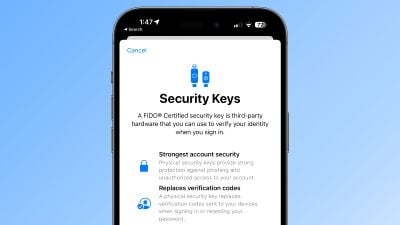
ios 16 3 security keys info

What Are Security Keys?

With the release of iOS 16.3, iPadOS 16.3, and macOS Ventura 13.2, Apple introduced support for security keys, or physical devices that can verify your ‌Apple ID‌ instead of a passcode.

Apple designed the feature for people who require additional protection from targeted attacks, such as phishing or social engineering scams.

The extra protection that security keys provide means that if someone had your ‌Apple ID‌ and your password, they still would not be able to access your account without your physical security key, which replaces the traditional verification code provided by two-factor authentication.

How Do Security Keys Work?

With a security key enabled, signing into an ‌Apple ID‌ requires entering your account's password and then using a security key to complete the two-factor authentication process, instead of the traditional six-digit verification code that is sent to another Apple device signed into the same account.

Why It's Worth Using Security Keys

It's worth noting from the outset that using physical security keys puts the onus on you to be careful not to lose them, otherwise you could permanently lose access to your Apple account. This is why Apple requires users to set up at least two security keys, and supports up to six in total.
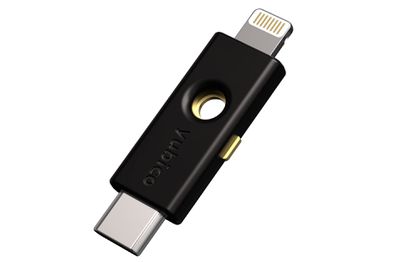
security keys
Having two physical security keys set up means you can keep them in more than one safe place. For example, you could keep one at home and one in your workplace, or you could keep one with you when traveling while the other one remains safe at home.

Once you have security keys set up, you can use them to sign in with your ‌Apple ID‌ on a new device or on the web, reset your ‌Apple ID‌ password, and add additional security keys or remove them from your account.

What You Can't Do With Security Keys

There are a few things worth noting that you can't do with security keys.

  • You can't use them to sign in to iCloud for Windows.
  • You can't sign in to older devices that can't be updated to a software version that supports security keys.
  • Security keys don't support child accounts and Managed Apple IDs.
  • Apple Watches that are paired with a family member's iPhone aren't supported.

Security Keys Worth Considering

Most security keys look similar to a typical USB thumb drive, with some options available with NFC for wireless use and others equipped with Lightning, USB-C, and/or USB-A ports for direct connectivity with iPhones, iPads, and Macs.

There are many options on the market when buying security keys, but the main things to consider when choosing one are that it is FIDO Certified and that it has a connector that works with your Apple devices. Some options recommended by Apple include:

Visit the FIDO Showcase website for a complete list of keys certified by the FIDO Alliance.

How to Enable Security Keys on iPhone and iPad

  1. Launch the Settings app on your iOS device.
  2. Tap your name in the ‌Apple ID‌ banner.
  3. Tap Password & Security.
  4. Tap Security Keys.
  5. Tap the blue Add Security Keys button and follow the on-screen instructions.
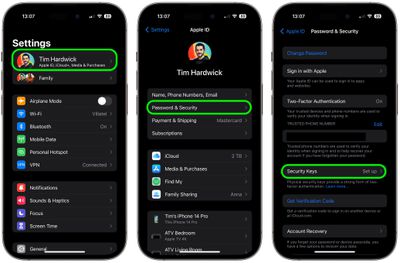
settings

You can remove security keys at any time by repeating the steps outlined above and tapping or clicking on Remove All Security Keys. Doing so causes your ‌Apple ID‌ to revert to using a traditional six-digit verification code for two-factor authentication.

How to Enable Security Keys on Mac

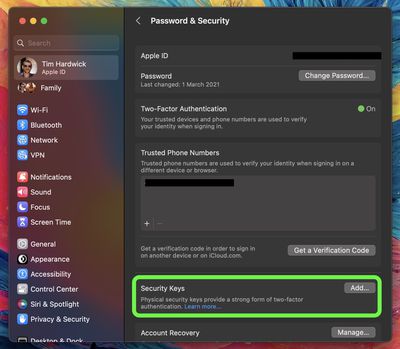
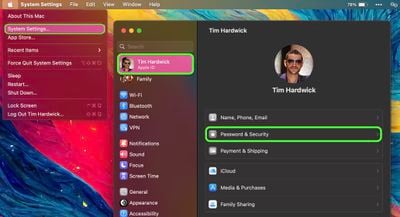
  1. Click the Apple symbol () in your Mac's menu bar and choose System Settings….
  2. Click your name at the top of the sidebar.
    settings

  3. Click Password & Security.
  4. In the "Security Keys" menu section, click Add…, then follow the onscreen instructions.
    settings

After following the above steps you will be given the opportunity to review the devices linked to your ‌Apple ID‌, with options to stay signed in to or log out of any associated Apple devices.

You can stop using security keys on your Mac by going to System Settings -> [your name] -> Password & Security. Click Security Keys, then click Remove All Security Keys. Doing so causes your ‌Apple ID‌ to revert to using a traditional six-digit verification code for two-factor authentication.

Top Rated Comments

F23 Avatar
45 months ago
Introducing the Apple Security Key for $199, we think you're going to love it.
Score: 17 Votes (Like | Disagree)
TheYayAreaLiving 🎗️ Avatar
45 months ago

Introducing the Apple Security Key for $199, we think you're going to love it.
I'm afraid it will be subscription-based :(. Apple's main focus is to generate money through Services nowadays :(
Score: 15 Votes (Like | Disagree)
antiprotest Avatar
45 months ago
Everything looks good until we find out Apple lets thieves use "shake to undo" to reset and switch to their own key.

And then everybody will have to use a screen time code to plug that hole too.
Score: 11 Votes (Like | Disagree)
centauratlas Avatar
45 months ago

I cannot tell you how many flash drives I have misplaced over the years, so I fear losing my security key and then I'm really screwed without anyone having to steal my device.

Am I missing something with this approach? How do the thieves bypass my second screen time pin without trying to crack the 4-digit pin? Is there a back door? I realize that it could take time to methodically run through the 10,000 combinations. Not the most secure I agree, but if it slows them down long enough for me to take action, then it's better than no security key and no password.

I'm just asking because I want to learn and know what I am up against.
Someone already answered this, but Apple needs additional steps to protect the AppleID. Some possibilities. Some/all could be optional:

1. 72 hour delay period before you are locked out - so you could back out of it from a different Apple Device, e.g. iPad.
2. Require FaceID/TouchID in addition to the password to reset it. And/or require the old password be entered to reset it.
3. Require confirmation on a different logged in Apple device, so it can't be done from the stolen device.
4. Sign phone out of iCloud for the paired iPhone from the Watch.
5. Or allow you to lock the paired phone from the Watch so that it needs a password AND confirmation from a different Apple device before they can do anything.

:-)
Score: 9 Votes (Like | Disagree)
Mr. Dee Avatar
45 months ago
Sorry, I’ll take my chances and just avoid using my passcode in public places.
Score: 9 Votes (Like | Disagree)
Apple_Robert Avatar
45 months ago
The security keys don't fully protect your Apple ID account. The keys are useless in protecting your Apple ID account if someone knows your phone passcode and takes control of your phone.
Score: 9 Votes (Like | Disagree)

Popular Stories

iPhone Duo Display Cracking

Apple Alerts Stores to iPhone Duo's Display Cracking Issue

Friday October 30, 2026 3:20 pm PDT by
In a memo shared with Apple Stores and Apple Authorized Service Providers this week, and later obtained by MacRumors, Apple provided technicians with guidance on how to diagnose and address the iPhone Duo's inner display cracking issue. If a customer reports the issue, Apple advised technicians to inspect the iPhone Duo and repair or replace it in accordance with their standard procedures....
iPad mini OLED feature 1

Apple Executive Comments on New iPad Mini Lacking 120Hz Display

Thursday October 29, 2026 1:47 pm PDT by
While the new iPad mini has an OLED display, the device does not support ProMotion, meaning the display's refresh rate is limited to 60Hz instead of 120Hz. ProMotion support would have allowed for the iPad mini's refresh rate to automatically adjust from 10Hz to 120Hz depending on the content being displayed, but evidently Apple has kept the feature exclusive to the iPad Pro among iPad...
Pinched iPad Mini

Apple Avoids Showing Pinched Fingers on iPad Mini Page in South Korea

Thursday October 29, 2026 11:52 am PDT by
In the U.S. and most other countries, Apple's website shows the new iPad mini being held by pinched fingers, but this is not the case in South Korea. The new iPad mini shown with pinched fingers on Apple's website in the U.S. On its South Korean website, Apple simply shows an image of the iPad mini on its own. The new iPad mini shown without pinched fingers on Apple's website in South Korea ...


Latest Stories
Apple Watch Ultra 4 Hits All-Time Low Price With Amazon's $99 Discount
8 hours ago
Reminder: Apple's Big Discount on Beats 360 Ear Cushions Ends Today
8 hours ago
Here's a New Tour of Apple's HomeView Software
9 hours ago
Apple Reveals New iPad Mini's Battery Capacity
10 hours ago
Top Stories: Apple's Big MacBook Pro, iPad mini and iMac Updates
11 hours ago
'Pluribus' Season 2 Reportedly Starts Production Today
18 hours ago
iPhone 18 Pro Sales Surge in China, Offsetting Decline in U.S. and Japan
18 hours ago
HomeView Software 27.2: Wallpapers, Control Center, and More
1 day ago
Apple Alerts Stores to iPhone Duo's Display Cracking Issue
1 day ago
iOS 27.3 Will Enable These Apple Intelligence Features in China
1 day ago
Apple Says iOS 27.3 Beta Coming Next Week
1 day ago
Apple's Flash Storage Suppliers Are Finally 'Getting Their Revenge'
1 day ago
14 New Things Your iPhone Can Do in iOS 27.2
1 day ago
iPhone Duo Review: One Week Later
1 day ago
Samsung Mocks iPhone Duo Display Cracks in New Ad Campaign
1 day ago
The MacRumors Show: OLED MacBook Pro, iPad Mini 8, and More
1 day ago
MacBook Pro With Touch Display: 15 More Details Revealed
1 day ago
Russia Places Apple on State Surveillance Registry
1 day ago
Halloween Weekend Brings Discounts on Apple Accessories and Pre-Orders
1 day ago
Apple Has Released More Than 25 New Products in the Past Two Months
1 day ago
Local Code Launches as Free, Private AI Assistant Tool for Mac
1 day ago
Apple Acquires Ascend.io
1 day ago
HomePod Mini 2 Launches Today: All the New Features
2 days ago
AirTag 2 4-Pack Drops to New Low Price of $69.99
2 days ago
Rian Johnson's iPhone Camera App Goes Viral
2 days ago
Where Did All the iPhone Duos Go? Mostly to Apple's Stores
2 days ago
Apple's Touchscreen MacBook Pro Could Ship 1.5M Units in 2027
2 days ago
New Apple TV 4K and iPad Mini: RAM Amounts Revealed
2 days ago
Apple Executive Comments on New iPad Mini Lacking 120Hz Display
2 days ago
Here's a Hands-On Look at HomePod Mini 2's New Two-Tone Colors
2 days ago

🔗 Related Apple News & Rumors

Stay updated with the latest Apple ecosystem news and verified rumors