

How to Use the Redesigned Messages App Drawer in iOS 11 - MacRumorsOpen MenuShow RoundupsShow Forums menuVisit ForumsOpen Sidebar
Skip to Content

How to Use the Redesigned Messages App Drawer in iOS 11

by

In iOS 10, Apple introduced the Messages App Store, allowing users to jump into miniature versions of their favorite apps so they could do things like choose a movie time, send their location, pay a friend, give a recommendation from Apple Music, and attach stickers. With the launch of iOS 11, the app drawer and selection experience of Messages apps have been streamlined, and this guide will walk you through the fastest way to access your favorite apps, organize them, and add more from the Messages App Store.

Navigating the New App Drawer in Messages
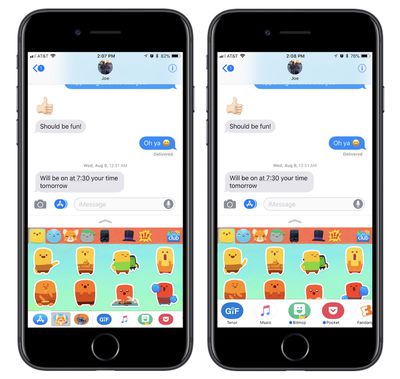
how to messenger app drawer 1

  1. Open Messages.
  2. Choose a contact to text.
  3. At the bottom of the screen sits the new app drawer, and you can tap one to bring it up or scroll to dive deeper into your collection.

From here, apps within Messages function essentially the same as they did in iOS 10: the bottom half of the screen represents the app, which you can interact with and send content into the upper half section of the screen in the form of an iMessage. A small chevron sitting just below the text entry field can be tapped to expand the Messages app to full screen, and tapped again to reduce it.

If you ever accidentally leave the app by tapping the text field, simply tap the App Store icon to the left of the text field. Conversely, if you're inside of a Messages app and want to make it and the app drawer disappear, tap the same App Store icon to the left of the text field (it'll be blue when the app drawer is open) to make the app disappear (returning the icon to gray).

Editing the New App Drawer in Messages
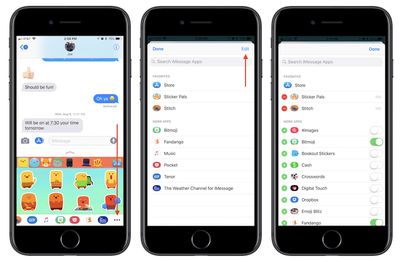
how to messenger app drawer 2

  1. Navigate to the app drawer in Messages.
  2. Scroll the drawer all the way to the right and tap the ellipses, or "More," icon.
  3. Tap "Edit."
  4. On the right side, choose any installed app you want or don't want in your Messages app drawer by tapping the green toggles.
  5. On the left side, tap the green "+" icon next to any app you want as a favorite.
  6. Tap "Done."

Now that your app drawer is fully customized, your favorites will appear on the far left side of the drawer, and any other apps you have toggled on will appear after your favorites. Any time you want to search for more, you can tap the blue App Store icon sitting to the left of your favorites to visit the Messages App Store. There are numerous standalone Messages apps, but many popular apps have also been updated over the past year to include Messages support.

For this reason, it's easy for your app drawer to become crowded, making the deeper editing and favoriting options in iOS 11 a welcome addition. If you'd rather not see the app drawer, tap on the gray App Store icon at the left of the Messages text box to hide it from view.

Related Forum: iOS 11

Top Rated Comments

ck2875 Avatar
116 months ago
With the launch of iOS 11, the app drawer and selection experience of Messages apps have been streamlined, and this guide will walk you through the fastest way to access your favorite apps, organize them, and add more from the Messages App Store.

You left off the most important part: Tap the gray App Store icon to hide the app drawer.
Score: 12 Votes (Like | Disagree)
116 months ago
How do you disable this stupid thing?

I’m a grown up. I text people. I don’t need everything to be shared or “connected”.
Score: 6 Votes (Like | Disagree)
116 months ago
You left off the most important part: Tap the gray App Store icon to hide the app drawer.
I can’t believe I didn’t figure that out and I’ve been using the beta.

THANK YOU !!! honestly, I search the setting and I figures you couldn’t turn it off cuz they wanted to you to buy those stupid stickers. Thank you again. MR needs a post with just this info for us who aren’t in middle school.
Score: 2 Votes (Like | Disagree)
116 months ago
This thing is still really buggy. I edited the apps available and when I was done I couldn't press "Done." I had to force quit the app. I've noticed some other weirdness that makes iOS 11 still feel very much beta to me.
Score: 2 Votes (Like | Disagree)
116 months ago
How about an article to discuss that turning off WiFi in control center in iOS 11 doesn’t turn it off and it reconnects automatically even after you’ve turned it off?
https://www.macrumors.com/2017/09/20/bluetooth-wifi-not-disabled-ios-11-control-center/
Score: 1 Votes (Like | Disagree)
Prof. Avatar
116 months ago
You left off the most important part: Tap the gray App Store icon to hide the app drawer.
I was so happy when I found this out.
Score: 1 Votes (Like | Disagree)

Popular Stories

Apple Event Logo

Apple Working on All-New Operating System

Wednesday July 29, 2026 11:39 am PDT by
Apple is developing an all-new operating system that is essentially a mix of tvOS, watchOS, and iOS, according to Bloomberg's Mark Gurman. In a report this week, he said the operating system will feature a grid of icons, widgets, and apps, along with customizable clock faces. The new software platform is intended for Apple's long-rumored smart home hub. With built-in facial recognition,...
imac video apple feature

Apple Made Its Second-Biggest Acquisition Ever This Year

Wednesday July 29, 2026 12:03 pm PDT by
Apple this year acquired Israeli startup Q.ai for close to $2 billion, according to the Financial Times. That would make this Apple's second-biggest acquisition ever, after it paid $3 billion for the popular headphone maker Beats in 2014. This is also the largest known Apple acquisition since the company purchased Intel's smartphone modem business and patents for $1 billion in 2019. Q.ai...
Dynamic Island iPhone 18 Pro Feature

iPhone 18 Pro: Twelve Changes Coming to Apple's Next Flagship

Thursday July 30, 2026 3:43 am PDT by
We're less than two months out from the launch of Apple's premium next-generation smartphone lineup, and while we're not expecting a dramatic change in terms of functionality, there are still several enhancements rumored to be coming to the iPhone 18 Pro and iPhone 18 Pro Max. One thing worth noting is that Apple is reportedly planning a major change to its iPhone release cycle this year,...

🔗 Related Apple News & Rumors

Stay updated with the latest Apple ecosystem news and verified rumors











































