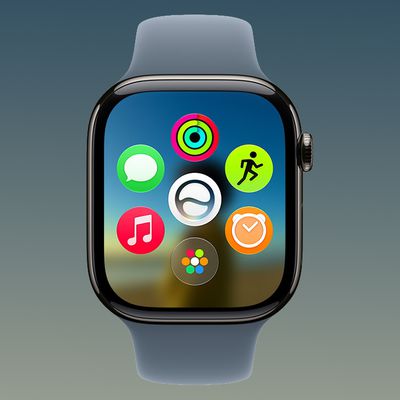
Apple in watchOS 7 introduced a new Memoji app, which can be used to create the personalized Memoji characters that Apple first introduced in 2018, with the Memoji app available on the Apple Watch Series 4 and later.
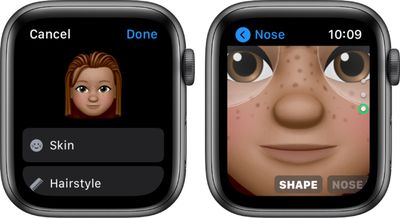
Creating a Memoji can be done in just a few minutes, and all of the same creation options that are available on iPhone and iPad are available on Apple Watch.
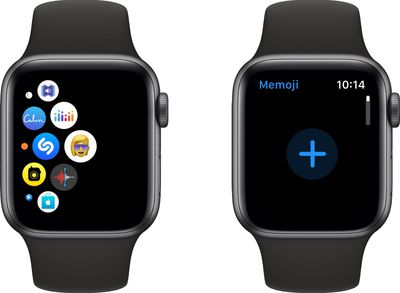
- Open the Memoji app. The icon looks like a Memoji.

- If you have an existing Memoji, you can tap to edit it.
- If you don't have a Memoji or want to create a new Memoji, tap on the "+" icon. If you have a lot of Memoji, you may need to scroll up with the Digital Crown to see the option.
- Tap "Skin" and then use the Digital Crown to select a skin color. Swipe to see additional options such as freckles and cheeks.
- When the "Skin" setting is to your liking, tap on the "Skin" label at the top of the interface to go back to the rest of the settings.
- Continue on through the list to customize each aspect of your Memoji, following the same instructions that you used to customize the skin color. You can tap the Memoji on the display to view different expressions, and use pinch gestures to zoom in and out.
- When finished, tap on "Done" and the Memoji will be added to your list of Memoji in the app.
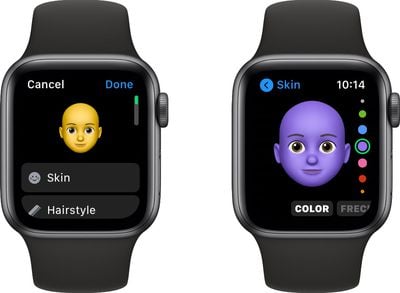
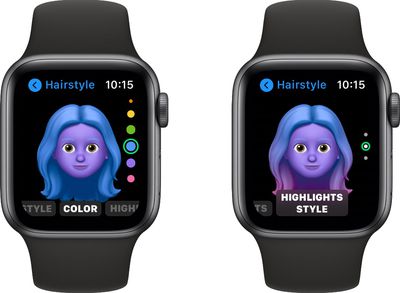
You can customize skin, hairstyle, brows, eyes, head shape, nose, mouth, ears, facial hair, eyewear, and headwear, with dozens of options available for most settings.
Delete a Memoji
Want to get rid of one of the Memoji you created? Follow these steps.
- Open the Memoji app.
- Use the Digital Crown or a swipe gesture to get to the Memoji you want to delete.
- Tap on the Memoji.
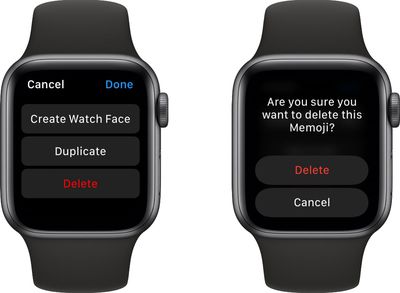
- Use the Digital Crown or a swipe gesture to scroll to the bottom of all the options.
- Tap "Delete" and then choose the Delete option again when the confirmation screen pops up.
Duplicate a Memoji
If you want to duplicate a Memoji to have a base to start with when making edits for a new Memoji, follow these steps.
- Open the Memoji app.
- Use the Digital Crown or a swipe gesture to get to the Memoji you want to copy.
- Tap on the Memoji.
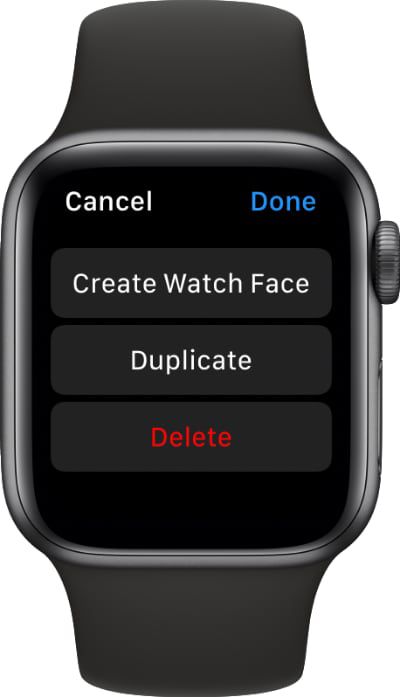
- Use the Digital Crown or a swipe gesture to scroll to the bottom of all the options.
- Tap "Duplicate."
Set a Memoji as a Watch Face
You can set a Memoji as a watch face on your Apple Watch if you have an Apple Watch Series 4 or later.
- Open the Memoji app.
- Use the Digital Crown or a swipe gesture to get to the Memoji you want to use.
- Tap the Memoji.
- Use the Digital Crown or a swipe gesture to scroll to the bottom of all the options.
- Tap "Create Watch Face."
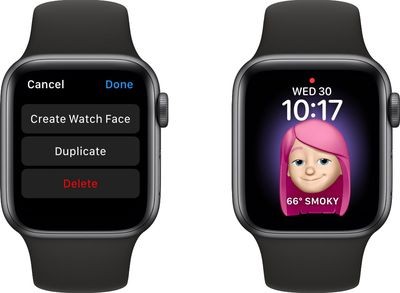
Want to use an Animoji instead of a Memoji as your watch face? Make sure to check out our how to on setting an Animoji watch face.