

Most long-time macOS users will be aware of the Application Switcher. It's invoked using the Command+Tab keyboard shortcut, and lists all of the apps currently running on your Mac, enabling you to quickly switch between them.

In this article, we'll run through the Mac App Switcher's most basic functions, and then highlight some of our favorite lesser-known App Switcher tricks that you're bound to find useful once you're familiar with it.
Basic Functions of the App Switcher
When you hold Command and press Tab, the App Switcher overlay appears above all other open windows on your desktop, and remains visible until you release the Command key. Letting go switches you to the last active app, prior to the one you were just using. As you might expect, repeating this action switches you back to the previous active app (you'll see the order change in the row of apps).

Repeatedly tapping Tab with the Command key held down cycles you through the list of apps in the App Switcher from left to right, while releasing Command takes you to the selected app. If you continue to hold down Command and press the Tilde (~), the selection moves from right to left.
You can also press the right and left arrow keys to move the selection box forwards and backwards. A two-finger drag on a trackpad does the same thing, or you can use your mouse cursor to highlight an app in the list and then click to select it.
Bring Back a Minimized App
While the App Switcher allows you to cycle through open apps, selecting an app with minimized windows doesn't automatically restore those windows. To do that, activate the App Switcher and navigate through the row of icons. With the desired app highlighted, press and hold the Option key, then release the Command key. This action should restore the minimized window of the app in question.
Show All Windows and Select Between Them
If you press the up or down arrow keys with an icon highlighted in the App Switcher overlay, Exposé will be activated for the selected app, which causes all of its windows to be displayed on screen. (Pressing the 1 key achieves the same result.) Note: Unless you have multiple displays, this won't work if the app is in fullscreen mode.
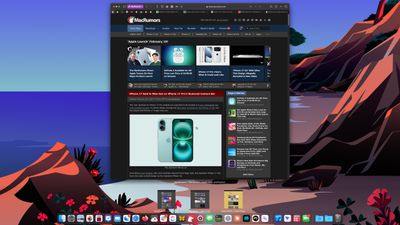
Open windows are shown front and center, while minimized windows (assuming you are not using Stage Manager) appear along the bottom of the Dock. You can use the arrow keys to switch between them and press Enter to open the one you want, or simply select one using your mouse cursor in the usual way.
Drag and Drop Files
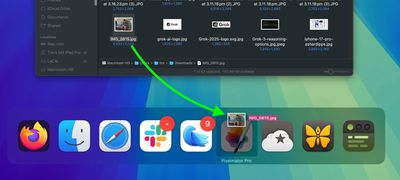
An oft-overlooked function of the App Switcher is its ability to open files. Simply begin to drag a file from a Finder window, then invoke the App Switcher and drag the file onto the relevant app icon in the overlay. Let go of the file and it should open in the selected app.
Close and Hide Apps Via the App Switcher
Pressing the H key in the App Switcher hides all the windows of the selected app (pressing the H key again reveals them). Try cycling through the overlay with the Tab key and tap H as you go – it's a neat way to quickly clear a space on a desktop cluttered with windows. This method streamlines window management by avoiding minimization. By invoking the App Switcher again you can switch back to the hidden app.
Lastly, highlighting an icon in the App Switcher and tapping Q has to be one of the fastest ways to individually quit open Mac apps, and probably qualifies as our favorite App Switcher trick. Do you know any App Switcher functions we haven't covered here? Let us know in the comments.















































Top Rated Comments