With iOS 26, Apple gives you more control than ever over how your Home screen looks and feels. For example, as part of the new Liquid Glass redesign you can now make app icons and widgets clear. You can also now set the wallpaper directly from the Home screen, whereas previously you had to go into Settings.
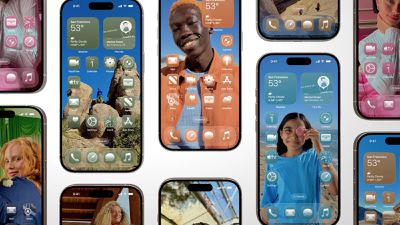
Bear in mind that the new Liquid Glass design means the wallpaper you choose directly influences the appearance of your dock, folders, and app icons, making your customization choices more impactful than before.
Change Wallpaper From Home Screen
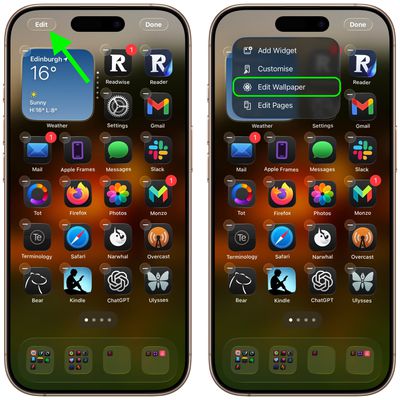
Here's the quickest way to change your wallpaper in iOS 26:
- Touch and hold any empty space on your Home screen.
- Tap Edit in the top-left corner.
- Tap Edit Wallpaper in the popup menu.
Customization Options
Once you're in the wallpaper editing interface, you'll find several ways to personalize your Home screen.
- Pair matches the wallpaper with your Lock Screen.
- Color offers uniform colors from a menu of swatches.
- Gradient blends your chosen color into another color.
- Photo lets you select and crop a picture from your library.
- Blur toggles image blurring for a softer effect.
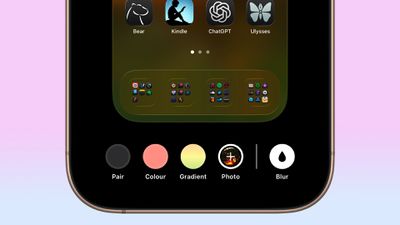
Remember that Home screen wallpaper changes won't affect your Lock Screen. These are customized independently, so you can mix and match different styles for each screen.
More New Customization Options
In iOS 26, Apple has also added a new feature to its Home screen customization options that can match the color of your app icons with your iPhone's case color or the actual color of your iPhone. Click the links to learn how it's done.