With Screen Time, Apple has introduced a robust set of parental control options in iOS 12, giving parents a way to monitor and limit the amount of time children are spending on their iOS devices, within specific apps, and more.
Screen Time works via Family Sharing, so as long as your children are part of your Family in the Family Sharing settings, you'll be able to view and control their Screen Time options.
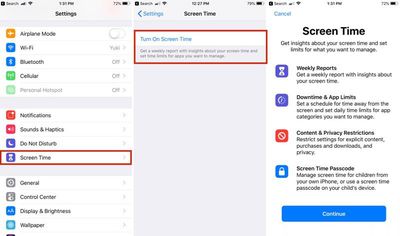
You'll need to turn on and set up Screen Time on all devices owned and used by your children, which is done in the Screen Time section of the Settings app.
Here's how to do it:
Open up the Settings app.
Navigate to the Screen Time section."
Choose "Turn on Screen Time."
When you see the introductory screen asking whether this is your iPhone or your child's iPhone, select "This is My Child's iPhone."
From here, you can choose to set Downtime, which is a set period of time in which your child will be allowed or disallowed from using the iPhone, or App Limits, which will restrict certain app categories. At setup, you can also choose Content and Privacy settings, which are further explained below.
If you want to change Downtime and App Limits selections for your child, you will be able to do so at any time by going to the Settings app and selecting Screen Time on the child's device.
A child's Screen Time settings are also accessible on the parent's device for making changes remotely, available by tapping on a child's name in the Screen Time section of the Settings app, listed under the parent's own Screen Time usage.
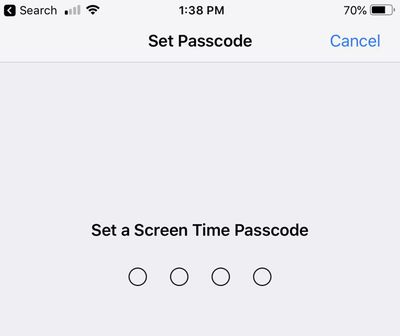
All of your App Limits, Downtime, and Content Restrictions are protected via a passcode that must be entered to grant more usage time to children when limits have been reached. This also prevents children from changing their own Screen Time settings.
Using Downtime
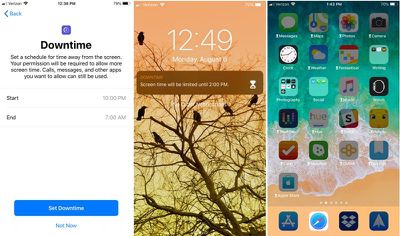
Downtime sets a schedule that allows you to choose when your child can and cannot use their iPhone or iPad. You can, for example, choose to restrict access to iOS devices from 10:00 p.m. at bedtime until 7:00 a.m. in the morning, or choose something that limits hours even further, such as during school.
With Downtime, you can opt to block the device at Downtime, which prevents apps from being used entirely sans parental permission or choose for a less restrictive feature that allows children to turn off Downtime themselves or get 15 more minutes of usage before another reminder about Downtime restrictions.
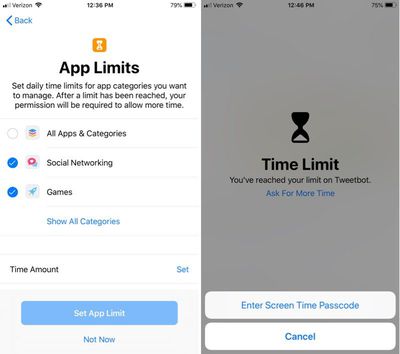
Downtime and App Limits with blocking turned on at left and blocking turned off at right
Most parents will likely want to turn on blocking for Downtime to prevent apps from being used entirely, but the non-blocking option is useful for more responsible children where all parents want to do is offer up a reminder that apps shouldn't be used at certain times.
During Downtime, all apps on the iPhone are grayed out with little hourglass locks on them, letting children know that time limits have been reached. The exception is certain apps that are always allowed in case of emergency, such as the phone.
Using App Limits
App Limits allow you to finely control how much time your kids spend using certain categories of apps.
With App Limits, you can set restrictions on All Apps & Categories, Social Networking, Games, Entertainment, Creativity, Productivity, Education, Reading & Reference, Health & Fitness, and Other.
So, for example, if you want to limit the amount of time a child is spending on Snapchat and mobile games, you can set an App Limit for those categories for an hour or two.
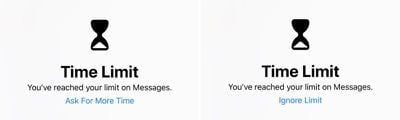
After the App Limit has been reached, children won't be able to further access those app categories without asking for express parental permission. Apps will be locked with an hourglass symbol and a passcode will be required to enable more time.
As with Downtime, you can set less restrictive rules that serve as more of a reminder by turning off blocking with App Limits.
Always Allowed Apps
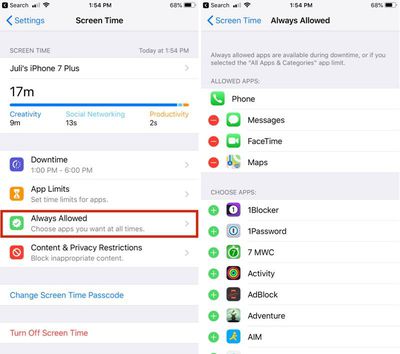
With Downtime and App Limits, you can set certain apps to "Always Allowed" to let children access them at all times even when Downtime and App Limits are enabled.
By default, Apple marks Phone, Messages, FaceTime, and Maps as always available apps, but you can select any apps that you want through the Always Allowed app interface, accessible under "Always Allowed" in the Screen Time section of Settings on a child's device.
You can also remove access to all apps, including Messages, with the exception of the phone, which remains available to children in case of emergency.
Always Allowed is ideal if you want your kids to be able to use certain educational or communication apps at anytime while leaving other apps inaccessible.
Selecting Content Restrictions
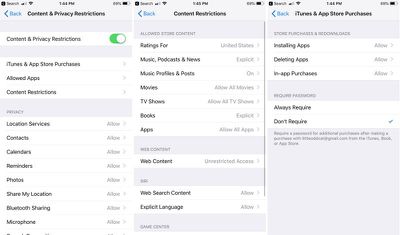
Apple has always offered Content Restrictions for parents to limit access to music, movies, TV shows, and apps that are inappropriate for younger children, but these parental controls now live under the Screen Time section of the Settings app alongside the other Screen Time options.
In the Content & Privacy Restrictions section of Screen Time on a child's device, you can do things like limit App Store purchases, prevent kids from deleting apps, disallow access to certain apps, and set age restrictions on entertainment content.
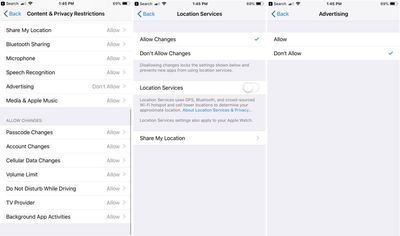
You can also set privacy settings for everything from location to advertising preferences, so, for example, if you wanted to make sure you can always access your child's location, you can turn on Location Services and select Share My Location.
There are even options that prevent children from changing the passcode on their device, restrict account changes, limit volume, and automatically turn on Do Not Disturb While Driving.
Accessing Content & Privacy restrictions requires an adult to input a Content & Privacy passcode, which prevents children from changing these settings.
At present, you can completely bypass the screen time passcode to remove Content and Privacy Restrictions (e.g. to disable the blocking adult porn websites) by searching for ‘Restrictions’ in the Settings app as it takes you to a shortcut straight to the setting that allows you to disable it and doesn’t require a user to input the screen time passcode.
This is a major security backdoor which totally invalidates the feature in its entirety and the bug is present in the most recent Beta 6 (public beta 5) build.
I have submitted a bug report to Apple a few days ago, but it was not addressed in today’s new build yet.
Nice feature but my kids found a simple way to prevent this. They edited their birthdate in their iCloud-Accounts. From 13 to 18 and from 14 to 18. Now I can't do anything about that as only they can login and change it. Why is it even possible that minor family members can change their birth dates?
Apple's long-rumored smart home hub will have an iMac G4-style design and a host of unique features, Bloomberg's Mark Gurman reports.
The smart home hub is said to feature a square 6-inch display, with variants that can be placed on a countertop or mounted on a wall. It features a single FaceTime camera on the front, with microphones and speakers in its connected base. Gurman described the...
Apple plans to introduce a series of new smart home products on Tuesday, October 13, according to Bloomberg's Mark Gurman.
Apple reportedly plans to debut its long-awaited smart home hub device, a new HomePod mini, and a new Apple TV on the date. The new HomePod mini and Apple TV are set to retain their existing designs, but tout faster chips to support Siri AI. The new HomePod mini will...
Friday September 25, 2026 8:16 am PDT by Joe Rossignol
MacRumors contributor Aaron Perris has uncovered an image file from Apple for an unreleased Apple TV 4K, suggesting that a new model will finally be released soon. The image is specifically for an "Apple TV 4K (4th generation)" model.
Apple TV 4K (4th generation) image (on a gradient)
The image reveals that the Apple TV will have the same external design as the current model, with all of its...
Apple's first foldable iPhone, with a book-style design featuring a 5.4-inch outer display and a 7.6-inch inner display with a minimal crease down the middle.


















































Top Rated Comments
She hates me now. My job is done. :p
This is a major security backdoor which totally invalidates the feature in its entirety and the bug is present in the most recent Beta 6 (public beta 5) build.
I have submitted a bug report to Apple a few days ago, but it was not addressed in today’s new build yet.
Unfortunately for me, it’s a little too late, my youngest is 18 years old. :)
They edited their birthdate in their iCloud-Accounts. From 13 to 18 and from 14 to 18.
Now I can't do anything about that as only they can login and change it. Why is it even possible that minor family members can change their birth dates?