In iOS 10, Apple is making it even easier to use emojis with an all-new replacement and predictive system that replaces key words and phrases with relevant emoji characters. Although still short of a full-featured search functionality -- which many have asked for -- the new emoji replacement ability turns text messages into emoji-filled communications that are fun alternatives to basic blocks of text.


Got a tip for us?Let us know
Using Emoji Replacement
To insert a few emojis into texts for yourself, follow these steps:

- Open Messages.
- Tap on the person you want to chat with.
- Type a message as normal, but don't hit the send arrow yet.
- Long-tap on the Globe icon to bring up your list of installed keyboards, and choose "Emoji."
- Tap any orange-highlighted word directly in your text message to turn it into an emoji. If no highlighted words appear, Apple didn't find any potential emoji replacement opportunities in your message.
- Tap the send arrow when you're finished.
Some emojis have multiple potential keywords, and for these you'll be presented with a pop-up box where you choose the emoji you want to use. The word "confused," for example, is associated with both the "confused" and "neutral" faces.
Using Emoji Prediction
Emoji predictions also begin as you type your message out, thanks to the predictive text box in the iOS keyboard. Follow these steps to make sure you have the setting enabled, and then start sending out emojis faster than ever.
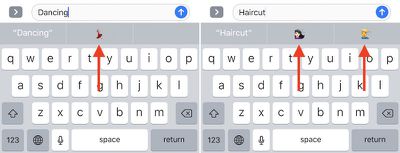
Refer to the image above for Steps 6-8
- Open Settings and go to "General." Then scroll down to "Keyboard" and tap it.
- Scroll down to the bottom of Keyboard settings to find "Predictive," and toggle it on if it isn't already.
- Open Messages and navigate to the person you want to chat with.
- Type a word connected to an emoji, like "Happy," "Beach," or "Sheep" to see its related emoji pop up in one of the three predictive text boxes.
- Tap the emoji to replace the typed word with a character.
- Keep typing out your message, and tap the send arrow when you're finished.
This predictive feature has the potential to be used as a search function for simply-titled emojis, mainly emotional ones like "Sad" or things related to the weather, but complex characters are still tough to propagate. Words in the ballpark of "Smiling Imp" and "Information Desk Woman" never successfully call up the relevant emojis, but as long as you're searching for basic characters emoji prediction is yet another useful and fun feature addition in iOS 10's new Messages app.
Related Forum: iOS 10
Popular Stories

Apple Smart Home Hub to Feature iMac G4-Style Design
Apple's long-rumored smart home hub will have an iMac G4-style design and a host of unique features, Bloomberg's Mark Gurman reports.
The smart home hub is said to feature a square 6-inch display, with variants that can be placed on a countertop or mounted on a wall. It features a single FaceTime camera on the front, with microphones and speakers in its connected base. Gurman described the...

Three New Apple Smart Home Products Coming on October 13
Apple plans to introduce a series of new smart home products on Tuesday, October 13, according to Bloomberg's Mark Gurman.
Apple reportedly plans to debut its long-awaited smart home hub device, a new HomePod mini, and a new Apple TV on the date. The new HomePod mini and Apple TV are set to retain their existing designs, but tout faster chips to support Siri AI. The new HomePod mini will...

New Apple TV 4K Leaked
MacRumors contributor Aaron Perris has uncovered an image file from Apple for an unreleased Apple TV 4K, suggesting that a new model will finally be released soon. The image is specifically for an "Apple TV 4K (4th generation)" model.
Apple TV 4K (4th generation) image (on a gradient)
The image reveals that the Apple TV will have the same external design as the current model, with all of its...














































Top Rated Comments