

In macOS Sequoia, Apple introduced iPhone Mirroring, a new Continuity feature that bridges the gap between your Mac and iPhone. It allows you to view and control your iPhone directly from your Mac's screen, creating a seamless integration between the two devices.
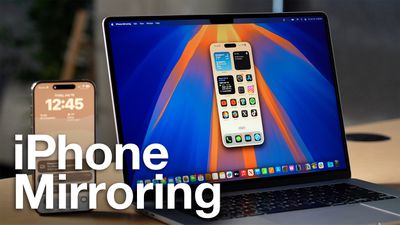
iPhone Mirroring opens up a world of possibilities for multitasking and productivity. Imagine responding to iPhone notifications, sending text messages, or even navigating through iOS apps, all without taking your hands off your Mac's keyboard.
Your iPhone can remain tucked away in a pocket or a bag while you control it from your Mac, so no one can access it or see what you're doing with it. Just note that you do need to have your iPhone close enough to your Mac for there to be a Bluetooth connection.
With iPhone Mirroring turned on, incoming iPhone notifications show up right alongside your Mac notifications in the Notification Center at the upper right hand corner of the Mac's display. iPhone notifications are indicated with a small iPhone icon, but they otherwise look like native Mac notifications. You can even click on a notification and open up the app on your iPhone, interacting with it directly from the Mac.
The feature is particularly useful for tasks that require extensive typing, such as composing long emails or editing documents on your iPhone. Check that your devices support iPhone Mirroring by referring to the following section, then read on to learn how to set up the feature.
iPhone Mirroring Requirements
To use iPhone Mirroring, you need a Mac that runs macOS Sequoia and that has an Apple silicon chip (M1 or later) or a T2 security chip. Macs with T2 security chips are Intel-based and include the following machines:
- 2018 and later MacBook Pro
- 2020 iMac
- iMac Pro
- 2018 Mac mini
- 2019 Mac Pro
These Macs have Apple silicon chips:
- 2020 and later Mac mini
- 2020 and later MacBook Air
- 2021 and later iMac
- 2021 and later MacBook Pro (14 and 16 inch)
- 2020 13-inch MacBook Pro
- 2022 and later Mac Studio
- 2023 Mac Pro
Any iPhone that runs iOS 18 works with iPhone Mirroring.
- All iPhone 16 models
- All iPhone 15 models
- All iPhone 14 models
- All iPhone 13 models
- All iPhone 12 models
- All iPhone 11 models
- iPhone XS and XS Max
- iPhone XR
- iPhone SE (2nd and 3rd gen)
Your iPhone and Mac need to be signed into the same Apple ID, and two-factor authentication must be enabled for the iPhone Mirroring feature to work. You will also need to make sure that Bluetooth and Wi-Fi are enabled, and that the two devices are near each other.
Get Started With iPhone Mirroring
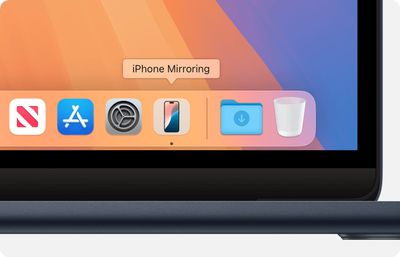
- From your Mac's Dock, click on the iPhone Mirroring app.
- Click Continue at the pop-up informational screen.
- If your Mac asks you to unlock your iPhone, use your iPhone to enter your iPhone passcode.
- Click Get Started.
- At the prompt, allow incoming iPhone notifications to show up alongside your Mac notifications in the Notification Center.
- If your Mac asks whether to require Mac login to access your iPhone, choose Ask Every Time or Authenticate Automatically. You can change this later in iPhone Mirroring ➝ Settings..., accessible in the menu bar when the app is open.

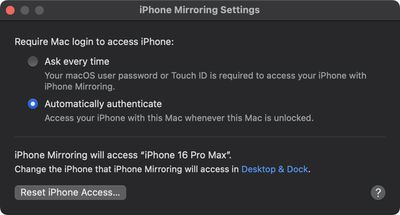
Note that an iPhone needs to be locked while an iPhone Mirroring session is in progress, so you can't use your iPhone while it's being mirrored to your Mac. If your iPhone is not locked and you attempt to initiate iPhone Mirroring from your Mac, you will get a warning that the iPhone is in use.
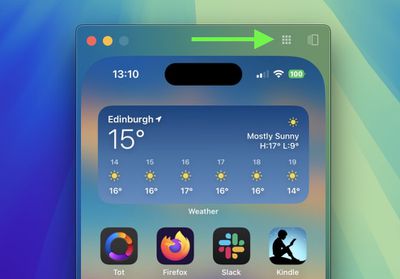
You can interact with your iPhone using your Mac's keyboard and trackpad or mouse. Click and drag to scroll, single-click to tap, and use keyboard shortcuts like Command + H for the Home Screen. To adjust the mirroring window, hover your cursor above the iPhone screen. This reveals controls for accessing the Home Screen and App Switcher. You can also resize the mirroring window using Command and the +/- keys.
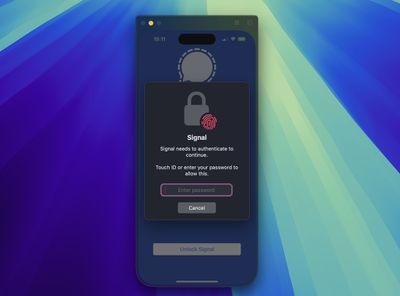
If you're mirroring your iPhone to your desktop and attempt to open an app that requires authentication, you don't need to pick up your iPhone or resign yourself to an inaccessible app – you can just use Touch ID on your Mac.
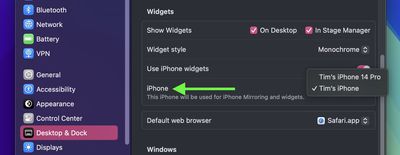
Lastly, if you own more than one iPhone, in System Settings ➝ Desktop & Dock, under "Widgets," there's an option that lets you choose which iPhone to mirror on your desktop.
iPhone Mirroring Limitations
iPhone Mirroring won't function if your Mac is currently using AirPlay to stream music or video to another device, or if Sidecar is activated with an iPad. Additionally, you cannot enable Continuity Camera, so if you're using your iPhone as a webcam for your Mac, iPhone Mirroring won't be available at the same time.
When trying to watch movies and TV shows from certain apps like Hulu and Netflix, you may encounter a blank black screen with the iPhone Mirroring app, likely due to DRM restrictions. You also won't be able to access the Control Center or Notification Center while using iPhone Mirroring, nor can you manage the Lock Screen.
Coming Soon
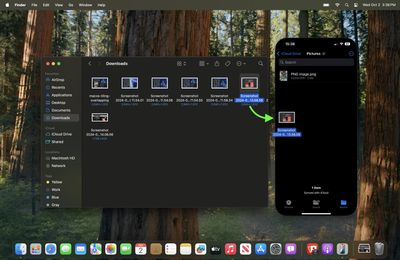
In Apple's forthcoming macOS Sequoia 15.1 update, expected to arrive in late October, Apple is enabling file transfers for iPhone Mirroring, which means you will be able to transfer files, photos, and videos from your Mac to your iPhone and vice versa using drag and drop gestures.

















































