Apple in October 2021 updated the firmware on AirPods Pro to enable the wireless earphones to take advantage of the Find My network and allow them to be located through connections with the Apple devices owned by other people. This article explains how to make sure your AirPods Pro have the latest firmware and how to find your AirPods Pro using the Find My Network.

Prior to the firmware update, AirPods Pro were listed in the Find My app and could be made to play a sound if misplaced, but if they were out of Bluetooth range, they would only display their last known location. However, the update means the Find My network can now provide an approximate location for your AirPods Pro to help you get within Bluetooth range and track down your headphones.
To make sure you can take advantage of the Find My network to locate your misplaced AirPods Pro, first you'll need to make sure your AirPods Pro have been updated with the latest firmware. Here's how.
How to Update Your AirPods Pro Firmware
You can do this by inserting them in the AirPods Pro charging case and connecting the case to a power source using the included Lightning to USB cable. Then move the iPhone or iPad that the AirPods have been paired with, near to the charging case, and make sure the iOS device has an internet connection.
After a short while, any available software updates should be automatically downloaded and installed. If you're having trouble updating your AirPods, make sure the charging case is fully charged. You can also try resetting the AirPods. You need AirPods firmware 4A400 or later, and can check your firmware version by following these steps:
- Connect your AirPods or AirPods Pro to your iOS device.
- Open the Settings app.
- Tap General.
- Tap About.
- Tap AirPods.
- Look at the number next to "Firmware Version."
How to Locate AirPods Pro Using the Find My Network
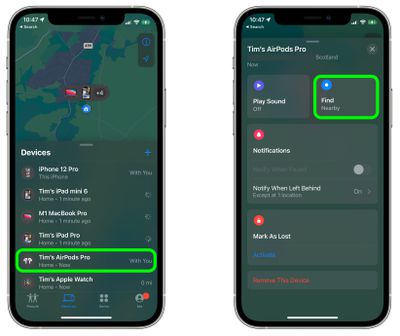
- Launch the Find My app on your iPhone or iPad.
- Select your AirPods Pro in the "Devices" list.
- In the AirPods Pro card, tap the Find option.

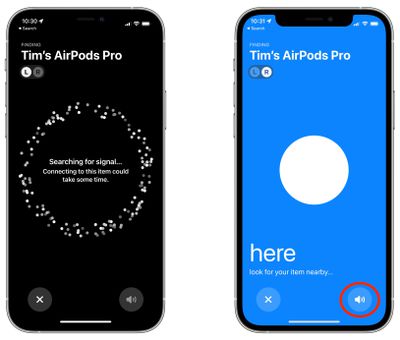
- Let your iOS device connect to the Find My network, then follow the onscreen instructions. You may need to relocate to get a signal from your AirPods.
- When your AirPods are in close range, the screen should turn blue. Scout the immediate area and check the onscreen prompts, which will show statuses like "far," "near," or "here" when you're close to them. If you can't see them, tap the Play Sound button in the bottom right corner of the screen to get your AirPods to make an audible sound.
If your AirPods Pro are updated with the latest firmware, you can also automatically receive a notification if you leave them behind somewhere.