

How to Use Tags to Organize Files and Folders in macOS - MacRumorsOpen MenuShow RoundupsShow Forums menuVisit ForumsOpen Sidebar
Skip to Content

How to Use Tags to Organize Files and Folders in macOS

by

In macOS, tags provide you with an alternative way to organize your files and folders, and can make items in Finder easier to locate. To tag a file in Finder, simply right-click (or Ctrl-click) it and select one of the colored tags in the dropdown menu.
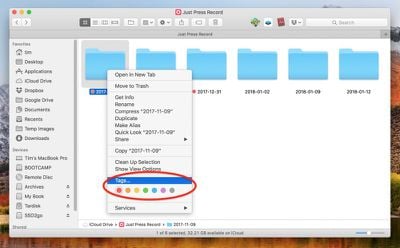
Add a Finder tag
Alternatively, click on Tags... in the same dropdown menu, type in a custom name for a tag, press Enter, and a new tag will be created automatically, ready to be applied again from the dropdown.

How to Customize Tags and Search for Tagged Items

You can customize which tags appear in the dropdown menu by clicking Preferences... in the Finder menu bar, selecting the Tags tab, and dragging your favorite tags to the area at the bottom of the pane.
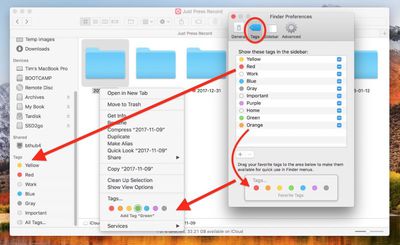
customize tags
You can also create new tags and remove unused ones using the + and - buttons, right-click tags to rename them or change their color, and tick the checkboxes next to them to select which ones appear in the Finder sidebar, because that's where tags show their true worth.
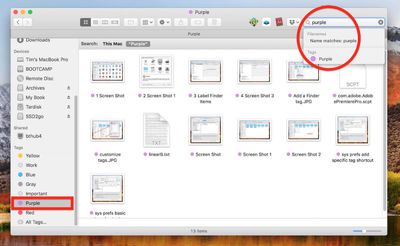
searching for tags
For instance, click a tag in the Finder sidebar, and all the files and folders assigned with that tag will appear in the Finder window, regardless of where they're located on your Mac. You can also search for a tag by entering the tag color or name in Finder's search field, then selecting a tag from the suggestions.

How to Tag Open Files You're Working On

Don't forget, in many macOS applications you can tag the open file you're actively working on. Simply click the arrow next to the document name in the title bar, click in the Tags field and enter a new tag, or select one from the dropdown list.
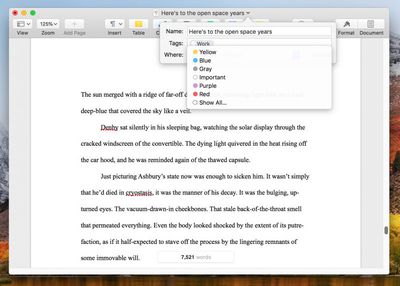
add tags in open files
Similarly, you can also tag new files when you save them. Just select File -> Save from the application's menu bar, and in the Save dialog, click inside the Tags field and enter a new tag, or select one from the list.
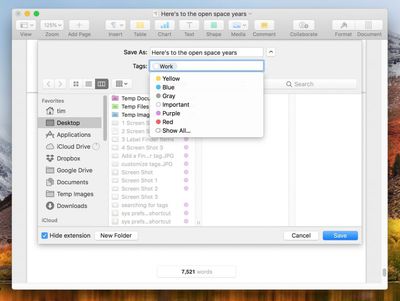
add tags when saving files
Finally, if you don't have a Finder window open, you might find it more convenient to consult Siri to locate all the files that you've assigned a particular tag.
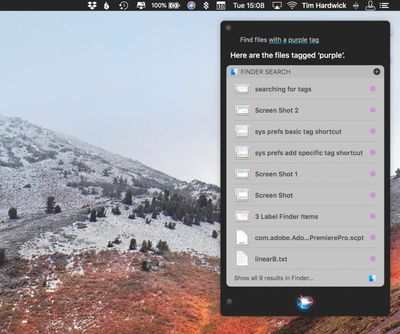
siri find tags
Click the Siri icon in your Mac's menu bar or press Command-Space, then say something like: "Find files with a purple tag." Siri should deliver your results including an option at the bottom to open the tagged files in a Finder window.


Top Rated Comments

108 months ago
I really can’t get into tags. I wish they hadn’t replaced the old labels with them, they were way more helpful I reckon.

(I appreciate the tips though, thanks!)
Score: 7 Votes (Like | Disagree)
chucker23n1 Avatar
108 months ago
Can you search tags with complex criteria? Example: red or blue tag, and green tag, but no yellow tag, image file, with “project” in the name.
Yes.

Can you save commonly used complex searches?
Yes.

Can you nest tags under other tags like in evernote?
I don't believe so. Nor am I sure that kind of complexity would be a good idea.
[doublepost=1523482212][/doublepost]
What’s lacking is tag support in Mail. Tags in the file system are fantastic, but it would be so much more valuable if we could tag more than files. It gives an organizational structure beyond the folder heirarchy.
I hear MailTags works OK.

Attachment Image

Attachment Image
Score: 6 Votes (Like | Disagree)
flat five Avatar
108 months ago
not mentioned in the article but helpful as well (at least for me personally)—

you can apply multiple tags to the same file.
Score: 5 Votes (Like | Disagree)
tardegrade Avatar
108 months ago
Keep going with these articles. They might be simple things, but sometimes it's good to be reminded about something that you've forgotten about.

Case in point, my file system is a disaster at the moment. And a few tags will be helpful until I get around to sorting it out.
Score: 4 Votes (Like | Disagree)
opeter Avatar
108 months ago
Back in the good ole days when Apple actually cared about macOS, tags were labels

I rather preferred it that way.
Absolutely. Remember the good old days ...
files folders tags macos image

... and:
files folders tags macos image
Score: 3 Votes (Like | Disagree)
Blackstick Avatar
108 months ago
Back in the good ole days when Apple actually cared about macOS, tags were labels

I rather preferred it that way.
Score: 3 Votes (Like | Disagree)

Popular Stories

Apple Event Logo

Apple Working on All-New Operating System

Wednesday July 29, 2026 11:39 am PDT by
Apple is developing an all-new operating system that is essentially a mix of tvOS, watchOS, and iOS, according to Bloomberg's Mark Gurman. In a report this week, he said the operating system will feature a grid of icons, widgets, and apps, along with customizable clock faces. The new software platform is intended for Apple's long-rumored smart home hub. With built-in facial recognition,...
imac video apple feature

Apple Made Its Second-Biggest Acquisition Ever This Year

Wednesday July 29, 2026 12:03 pm PDT by
Apple this year acquired Israeli startup Q.ai for close to $2 billion, according to the Financial Times. That would make this Apple's second-biggest acquisition ever, after it paid $3 billion for the popular headphone maker Beats in 2014. This is also the largest known Apple acquisition since the company purchased Intel's smartphone modem business and patents for $1 billion in 2019. Q.ai...
Dynamic Island iPhone 18 Pro Feature

iPhone 18 Pro: Twelve Changes Coming to Apple's Next Flagship

Thursday July 30, 2026 3:43 am PDT by
We're less than two months out from the launch of Apple's premium next-generation smartphone lineup, and while we're not expecting a dramatic change in terms of functionality, there are still several enhancements rumored to be coming to the iPhone 18 Pro and iPhone 18 Pro Max. One thing worth noting is that Apple is reportedly planning a major change to its iPhone release cycle this year,...

🔗 Related Apple News & Rumors

Stay updated with the latest Apple ecosystem news and verified rumors











































