

How to Use the New Files App in iOS 11 - MacRumorsOpen MenuShow RoundupsShow Forums menuVisit ForumsOpen Sidebar
Skip to Content

How to Use the New Files App in iOS 11

by

The new Files app in iOS 11 replaces iCloud Drive, offers a lot more functionality than its predecessor, and provides perhaps the best argument yet for using an iPad as your go-to mobile computer.

In Files, you have access not only to the files stored on your device and in iCloud, but also to those stored in third-party services that support integration with the app. Files also exploits all of the new multitasking gestures in iOS 11, making its file organization capabilities even more powerful.

The Files Interface

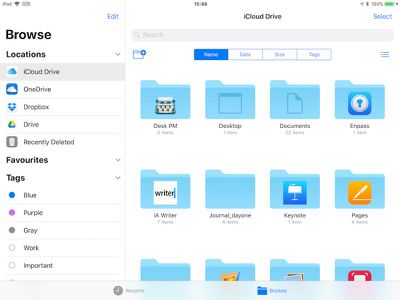
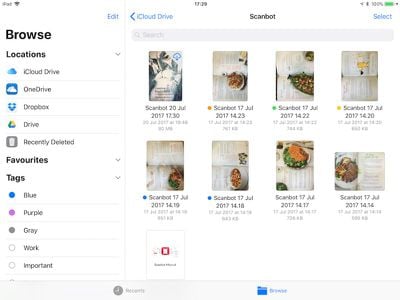
The Files app interface is very straightforward, although it varies from device to device and based on orientation, with various combinations using multiple columns, single columns with pages, or pop-overs. For the purposes of this overview, we'll look at using an iPad in landscape orientation, the most common setup for those doing productivity work.

Down the left side of the screen, in the Browse column, are links to your file sources, Favorites, and Tags to view files that are tagged with a particular color.
IMG 323500CABE8A 1
Over in the main window you'll see the files and folders in the selected location, which you can view by name, date, size, or tags. There's a button on the right of these options that you can tap to switch between list and icon view, while the button on the left lets you create a new folder.

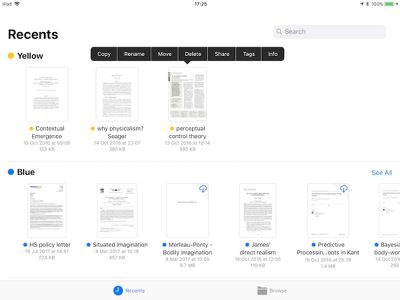
At the bottom of the screen are two buttons to switch between the default Browse view and a Recents view, which is useful for returning to the files you were last working with.
IMG 0084
In either view, you can open a file in the main window simply by tapping it, or you can perform a long press on a file or folder to access a range of options, including rename, share, tag, favorite, and more. However, the best thing about the Files app is that you can organize multiple files quickly and easily by utilizing the new drag-and-drop features exclusive to iOS 11.

Moving Files With Drag and Drop
IMG 31B1ECA18F22 1

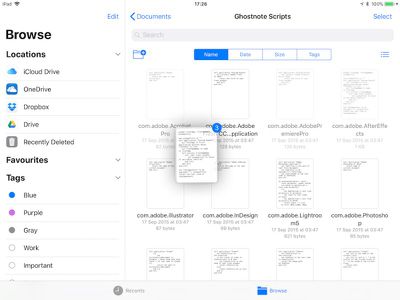
  1. Tap and hold a file you want to move, and it will expand slightly, ready to follow your finger around the screen.
  2. To move additional files, tap them while holding the original file and they will stack up underneath your finger.
  3. Keeping the same finger on the screen, use another finger – preferably one on your other hand – to browse the Files interface and locate a destination folder for the selected files.
  4. With the destination folder open, simply lift your finger from the screen to drop the files inside.

There's nothing to stop you from using iOS 11 drag-and-drop gestures to take files out of the Files app and move them into other iOS apps, as long as the app in question supports the file type. You might drag an image file into the Photos app to add it to your Photos Library, for example.

Organizing Your Files Manually

If you're uncomfortable using drag-and-drop gestures, you can organize your files using more traditional touch controls. Here's how.
IMG EDB71E7264A5 1

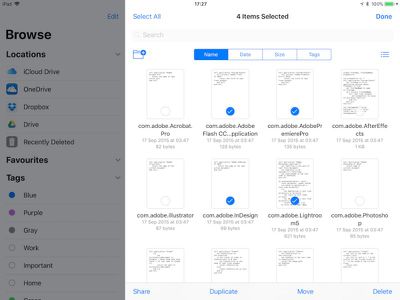
  1. Navigate to the folder containing the files you want to work with, and tap the Select button at the top-right of the screen.
  2. The Browse column will dim to put the focus on the currently selected folder. From here, you can tap one or more files to add a check mark against them indicating they've been selected for an action. A list of possible actions will appear along the bottom of the screen, including the option to duplicate or delete the file(s).
  3. Tap "Share" to bring up the iOS Share sheet, where you can send the file(s) to other people or apps, as well as access copy, print, and other actions.
  4. Tap the "Move" option and the Files app will present you with a directory tree, allowing you to navigate to the desired location for the file or files you've selected.

Tagging Documents

Using tags in the new Files app will help you locate particular files more easily, and they work much the same as tags do in macOS. As you'd expect, tapping a colored tag in the Browse column shows you all the files you've assigned that particular tag. To tag a file or folder, simply tap and hold it, and then drag it onto a tag in the sidebar.
IMG AE53E6EEC574 1

Linking Third-Party Storage Services

If you install a third-party storage app on your iOS device, it should automatically appear in the Files app under the Locations list. If the service doesn't appear, then it doesn't yet support Files integration. Services that do support Files app integration include Google Drive, Box, Dropbox, OneDrive, and Transmit, with more to come soon.


Tag: Files
Related Forum: iOS 11

Top Rated Comments

119 months ago
I guess slowly teaching them.
Hey sonny, we're old, not stupid. Many of us were working on computers before you were born! :-)
Score: 14 Votes (Like | Disagree)
tkermit Avatar
119 months ago
It still feels like Apple has managed to make file management a whole lot more confusing. Who really knows where things are stored anymore, how you get to them and what results in them (not) being copied/moved/opened in place. With traditional file management, at least there was a chance I could explain it to my mom or dad (whether they would listen is another matter), now even I have no idea what's going on. I suppose at least Apple has created a level playing field where nobody has an intuition about how things work anymore.

Score: 11 Votes (Like | Disagree)
nnoble Avatar
119 months ago
I wonder how elders are gonna figure out stuff with these complex features.
What d’you mean by elders - anyone over 18? I’m heading for 70 and I’ve no choice but to keep up. My elder brother is 80 next year and he can’t operate without accessing his stuff. I think motivation and maybe patience, rather than age, is the driver for coping with change.
Score: 10 Votes (Like | Disagree)
artfossil Avatar
119 months ago
I wonder how elders are gonna figure out stuff with these complex features.
It’s not that hard. Really. Sometimes we even, you know, read an article that points out the new features.

This elder loves the new Files app. Especially the iCloud files management—much better than the old iCloud Drive.
Score: 8 Votes (Like | Disagree)
Booch21 Avatar
119 months ago
Hey sonny, we're old, not stupid. Many of us were working on computers before you were born! :)
Back in our day, a file system was as good as the rubber band holding the stack of punch cards together!

I think any of us who worked with punch cards and large floppy disks can handle a phone file system.
Score: 4 Votes (Like | Disagree)
melchior Avatar
119 months ago
crazy that we've gone full circle on file management and ended up with a much more complex environment that if we had access to the underlying file system.
Score: 4 Votes (Like | Disagree)

Popular Stories

iPhone Duo Display Cracking

Apple Alerts Stores to iPhone Duo's Display Cracking Issue

Friday October 30, 2026 3:20 pm PDT by
In a memo shared with Apple Stores and Apple Authorized Service Providers this week, and later obtained by MacRumors, Apple provided technicians with guidance on how to diagnose and address the iPhone Duo's inner display cracking issue. If a customer reports the issue, Apple advised technicians to inspect the iPhone Duo and repair or replace it in accordance with their standard procedures....
iPad mini OLED feature 1

Apple Executive Comments on New iPad Mini Lacking 120Hz Display

Thursday October 29, 2026 1:47 pm PDT by
While the new iPad mini has an OLED display, the device does not support ProMotion, meaning the display's refresh rate is limited to 60Hz instead of 120Hz. ProMotion support would have allowed for the iPad mini's refresh rate to automatically adjust from 10Hz to 120Hz depending on the content being displayed, but evidently Apple has kept the feature exclusive to the iPad Pro among iPad...
Pinched iPad Mini

Apple Avoids Showing Pinched Fingers on iPad Mini Page in South Korea

Thursday October 29, 2026 11:52 am PDT by
In the U.S. and most other countries, Apple's website shows the new iPad mini being held by pinched fingers, but this is not the case in South Korea. The new iPad mini shown with pinched fingers on Apple's website in the U.S. On its South Korean website, Apple simply shows an image of the iPad mini on its own. The new iPad mini shown without pinched fingers on Apple's website in South Korea ...


Latest Stories
Apple Watch Ultra 4 Hits All-Time Low Price With Amazon's $99 Discount
11 hours ago
Reminder: Apple's Big Discount on Beats 360 Ear Cushions Ends Today
11 hours ago
Here's a New Tour of Apple's HomeView Software
11 hours ago
Apple Reveals New iPad Mini's Battery Capacity
12 hours ago
Top Stories: Apple's Big MacBook Pro, iPad mini and iMac Updates
14 hours ago
'Pluribus' Season 2 Reportedly Starts Production Today
20 hours ago
iPhone 18 Pro Sales Surge in China, Offsetting Decline in U.S. and Japan
21 hours ago
HomeView Software 27.2: Wallpapers, Control Center, and More
1 day ago
Apple Alerts Stores to iPhone Duo's Display Cracking Issue
1 day ago
iOS 27.3 Will Enable These Apple Intelligence Features in China
1 day ago
Apple Says iOS 27.3 Beta Coming Next Week
1 day ago
Apple's Flash Storage Suppliers Are Finally 'Getting Their Revenge'
1 day ago
14 New Things Your iPhone Can Do in iOS 27.2
1 day ago
iPhone Duo Review: One Week Later
1 day ago
Samsung Mocks iPhone Duo Display Cracks in New Ad Campaign
1 day ago
The MacRumors Show: OLED MacBook Pro, iPad Mini 8, and More
1 day ago
MacBook Pro With Touch Display: 15 More Details Revealed
1 day ago
Russia Places Apple on State Surveillance Registry
2 days ago
Halloween Weekend Brings Discounts on Apple Accessories and Pre-Orders
2 days ago
Apple Has Released More Than 25 New Products in the Past Two Months
2 days ago
Local Code Launches as Free, Private AI Assistant Tool for Mac
2 days ago
Apple Acquires Ascend.io
2 days ago
HomePod Mini 2 Launches Today: All the New Features
2 days ago
AirTag 2 4-Pack Drops to New Low Price of $69.99
2 days ago
Rian Johnson's iPhone Camera App Goes Viral
2 days ago
Where Did All the iPhone Duos Go? Mostly to Apple's Stores
2 days ago
Apple's Touchscreen MacBook Pro Could Ship 1.5M Units in 2027
2 days ago
New Apple TV 4K and iPad Mini: RAM Amounts Revealed
2 days ago
Apple Executive Comments on New iPad Mini Lacking 120Hz Display
2 days ago
Here's a Hands-On Look at HomePod Mini 2's New Two-Tone Colors
2 days ago

🔗 Related Apple News & Rumors

Stay updated with the latest Apple ecosystem news and verified rumors









































