This article explains how to erase and factory reset your Mac if you plan to give it away, sell it, or trade it in. Apple silicon Macs and Intel Macs with a T2 security chip (2017-2020 models) have an "Erase All Content and Settings" option available in macOS Monterey and later. If you have an older pre-2017 Mac, it's a more convoluted process – follow this link instead to erase and factory reset your machine.
Traditionally, wiping a Mac and returning it to factory settings involved manually signing out of a range of services, erasing your Mac's internal drive, then reinstalling macOS. These steps are quite involved when you consider how easy it is to wipe an iPhone or iPad (Settings -> General -> Transfer or Reset iPhone -> Erase All Content and Settings).
Fortunately, Apple includes the same option on newer Macs running macOS Monterey and later. Erase All Content and Settings in macOS offers a very simple and straightforward way to erase your Mac without needing to reinstall the operating system. Thanks to the way storage is encrypted on Macs with Apple silicon or the T2 chip, the option is able to instantly and securely "erase" all user date by destroying the encryption keys.
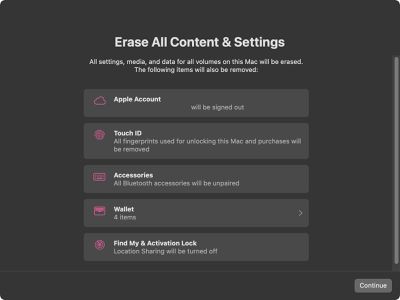
Not only does this effectively erase all user data and user-installed apps from your Mac without reinstalling macOS, it also signs out your Apple Account from a range of services, removes any Touch ID fingerprints, purchases, and all Apple Wallet items, and turns off Find My and Activation Lock, making it far easier to restore your Mac to like-new factory settings.
The following steps show you how it's done. Whether you simply want to start fresh with your Mac or are planning to sell or gift your computer to another person, after erasing it using this option, your Mac will display the Setup Assistant and be ready to be set up like new.
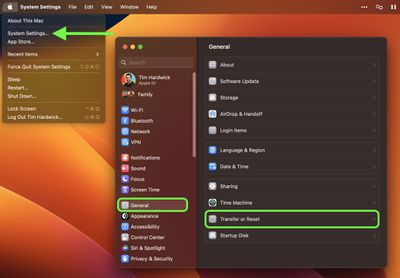
Click the Apple () symbol in the menu bar and select System Settings (System Preferences... if you're not running macOS Ventura or later).
If you're running macOS Ventura or later, select General in the sidebar, then choose Transfer or Reset -> Erase All Content and Settings.... Otherwise, select System Preferences -> Erase All Content and Settings from the menu bar.
Enter your admin password in the Erase Assistant dialog prompt and click OK.
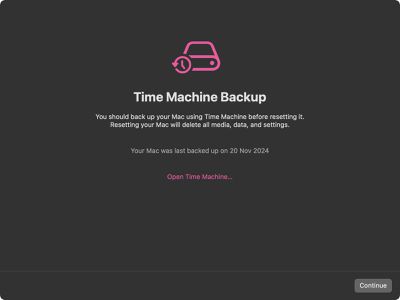
If you haven't already backed up your important data, heed the onscreen Time Machine advice. Otherwise, click Continue.
Note all the settings, data, media, and other items that will be removed. Click Continue if you're sure.
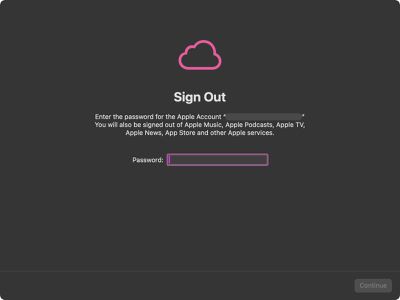
Enter the password for your Apple Account to sign out, click Continue, then click Erase All Content & Settings in the prompt to confirm.
After following these steps, allow the erase process to complete. Your Mac may restart more than once during the process. Once finished, you'll see the "hello" message on your Mac's screen, indicating that your Mac has been restored to factory settings and Setup Assistant is ready to start anew.
Sorry I’m just too paranoid to trust it, I have to clean format the drive, overwrite it with zeros 50 times, smash it to pieces with a sledgehammer, encase it in magma and bury it 200 feet underground. I’m still confused though why I never seem to get a decent trade in price.
There are some restore utilities that can walk a hard drive and find all kinds of documents and files and photos, it’s good to at least do one secure pass. :rolleyes:
I think you're a bit clueless how this feature works. It tosses out the keys in the secure enclave and generates new ones. It makes no attempt to erase your data, because it's no longer readable without the original keys.
Question......I assume if we want to just revert to factory settings for our own use, just to go back to a clean state or to regain performance from the degradation that comes with general use, these steps would apply also. Correct?
Correct... this gives you the same end result as the old wipe/erase and reinstall OS routine.
I used this procecure recently on my 2021 MacBook Pro (m1pro), and it went quickly -- seems like less than 5 minutes (might have been only a minute or two, I should've had a stopwatch going).
Then... restored from a CarbonCopyCloner backup. That, too, went quickly (about 10 minutes), but I don't keep lots "of stuff" on it, and the backup was on a USB3.1 gen2 SSD.
A VERY nice improvement by Apple over "the old way of doing things"...
A couple years ago, during a major purge of old tech I had in the basement, I had about twenty spinning-platter hard drives to get rid of. Didn't want to bother wiping them so I took them outside and used my oxy-acetylate cutting torch to blow holes though every one of them.
Good luck!
Not enough. Any competent law enforcement or "hacker" group from a movie or TV show will be able to reconstruct pictures of your dog from them.
Friday October 30, 2026 3:20 pm PDT by Joe Rossignol
In a memo shared with Apple Stores and Apple Authorized Service Providers this week, and later obtained by MacRumors, Apple provided technicians with guidance on how to diagnose and address the iPhone Duo's inner display cracking issue.
If a customer reports the issue, Apple advised technicians to inspect the iPhone Duo and repair or replace it in accordance with their standard procedures....
Thursday October 29, 2026 1:47 pm PDT by Joe Rossignol
While the new iPad mini has an OLED display, the device does not support ProMotion, meaning the display's refresh rate is limited to 60Hz instead of 120Hz.
ProMotion support would have allowed for the iPad mini's refresh rate to automatically adjust from 10Hz to 120Hz depending on the content being displayed, but evidently Apple has kept the feature exclusive to the iPad Pro among iPad...
Thursday October 29, 2026 11:52 am PDT by Joe Rossignol
In the U.S. and most other countries, Apple's website shows the new iPad mini being held by pinched fingers, but this is not the case in South Korea.
The new iPad mini shown with pinched fingers on Apple's website in the U.S.
On its South Korean website, Apple simply shows an image of the iPad mini on its own.
The new iPad mini shown without pinched fingers on Apple's website in South Korea ...




















































Top Rated Comments
Then... restored from a CarbonCopyCloner backup. That, too, went quickly (about 10 minutes), but I don't keep lots "of stuff" on it, and the backup was on a USB3.1 gen2 SSD.
A VERY nice improvement by Apple over "the old way of doing things"...