How to Encrypt a USB Flash Drive in macOS Mojave - MacRumorsOpen MenuShow RoundupsShow Forums menuVisit ForumsOpen Sidebar
Skip to Content

How to Encrypt a USB Flash Drive in macOS Mojave

by

finder padlockIn macOS Mojave, you can choose to encrypt and decrypt disks on the fly right from the desktop. Using this convenient Finder option, we're going to show you how to encrypt a USB flash drive (or "thumb drive"), which is useful if you're traveling light and want to take sensitive data with you for use on another Mac.

Finder uses XTS-AES encryption, the same encryption that FileVault 2 uses to prevent access to data on a Mac's startup disk without a password. Note that the following method is only compatible with Macs – you won't be able to access data on the encrypted drive using a Windows machine.

If this is a requirement, you'll need to use a third-party encryption solution like VeraCrypt. With that in mind, here's how to securely encrypt your USB flash drive.
how to encrypt a usb stick in macos mojave 01
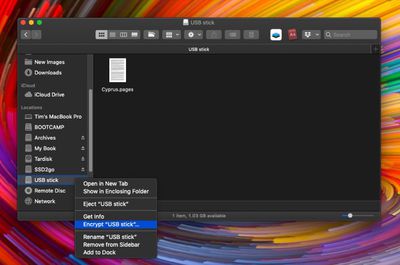
Attach the USB flash drive to your Mac and locate its disk icon on your desktop, in a Finder window, or in the Finder sidebar, then right-click (or Ctrl-click) it and select Encrypt "[USB stick name]"... from the contextual menu.

(Note that if you don't see the Encrypt option in the dropdown menu, your USB flash drive hasn't been formatted with a GUID partition map. To resolve this, you'll need to erase and encrypt the USB drive in Disk Utility – before that though, copy any data on the drive to another location for temporary safekeeping.)
how to encrypt a usb stick in macos mojave 02
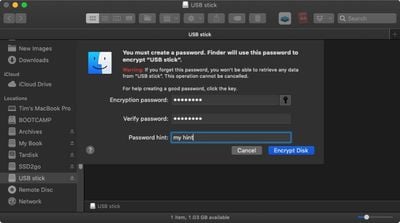
When you select Encrypt, Finder will prompt you to create a password, which you'll need to enter the next time you attach the USB flash drive to a Mac. (Don't forget this, otherwise you'll lose access to any data stored on the USB drive!) Once you've chosen a password, verify it, add a meaningful hint if desired, and click Encrypt Disk.

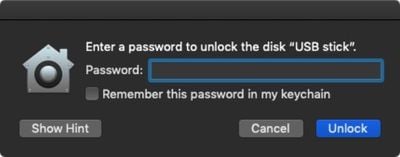
The encryption process depends on how much data you have on the USB flash drive, but you'll know it's completed when its disk icon disappears and re-mounts. You'll now be able to access the contents of the USB flash drive as usual, but if you physically detach it and re-attach it to your Mac you'll be prompted to enter the password.
how to encrypt a usb stick in macos mojave 03
Note that the prompt includes an option for macOS to remember this password in my keychain. Check the box, and whenever you attach the USB stick to your Mac again you won't be prompted to enter the password and you'll have automatic access to it, just like any other drive.
how to encrypt a usb stick in macos mojave 03b
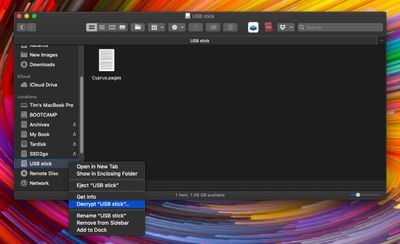
If you ever want to decrypt the USB flash drive in future, right-click (or Ctrl-click) its disk icon, select Decrypt "[USB stick name]" from the contextual menu, and enter the password to turn off encryption protection.

How to Encrypt a USB Flash Drive in Disk Utility

Before proceeding, make sure you've copied any data on the USB flash drive to a safe location, like your Mac's internal disk.

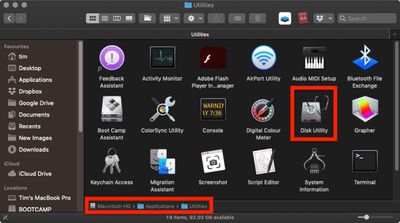
  1. Launch Disk Utility, located on your Mac in Applications/Utilities.
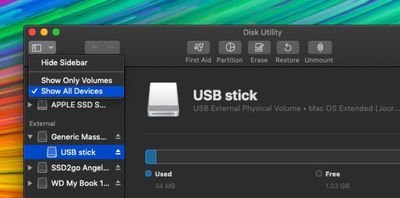
    how to encrypt a usb stick in macos mojave 04

  2. In the Disk Utility toolbar, click the View button and select Show All Devices if it isn't already ticked.
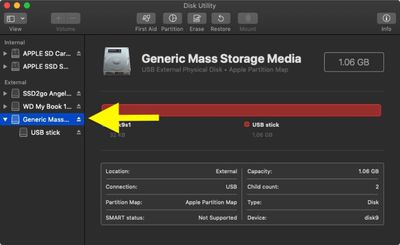
    how to encrypt a usb stick in macos mojave 05

  3. Select your USB flash drive in the sidebar by clicking its top-level device name (i.e. not the volume name that's listed beneath it).
    how to encrypt a usb stick in macos mojave 06

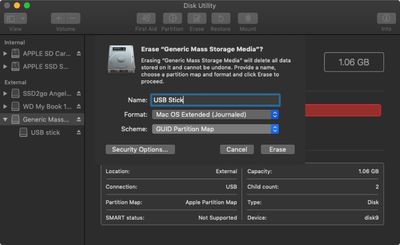
  4. Click the Erase button in the toolbar.
  5. Give the USB flash drive a name.
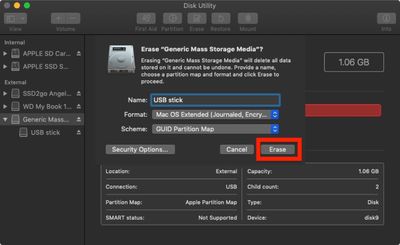
  6. Next, click the Scheme dropdown menu and select GUID Partition Map. (It's important to do this first before the next step, otherwise you won't see the encryption option in the Format dropdown.)
    how to encrypt a usb stick in macos mojave 07

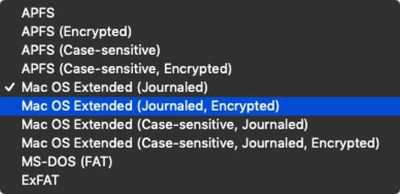
  7. Now click the Format dropdown menu and select Mac OS Extended (Journaled, Encrypted).
    how to encrypt a usb stick in macos mojave 08

  8. Click Erase.
    how to encrypt a usb stick in macos mojave 07

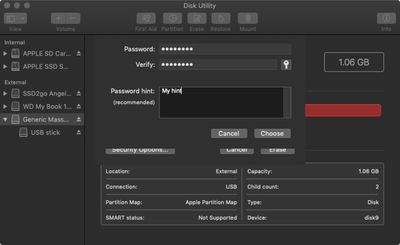
  9. Enter your new password, enter it once more to verify, include a password hint if desired, then click Choose.
    how to encrypt a usb stick in macos mojave 09

  10. Click Erase once again, and wait for your disk to be formatted and encrypted.
    how to encrypt a usb stick in macos mojave 10

Once the process is complete, copy across your sensitive data to the blank USB flash drive, where it will be automatically encrypted and secured with a password.


Top Rated Comments

103 months ago
Using Dark Mode for screenshots isn‘t a good choice for tutorials.

I‘m sorry!
Score: 13 Votes (Like | Disagree)
103 months ago
Disagree. It’s an official feature in Mojave and one can still follow the exact same options despite it being in dark mode.
It’s not that the process is different. It’s that black text on a white background is easier to read. Heck, some of the text is grey on black; how in the world could that ever be seen as anything close to desirable for tutorials for the masses? With my vision I’m having difficulty reading it. Let what’s stood the test of time be displayed for the vast majority, and run dark mode on your own machine on your own time.


Score: 6 Votes (Like | Disagree)
103 months ago
Using Dark Mode for screenshots isn‘t a good choice for tutorials.

I‘m sorry!
Disagree. It’s an official feature in Mojave and one can still follow the exact same options despite it being in dark mode.
Score: 5 Votes (Like | Disagree)
nate13 Avatar
103 months ago
Using Dark Mode for screenshots isn‘t a good choice for tutorials.

I‘m sorry!
Exactly why I came to comment. In a dark environment, with dark surroundings, I believe dark mode is awesome. In a bright context (mac rumors home page for example), its just terrible. MR editors take note!!
Score: 3 Votes (Like | Disagree)
Weaselboy Avatar
99 months ago
Thank you,

There is no "scheme dropdown" option as it is possible to see on the image I uploaded above. :(


Make sure you have enables show all devices, then select the drive itself like in my photo and not one of the volumes below it.

Attachment Image
Score: 2 Votes (Like | Disagree)
Weaselboy Avatar
103 months ago
Is there a way to force this to back up to iCloud?
Thanks
I played around with it, and it looks like you can copy the entry from the login Keychain and paste it into the iCloud Keychain. But instead of keeping the drive name, it changes it to the UUID # of the drive.


Here is the login Keychain entry.


I right clicked and copied it from login then right clicked and pasted in iCloud Keychain and it made the new entry you see here in the iCloud Keychain. Presumably this would sync along with everything else in the iCloud Keychain.

I have not tested if you delete this entry from login Keychain if this iCloud entry will unlock the drive.

Attachment Image

Attachment Image
Score: 2 Votes (Like | Disagree)

Popular Stories

iPhone Duo Display Cracking

Apple Alerts Stores to iPhone Duo's Display Cracking Issue

Friday October 30, 2026 3:20 pm PDT by
In a memo shared with Apple Stores and Apple Authorized Service Providers this week, and later obtained by MacRumors, Apple provided technicians with guidance on how to diagnose and address the iPhone Duo's inner display cracking issue. If a customer reports the issue, Apple advised technicians to inspect the iPhone Duo and repair or replace it in accordance with their standard procedures....
iPad mini OLED feature 1

Apple Executive Comments on New iPad Mini Lacking 120Hz Display

Thursday October 29, 2026 1:47 pm PDT by
While the new iPad mini has an OLED display, the device does not support ProMotion, meaning the display's refresh rate is limited to 60Hz instead of 120Hz. ProMotion support would have allowed for the iPad mini's refresh rate to automatically adjust from 10Hz to 120Hz depending on the content being displayed, but evidently Apple has kept the feature exclusive to the iPad Pro among iPad...
Pinched iPad Mini

Apple Avoids Showing Pinched Fingers on iPad Mini Page in South Korea

Thursday October 29, 2026 11:52 am PDT by
In the U.S. and most other countries, Apple's website shows the new iPad mini being held by pinched fingers, but this is not the case in South Korea. The new iPad mini shown with pinched fingers on Apple's website in the U.S. On its South Korean website, Apple simply shows an image of the iPad mini on its own. The new iPad mini shown without pinched fingers on Apple's website in South Korea ...
Latest Stories
Apple Watch Ultra 4 Hits All-Time Low Price With Amazon's $99 Discount
9 hours ago
Reminder: Apple's Big Discount on Beats 360 Ear Cushions Ends Today
9 hours ago
Here's a New Tour of Apple's HomeView Software
9 hours ago
Apple Reveals New iPad Mini's Battery Capacity
10 hours ago
Top Stories: Apple's Big MacBook Pro, iPad mini and iMac Updates
12 hours ago
'Pluribus' Season 2 Reportedly Starts Production Today
18 hours ago
iPhone 18 Pro Sales Surge in China, Offsetting Decline in U.S. and Japan
19 hours ago
HomeView Software 27.2: Wallpapers, Control Center, and More
1 day ago
Apple Alerts Stores to iPhone Duo's Display Cracking Issue
1 day ago
iOS 27.3 Will Enable These Apple Intelligence Features in China
1 day ago
Apple Says iOS 27.3 Beta Coming Next Week
1 day ago
Apple's Flash Storage Suppliers Are Finally 'Getting Their Revenge'
1 day ago
14 New Things Your iPhone Can Do in iOS 27.2
1 day ago
iPhone Duo Review: One Week Later
1 day ago
Samsung Mocks iPhone Duo Display Cracks in New Ad Campaign
1 day ago
The MacRumors Show: OLED MacBook Pro, iPad Mini 8, and More
1 day ago
MacBook Pro With Touch Display: 15 More Details Revealed
1 day ago
Russia Places Apple on State Surveillance Registry
1 day ago
Halloween Weekend Brings Discounts on Apple Accessories and Pre-Orders
1 day ago
Apple Has Released More Than 25 New Products in the Past Two Months
1 day ago
Local Code Launches as Free, Private AI Assistant Tool for Mac
1 day ago
Apple Acquires Ascend.io
1 day ago
HomePod Mini 2 Launches Today: All the New Features
2 days ago
AirTag 2 4-Pack Drops to New Low Price of $69.99
2 days ago
Rian Johnson's iPhone Camera App Goes Viral
2 days ago
Where Did All the iPhone Duos Go? Mostly to Apple's Stores
2 days ago
Apple's Touchscreen MacBook Pro Could Ship 1.5M Units in 2027
2 days ago
New Apple TV 4K and iPad Mini: RAM Amounts Revealed
2 days ago
Apple Executive Comments on New iPad Mini Lacking 120Hz Display
2 days ago
Here's a Hands-On Look at HomePod Mini 2's New Two-Tone Colors
2 days ago

🔗 Related Apple News & Rumors

Stay updated with the latest Apple ecosystem news and verified rumors