

How to Edit a Video on iPhone and iPad - MacRumorsOpen MenuShow RoundupsShow Forums menuVisit ForumsOpen Sidebar
Skip to Content

How to Edit a Video on iPhone and iPad

by

photos iconIn iOS 13, Apple has enhanced the built-in photo and video editing capabilities available to iPhone and iPad users, and for the first time it has made many of its stock photo adjustment tools available for editing videos.

In addition to the new video editing options, Apple has introduced a new tool selection interface that makes the whole process quicker and easier than ever before. Let's take a look at how it works.

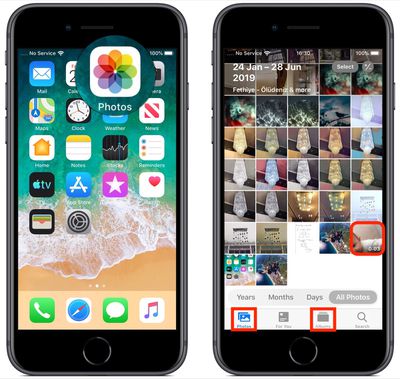
Launch the stock Photos app on your iPhone or ‌iPad‌ and select a video clip from your Photo library using the Photos tab. If it isn't a recent video that you want to edit, use the Days, Months, and Years views to whittle down your collection, or select a clip from one of your albums via the Albums tab.
how to edit video
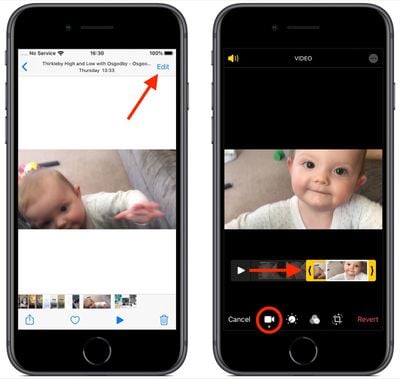
Once you've selected a video, tap Edit in the top-right corner of the screen. When the black-bordered editing interface appears, you'll notice four icons between the Cancel and Done options at the bottom of the screen.

Trimming a Video

The first film camera-shaped icon is the default selection, and gives you quick access to the timeline. The timeline appears below the video, and you can use it to scrub through a clip or trim it.
how to edit video 1
To trim the clip, drag the yellow chevrons to include the portion you wish to keep – anything outside the yellow frame will be discarded when you tap Done.

Adjustment Tools

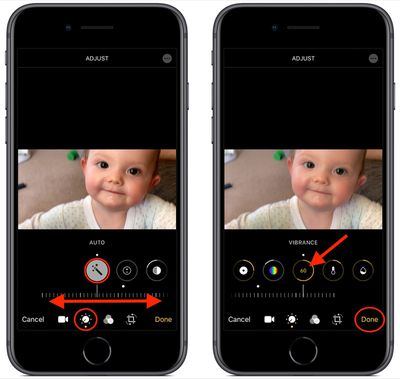
The next option in the row of icons at the bottom of the editing interface looks like a control knob. Tapping this opens the Adjust tools in a horizontal strip below your video. Tap Auto – the first tool in the strip – and you'll notice the horizontal dial light up below the toolset.

Auto uses intelligent algorithms to optimally tune the other tools and enhance your video, but you can manually adjust its intensity level by moving the dial with a swipe of your finger. You can easily return to the auto-tuned level by returning the dial back to the white dot.
how to edit video 2
Swipe along the strip of other tools and you'll find that they all work similarly. The only difference is that when you swipe along the dial to change the adjustment level, the selected tool's icon will display a number that you can use as a reference to refine the effect you're previewing.

The other adjustment tools available in the horizontal strip include Exposure, Highlights, Shadows, Contrast, Brightness, Black Point, Saturation, Vibrance, Warmth, Tint, Sharpness, Definition, Noise Reduction, and Vignette. Simply tap Done when you're happy to apply and save your adjustments.

The Filters Tool

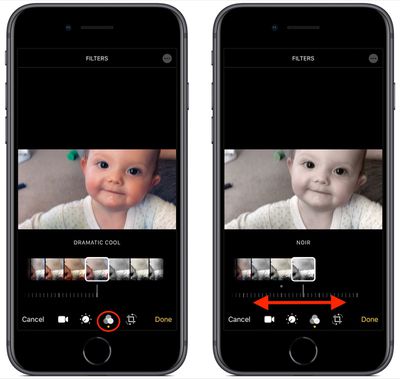
The third option in the row of icons along the bottom of the editing interface looks like a Venn diagram. Tapping this icon opens the Filters tool, which allows you to apply an Instagram-style filter to your captured videos in just a few quick taps.
how to edit video 3
Swipe through the nine available filters to get a preview of how your video looks when each one is applied. Let your finger come to a rest, and a horizontal dial will appear below the selected filter.

Use you finger to move the dial and adjust the intensity level of the filter. Tap Done in the bottom right of the screen to apply the filter effect to your video.

Cropping Tools

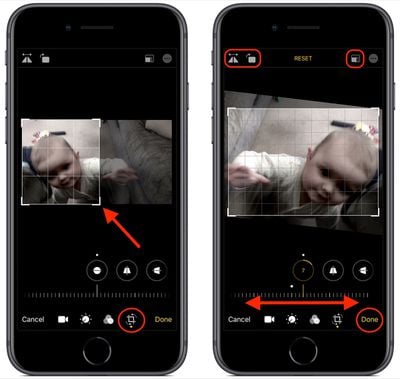
The fourth and final icon at the bottom of the editing interface opens the cropping tools. You can easily crop a video using the grid overlay that appears by dragging at its corners, just like you would for photos.

Notice that you also now have a row of three additional adjustment tools associated with the dial below them. From left to right, these allow you to straighten the video, adjust its vertical alignment, and adjust its horizontal alignment.
how to edit video 4
Tap one of the tools and move the dial with a swipe of your finger to adjust to the desired level, indicated by the number in the selected icon.

Running along the top of the video editing interface you'll notice more tools to flip and rotate the video on the left, and apply preset crop ratios on the right. You can tap the Reset button between these tools to undo your adjustments, or press Done if you're happy with your edits.

Lastly, it's worth remembering that you can access all of these editing tools whenever you capture video using the built-in Camera app – you don't even have to unlock your device to use them on the clip you just shot.

Related Forum: iOS 13

Popular Stories

iphone duo facetime

iPhone Duo's Hidden FaceTime Camera Takes 'Trash' Photos

Wednesday October 21, 2026 11:36 am PDT by
The iPhone Duo's inner screen has an under-display front camera that's largely hidden from view. It's the first time we've seen an under-display camera on an iPhone, and it turns out there's a reason Apple hasn't used the technology before. Apple said the camera offers 1080p video recording, but didn't mention photo quality. Gizmodo said it's a 4-megapixel camera and described the photos as...

homeview faces

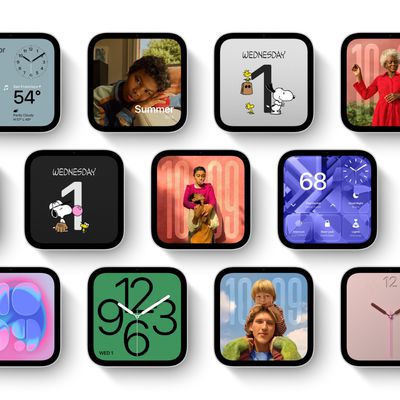
HomeView's Faces Include Snoopy, Photos, and Interactive Artwork

Wednesday October 14, 2026 4:00 am PDT by
Apple's HomeView includes customizable faces for photos, animations, and smart home controls. Faces Apple has named so far include: Photos Flow Snoopy Calendar Weather Home Modular Home Camera Other clock and widget layouts appear in Apple's promotional images, but have not yet been named. Apple says that selected faces change throughout the day, with different appearances...
iPhone Duo Display Cracking

Apple Alerts Stores to iPhone Duo's Display Cracking Issue

Friday October 30, 2026 3:20 pm PDT by
In a memo shared with Apple Stores and Apple Authorized Service Providers this week, and later obtained by MacRumors, Apple provided technicians with guidance on how to diagnose and address the iPhone Duo's inner display cracking issue. If a customer reports the issue, Apple advised technicians to inspect the iPhone Duo and repair or replace it in accordance with their standard procedures....
Latest Stories
Apple Watch Ultra 4 Hits All-Time Low Price With Amazon's $99 Discount
16 hours ago
Reminder: Apple's Big Discount on Beats 360 Ear Cushions Ends Today
16 hours ago
Here's a New Tour of Apple's HomeView Software
17 hours ago
Apple Reveals New iPad Mini's Battery Capacity
18 hours ago
Top Stories: Apple's Big MacBook Pro, iPad mini and iMac Updates
19 hours ago
'Pluribus' Season 2 Reportedly Starts Production Today
1 day ago
iPhone 18 Pro Sales Surge in China, Offsetting Decline in U.S. and Japan
1 day ago
HomeView Software 27.2: Wallpapers, Control Center, and More
1 day ago
Apple Alerts Stores to iPhone Duo's Display Cracking Issue
1 day ago
iOS 27.3 Will Enable These Apple Intelligence Features in China
1 day ago
Apple Says iOS 27.3 Beta Coming Next Week
1 day ago
Apple's Flash Storage Suppliers Are Finally 'Getting Their Revenge'
2 days ago
14 New Things Your iPhone Can Do in iOS 27.2
2 days ago
iPhone Duo Review: One Week Later
2 days ago
Samsung Mocks iPhone Duo Display Cracks in New Ad Campaign
2 days ago
The MacRumors Show: OLED MacBook Pro, iPad Mini 8, and More
2 days ago
MacBook Pro With Touch Display: 15 More Details Revealed
2 days ago
Russia Places Apple on State Surveillance Registry
2 days ago
Halloween Weekend Brings Discounts on Apple Accessories and Pre-Orders
2 days ago
Apple Has Released More Than 25 New Products in the Past Two Months
2 days ago
Local Code Launches as Free, Private AI Assistant Tool for Mac
2 days ago
Apple Acquires Ascend.io
2 days ago
HomePod Mini 2 Launches Today: All the New Features
2 days ago
AirTag 2 4-Pack Drops to New Low Price of $69.99
2 days ago
Rian Johnson's iPhone Camera App Goes Viral
2 days ago
Where Did All the iPhone Duos Go? Mostly to Apple's Stores
2 days ago
Apple's Touchscreen MacBook Pro Could Ship 1.5M Units in 2027
2 days ago
New Apple TV 4K and iPad Mini: RAM Amounts Revealed
2 days ago
Apple Executive Comments on New iPad Mini Lacking 120Hz Display
3 days ago
Here's a Hands-On Look at HomePod Mini 2's New Two-Tone Colors
3 days ago

🔗 Related Apple News & Rumors

Stay updated with the latest Apple ecosystem news and verified rumors











































