

How to Customize Apple's Magic Mouse - MacRumorsOpen MenuShow RoundupsShow Forums menuVisit ForumsOpen Sidebar
Skip to Content

How to Customize Apple's Magic Mouse

by

While the Magic Mouse has been around for quite some time, Apple recently updated the accessory with an integrated rechargeable battery and other changes, so some MacRumors readers deciding to give the device a try may be new to it. If you're coming from a more traditional mouse, you should know there's a lot the Magic Mouse can do that might not be obvious. Rather than merely serving as a point and click device, the Magic Mouse and Magic Mouse 2 use swiping and tapping gestures along with the traditional clicks.

Because the Magic Mouse incorporates taps and swipes, some of its features may be hidden or confusing to someone that's never used one before. We've created this quick how-to guide for readers who are new to the Magic Mouse, covering the ins and outs of the device to help you get the most out of it.
Magic Mouse 5
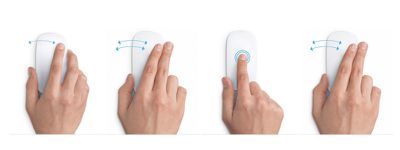
First off, we want to note that tapping is not the same as clicking. The latter, as with traditional mouse buttons, requires that you press on the mouse until you hear a clicking noise or feel a clicking action.

Tapping is not a common feature on a traditional mouse, but is one of Apple's Magic Mouse specialties. When you tap on the mouse lightly, as if you were tapping on your iPhone screen, you are triggering a different action than clicking.

The Magic Mouse supports tapping or double tapping with one finger and tapping or double tapping with two fingers, all of which trigger different actions, depending on what you have enabled.

The Magic Mouse also supports swiping gestures with one or two fingers. Swiping up or down with one finger triggers the scrolling function. When enabled, swiping left or right with one finger allows you to switch between pages that you've visited in Safari, and lets you swipe between full screen apps when using two fingers.

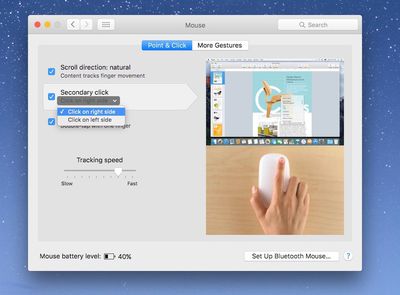
For those who have recently begun using a Magic Mouse for the first time, it is possible to "right-click." The feature isn't missing. It's just not enabled by default.

You can also reverse the direction of the scrolling action that your finger uses. If you are used to scrolling up to move the content on the screen up, you will want to enable natural scrolling.
Magic Mouse 2
To enable right-clicking and natural scrolling:

  1. Click on the Apple logo in the upper left corner of the screen and select System Preferences from the drop down menu.
  2. Click on Mouse.
  3. Select the Point & Click section.
  4. To enable natural scrolling, check the box next to "Scroll direction: natural."
  5. To enable right clicking, select "Secondary click." Once enable, you can switch from right to left click if you prefer that option.

In this section, you can also enable Smart Zoom, which lets you zoom into compatible documents and apps by double tapping the mouse with one finger in compatible applications. For example, you can double tap to zoom in Safari and Chrome, but it does not work with Pages or Mail.

If you find that your pointer doesn't seem to move as fast as you'd like, you can adjust the tracking speed in this section as well. This will make the pointer move across the screen faster or slower, depending on your preference.

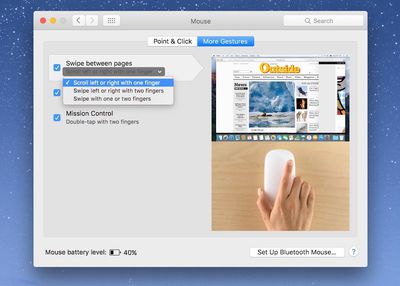
To enable additional swiping and tapping features:
Magic Mouse 3

  1. Click on the Apple logo in the upper left corner of the screen and select System Preferences from the drop down menu.
  2. Click on Mouse.
  3. Select the More Gestures section.

You can enable the ability to swipe between web pages in Safari by checking the box next to "Swipe between pages." You can also choose to swipe left or right with one finger, two fingers, or both. If you want the option to swipe between full-screen apps, chose the one finger option.

When enabled, you can swipe between full screen apps. If you have multiple apps open in full screen, swipe with two fingers on the Magic Mouse to switch from one to another.

You can also enable the ability to quickly access Mission Control by double tapping the Magic Mouse with two fingers.

Magic Mouse 7
With the double-tap feature enabled, you can further execute Mission Control commands by double tapping a specific open app in the Dock. If a window is already displayed on your screen, double tap the app's icon in the dock to select it in Mission Control. That window will appear on screen and you can click on it to bring it to the front of your working area.

Being a new Magic Mouse user, you may find that some of these swiping and tapping features accidentally get in the way of your computing experience. For example, you might accidentally tend to tap on the mouse, causing it to zoom in on a website when you didn't want it to, or double tap on an app icon in the dock.

If these gestures cause you more harm than good, simply disable them by following the instructions above and unchecking the boxes for the gestures you no longer wish to use.
Magic Mouse 4
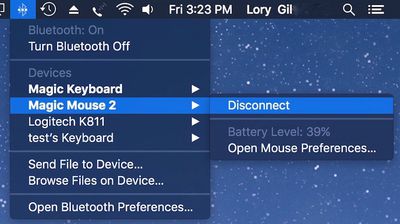
Incidentally, if you're wondering how to tell how much charge your Magic Mouse (and keyboard and trackpad) have left, you can see the battery percentage by clicking on the Bluetooth icon on the Menu bar in the upper right corner of the screen. Then, click on the peripheral you wish to check to see the remaining battery percentage.

The Magic Mouse takes a bit of getting used to when you've been working with a more traditional mouse for most of your life, but once you get the hang of it, the added swiping and tapping features will likely become something you don't want to live without.

Top Rated Comments

joshwenke Avatar
142 months ago
Next up in your MacRumors Tutorials, how to use a toaster!
Score: 4 Votes (Like | Disagree)
Markoth Avatar
142 months ago
Next up in your MacRumors Tutorials, how to use a toaster!
Do you honestly think that using a toaster is easy? https://www.embeddedarm.com/software/arm-netbsd-toaster.php
A toaster with a login prompt! It also toasts bread!
Score: 2 Votes (Like | Disagree)
Morod Avatar
142 months ago
Using a Mighty Mouse and Trackpad with my iMac for years.

The Magic Mouse never felt comfortable to me.
Score: 1 Votes (Like | Disagree)
groovyd Avatar
142 months ago
love the magic mouse... hard to appreciate any other mouse after using it for over 5 years now. tapping to zoom in and out of web page sections and it's speed and sensitivity to scroll swipes is without equal.
Score: 1 Votes (Like | Disagree)

Popular Stories

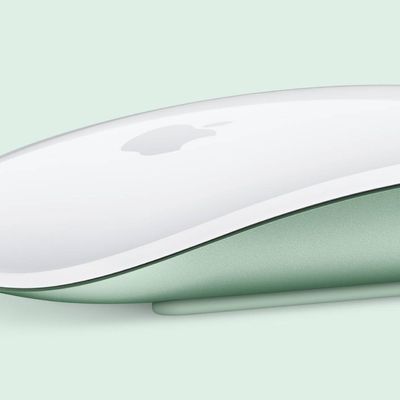
Magic Mouse Green

Apple Drops Intel Macs From Magic Mouse/Trackpad Compatibility Lists

Wednesday October 7, 2026 5:47 am PDT by
Apple updated its Magic Mouse and Magic Trackpad product pages around August 25 to drop all Intel-based Macs from the compatibility lists for the accessories, and this week it updated some related tech specs pages to reflect these changes. Given the Magic Mouse and Magic Trackpad still work with Intel Macs, it is unclear why the accessories are now considered to be compatible with Apple...
iPhone Duo Display Cracking

Apple Alerts Stores to iPhone Duo's Display Cracking Issue

Friday October 30, 2026 3:20 pm PDT by
In a memo shared with Apple Stores and Apple Authorized Service Providers this week, and later obtained by MacRumors, Apple provided technicians with guidance on how to diagnose and address the iPhone Duo's inner display cracking issue. If a customer reports the issue, Apple advised technicians to inspect the iPhone Duo and repair or replace it in accordance with their standard procedures....
iPad mini OLED feature 1

Apple Executive Comments on New iPad Mini Lacking 120Hz Display

Thursday October 29, 2026 1:47 pm PDT by
While the new iPad mini has an OLED display, the device does not support ProMotion, meaning the display's refresh rate is limited to 60Hz instead of 120Hz. ProMotion support would have allowed for the iPad mini's refresh rate to automatically adjust from 10Hz to 120Hz depending on the content being displayed, but evidently Apple has kept the feature exclusive to the iPad Pro among iPad...
Latest Stories
Apple Watch Ultra 4 Hits All-Time Low Price With Amazon's $99 Discount
14 hours ago
Reminder: Apple's Big Discount on Beats 360 Ear Cushions Ends Today
14 hours ago
Here's a New Tour of Apple's HomeView Software
14 hours ago
Apple Reveals New iPad Mini's Battery Capacity
15 hours ago
Top Stories: Apple's Big MacBook Pro, iPad mini and iMac Updates
17 hours ago
'Pluribus' Season 2 Reportedly Starts Production Today
23 hours ago
iPhone 18 Pro Sales Surge in China, Offsetting Decline in U.S. and Japan
1 day ago
HomeView Software 27.2: Wallpapers, Control Center, and More
1 day ago
Apple Alerts Stores to iPhone Duo's Display Cracking Issue
1 day ago
iOS 27.3 Will Enable These Apple Intelligence Features in China
1 day ago
Apple Says iOS 27.3 Beta Coming Next Week
1 day ago
Apple's Flash Storage Suppliers Are Finally 'Getting Their Revenge'
1 day ago
14 New Things Your iPhone Can Do in iOS 27.2
1 day ago
iPhone Duo Review: One Week Later
1 day ago
Samsung Mocks iPhone Duo Display Cracks in New Ad Campaign
2 days ago
The MacRumors Show: OLED MacBook Pro, iPad Mini 8, and More
2 days ago
MacBook Pro With Touch Display: 15 More Details Revealed
2 days ago
Russia Places Apple on State Surveillance Registry
2 days ago
Halloween Weekend Brings Discounts on Apple Accessories and Pre-Orders
2 days ago
Apple Has Released More Than 25 New Products in the Past Two Months
2 days ago
Local Code Launches as Free, Private AI Assistant Tool for Mac
2 days ago
Apple Acquires Ascend.io
2 days ago
HomePod Mini 2 Launches Today: All the New Features
2 days ago
AirTag 2 4-Pack Drops to New Low Price of $69.99
2 days ago
Rian Johnson's iPhone Camera App Goes Viral
2 days ago
Where Did All the iPhone Duos Go? Mostly to Apple's Stores
2 days ago
Apple's Touchscreen MacBook Pro Could Ship 1.5M Units in 2027
2 days ago
New Apple TV 4K and iPad Mini: RAM Amounts Revealed
2 days ago
Apple Executive Comments on New iPad Mini Lacking 120Hz Display
2 days ago
Here's a Hands-On Look at HomePod Mini 2's New Two-Tone Colors
2 days ago

🔗 Related Apple News & Rumors

Stay updated with the latest Apple ecosystem news and verified rumors











































