iOS 18: Replace or Remove Lock Screen Camera and Flashlight Icons - MacRumorsOpen MenuShow RoundupsShow Forums menuVisit ForumsOpen Sidebar
Skip to Content

iOS 18: Replace or Remove Lock Screen Camera and Flashlight Icons

by

In iOS 18, currently in beta, Apple is allowing iPhone users to replace the flashlight and camera buttons on the Lock Screen with something more useful, or to make them disappear entirely.
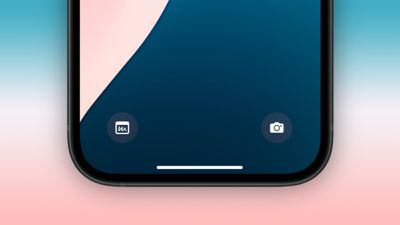
ios 18 lock screen buttons
The dedicated flashlight and camera shortcuts you see at the bottom of your iPhone's Lock Screen were introduced in their current form with the release of iOS 11 alongside the iPhone X in 2018, and the two icons have since been a staple, non-customizable feature.

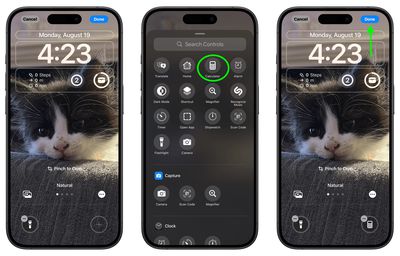
But that's all set to change this September with the launch of iOS 18. The Lock Screen buttons on your iPhone can now be replaced with any Control Center option. This includes system features like Dark Mode, Airplane Mode, Accessibility options, Calculator, and Translate, as well as Shortcuts – making the functional possibilities endless.

The change in iOS 18 is part of a broader Control Center redesign, significantly expanding the quick access potential from the Lock Screen. Apple has also opened up this functionality to third-party apps, allowing their icons to be added to the Control Center and, by extension, the Lock Screen buttons.

To maintain user privacy and data security, certain options may require Face ID or Touch ID authentication before granting access from the Lock Screen. This ensures that sensitive information remains protected even with this increased accessibility.

The following steps explain how to switch up your Lock Screen buttons in iOS 18:

  1. Press and hold on the Lock Screen after authenticating.
  2. Tap Customize.
  3. Tap Lock Screen.
  4. From there, tap the "-" icon to remove apps that are assigned to those buttons. The Flashlight and Camera apps are the default, so they will need to be removed.
    Lock Screen

  5. Next, tap the "+" button and choose a new control to add from the scrolling menu of options.
  6. Repeat for the second Lock Screen button if desired.
  7. Tap Done in the top-right corner to finish.
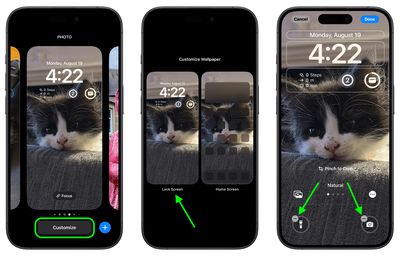
    Lock Screen

Don't forget that if you replace the camera button or remove it completely, you can still easily access the Camera app from the Lock Screen by swiping left across the screen.

Top Rated Comments

DonutHands Avatar
24 months ago
I don't need a 'clean' lock screen, let me add more than 2 buttons.
Score: 15 Votes (Like | Disagree)
WarmWinterHat Avatar
24 months ago
Finally! I can remove both! I've never wanted any icons on my Lock Screen.

Now let me disable swipe for the camera. I don't want anything accessible on my device while locked.
Score: 14 Votes (Like | Disagree)
klasma Avatar
24 months ago

you can still easily access the Camera app from the Lock Screen by swiping left across the screen.

I might prefer disabling the swiping and keeping the button.

Score: 13 Votes (Like | Disagree)
Avenged110 Avatar
24 months ago
Yet you still can’t disable that infuriating swipe-left-for-camera gesture that I never intentionally use and is always getting in the way when I try to clear notifications.
Score: 12 Votes (Like | Disagree)
MacManiac76 Avatar
24 months ago
The swipe left to access the camera app is my most hated "feature" of iOS. I have accidentally activated it too many times to count while trying to dismiss notifications that I swear that the developer that implemented this is laughing behind my back when I do it. 😂
Score: 6 Votes (Like | Disagree)
ProbablyDylan Avatar
24 months ago
I just removed both shortcuts. I have flashlight on the action button and can swipe over to the camera. Lock screen looks much cleaner.
Score: 6 Votes (Like | Disagree)

Popular Stories

American Express Gold Apple Pay Feature

American Express Announces New Apple Pay Feature

Tuesday June 30, 2026 10:27 am PDT by
American Express today announced that you can now redeem Membership Rewards points when checking out with Apple Pay on the web and in apps on the iPhone and iPad. When checking out with Apple Pay on iOS 18 or iPadOS 18 or later, tap on your eligible American Express card (Platinum, Gold, Green, and others) and select the Membership Rewards points option. You can use points to cover all or...
Apple Acquires Award Winning App Play Feature

Apple Acquires Award-Winning App 'Play'

Monday June 29, 2026 7:39 am PDT by
In February, Apple notified the European Commission that it would be acquiring certain assets from and have the right to hire certain employees from Rabbit 3 Times, the company behind the award-winning app design tool Play. The notification was published on the European Commission's website this week, following a four-month waiting period. Play was a Mac and iPhone app that allowed designers ...
series 10 apple watch titanium digital crown

Report: Apple Watch Redesign Coming Next Year With New Band System

Tuesday June 30, 2026 8:45 am PDT by
A "major overhaul" of the Apple Watch's design is due to arrive next year with a new system for connecting bands, according to a known Weibo leaker. In a set of recent posts, the leaker known as "Instant Digital" linked the new claim to older rumors about an "Apple Watch X" model, which was said to introduce a fresh design and break compatibility with the existing watch band system. Citing...

🔗 Related Apple News & Rumors

Stay updated with the latest Apple ecosystem news and verified rumors