How to Create a Virtual Home Button in iOS Using Assistive Touch - MacRumorsOpen MenuShow RoundupsShow Forums menuVisit ForumsOpen Sidebar
Skip to Content

How to Create a Virtual Home Button in iOS Using Assistive Touch

by

After testing some apps on an old iPhone 6 recently, I started to notice the device's Home button was becoming less and less responsive to finger presses, especially when it came to double-clicking it. Sure enough, after a few more days' use, the Home button stopped working completely.
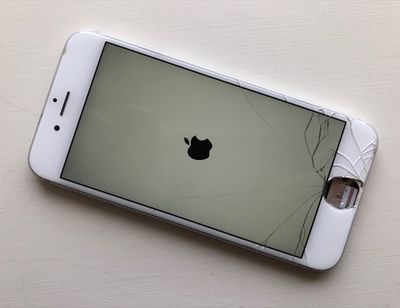
broken home button iphone

In memory of the Home button

Now, ordinarily this would have left me in the unenviable position of having to power off my iPhone and turn it on again whenever I wanted to exit out of a launched app, until I relinquished the device and sent it away for a costly repair.

Fortunately, however, the event jogged my memory of a friend who was able to continue using their iPhone even after a drop had left its Home button dangling by a wire (by some miracle, Touch ID still worked). They had set up iOS's Assistive Touch feature as a virtual Home button while they waited until they could afford a replacement.

If your iPhone's Home button is dead or dying and you want to take similar action, or if you just fancy reminding yourself what using a Home button was like before Apple removed them from its latest iPhones, here's how to set up Assistive Touch to mimic a virtual one.

Note that if your Home button is already broken and your iPhone is stuck in a launched app, simply power off the device and turn it on again to boot back into the Home screen and follow these steps.

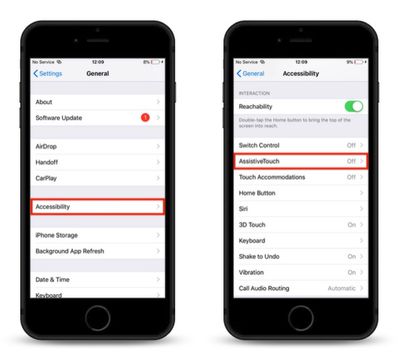
  1. Launch the Settings app on your iPhone or iPad.

  2. Tap General.
    how to create a virtual home button with assistive touch 1

  3. Tap Accessibility.
  4. Scroll down and tap AssistiveTouch.
    how to create a virtual home button with assistive touch 2

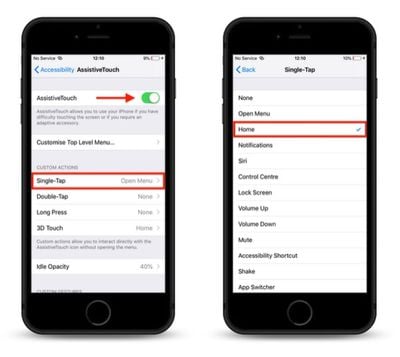
  5. Slide the AssistiveTouch toggle to the green position to turn it on.
  6. Next, under Custom Actions, select Single-Tap.
    how to create a virtual home button with assistive touch 3

  7. In the next screen, tap Home to check it in the list.
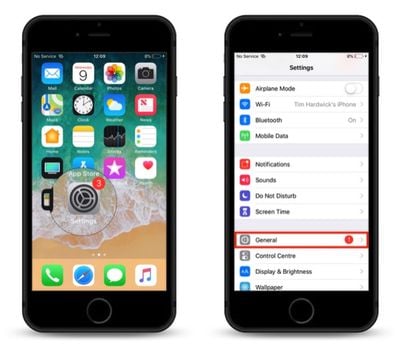
With the AssistiveTouch virtual button enabled, simply touch it and it will behave just like a physical Home button.
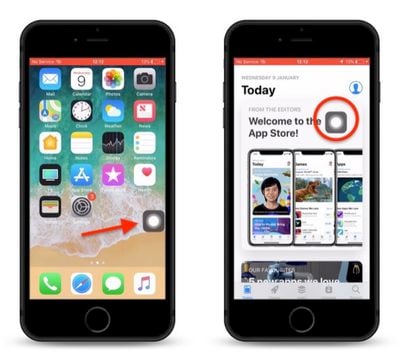
how to use assistive touch as a virtual home button
Note that you can drag it around the screen to another location, and it will remain there until you move it again. You can also access it in running apps, as well as the Control Center.


Top Rated Comments

99 months ago
I have never run across or had it happen where my home button was broken. What are you guys doing to it?

I've never had cancer before. What are you guys doing to your cells?
Score: 4 Votes (Like | Disagree)
99 months ago
Thanks Tim for that tip!!
This is a great feature to use even if the home button works fine when using a Plus sized traditional iPhone. Just tried it out. Works great ++
Score: 3 Votes (Like | Disagree)
99 months ago
On a 6s it would be much quicker to just hard press the left side of the screen to launch the app switcher via 3D Touch, can’t see any benefit to turning the device off and on again...
Score: 3 Votes (Like | Disagree)
Johnny365 Avatar
99 months ago
I have never run across or had it happen where my home button was broken. What are you guys doing to it?
Score: 2 Votes (Like | Disagree)
99 months ago
I have never run across or had it happen where my home button was broken. What are you guys doing to it?
So, what are you trying to see here, Just because it didn’t happen you, how does it happen to others? Even if you drop your iPhone on a certain angle, it’s not difficult to break the home button or where it lose its functionality with consistency.

Also, I would suggest reading through the iPhone forum, there have been multiple threads where others have broken their home button simply by dropping the phone or intermittent hardware issues.
Score: 1 Votes (Like | Disagree)
Mike MA Avatar
99 months ago
The picture in combination with the thread‘s title made me laugh.
Score: 1 Votes (Like | Disagree)

Popular Stories

Apple Event Logo

Apple Working on All-New Operating System

Wednesday July 29, 2026 11:39 am PDT by
Apple is developing an all-new operating system that is essentially a mix of tvOS, watchOS, and iOS, according to Bloomberg's Mark Gurman. In a report this week, he said the operating system will feature a grid of icons, widgets, and apps, along with customizable clock faces. The new software platform is intended for Apple's long-rumored smart home hub. With built-in facial recognition,...
imac video apple feature

Apple Made Its Second-Biggest Acquisition Ever This Year

Wednesday July 29, 2026 12:03 pm PDT by
Apple this year acquired Israeli startup Q.ai for close to $2 billion, according to the Financial Times. That would make this Apple's second-biggest acquisition ever, after it paid $3 billion for the popular headphone maker Beats in 2014. This is also the largest known Apple acquisition since the company purchased Intel's smartphone modem business and patents for $1 billion in 2019. Q.ai...
Dynamic Island iPhone 18 Pro Feature

iPhone 18 Pro: Twelve Changes Coming to Apple's Next Flagship

Thursday July 30, 2026 3:43 am PDT by
We're less than two months out from the launch of Apple's premium next-generation smartphone lineup, and while we're not expecting a dramatic change in terms of functionality, there are still several enhancements rumored to be coming to the iPhone 18 Pro and iPhone 18 Pro Max. One thing worth noting is that Apple is reportedly planning a major change to its iPhone release cycle this year,...

🔗 Related Apple News & Rumors

Stay updated with the latest Apple ecosystem news and verified rumors