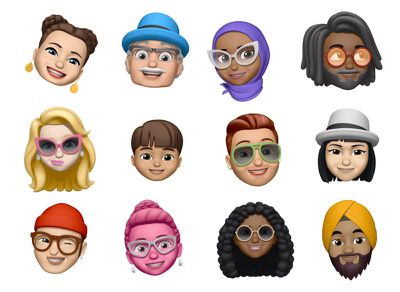
In iOS 11, Apple introduced animated emoji characters called Animoji, which are designed to mimic your facial expressions. As of iOS 12, Animoji have grown to encompass Memoji, which are customizable humanoid Animoji characters that you can design to look just like you.
Memoji can do all of the same things that Animoji can, mimicking your facial expressions to allow for cute videos, photos, and interactions with friends and family. In iOS 12 and iOS 13, you can also use Memoji and Animoji in photos through the Messages camera and in live FaceTime chats. And in iOS 14, Apple added new Memoji customization options, including the ability to select new hair styles, headwear, or masks, and more age options.
Animoji live in the Messages app, so creating a Memoji is also done in Messages.
Open up the Messages app.
Choose a conversation.
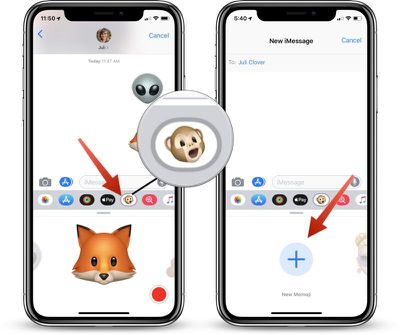
Tap on Animoji Messages app from the Messages app bar, which looks like a little monkey.
Swipe right until you see the "+" button and tap it.
Customizing Your Memoji
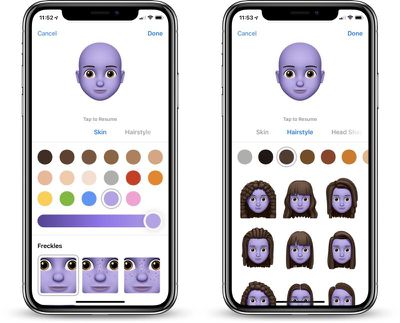
Memoji start out as a blank face, and it's up to you to customize it to look like you. The Memoji interface will open up to a display that lets you choose skin tone to begin with. Tapping buttons and sliders will let you customize features and choose options like freckles or no freckles.
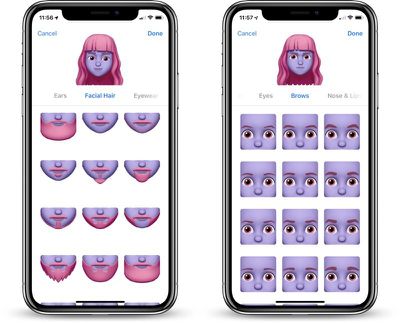
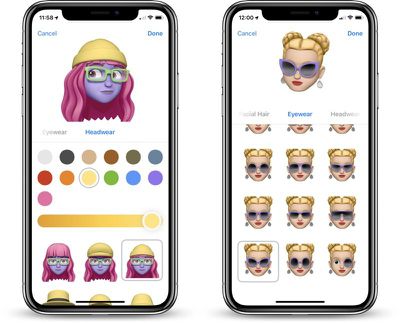
To move on from skin tone to other features, tap the labels at the top, cycling through Hairstyle, Head Shape, Eyes, Brows, Nose & Lips, Ears, Facial Hair, Eyewear, and Headwear.
During this entire process, your Memoji is active so you can see what all of the features look like when animated. Sometimes it will pause when changing a feature, but you can resume the animation by tapping on the Memoji.
There are dozens of facial feature options and accessories to choose from when creating a Memoji, allowing for many different looks.
When your Memoji is all finished, just tap "Done" in the upper right hand corner.
You can save as many Memoji as you want, so you can make Memoji for yourself, your friends, family, celebrities, characters, and more.
Editing and Deleting Memoji
You can edit an already-created Memoji or delete a Memoji at any time.
Open up the Messages app.
Choose a conversation.
Tap on the little monkey icon in the Messages app drawer to open up the Animoji Messages app.
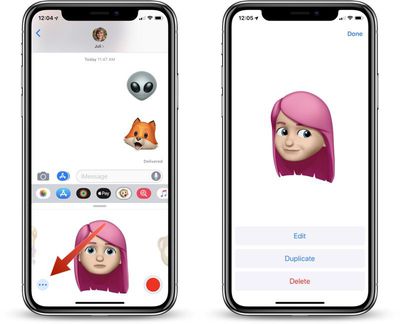
With a Memoji in frame, tap on the three little dots in the left hand corner.
Choose "Edit" to make changes to your Memoji, choose "Delete" to remove it, or choose "Duplicate" to use it as a base for a new Memoji.
New Animoji Features in iOS 12 and later
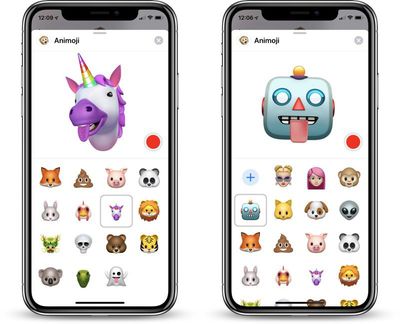
In iOS 12 and later, facial recognition capabilities let your Animoji and Memoji mimic both your tongue sticking out and winks. All Animoji and Memoji have tongues, with some special touches like a glitter tongue for the unicorn, a green tongue for the alien, and an articulated tongue for the robot.
Recording a Memoji or Animoji Video in the Messages App
Recording a message, song, or facial expression in a video that can be sent to family and friends is done in the same way that it was done in iOS 11.
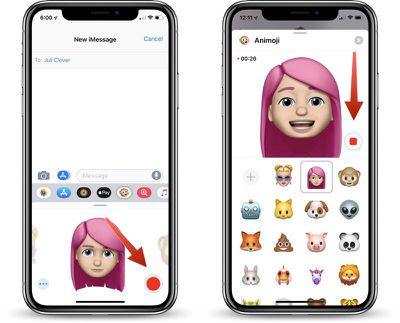
With the Animoji app open in Messages and an Animoji or Memoji selected, tap on the red record button to start recording a message. When finished, tap the red stop button, and then tap the blue up arrow to send.
Tapping on the arrow sends the Animoji or Memoji recording automatically to the person you're conversing with.
Using a Memoji or Animoji as a Sticker
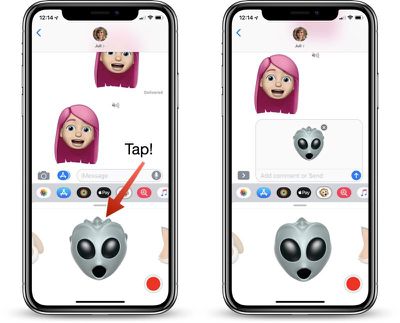
Your Memoji and Animoji can also be used as stickers if you just want to send a quick photo reaction but not a full video. To do this, make the desired face and then tap on the Animoji itself rather than the record button to create a quick little screenshot that can be sent using the blue up arrow.
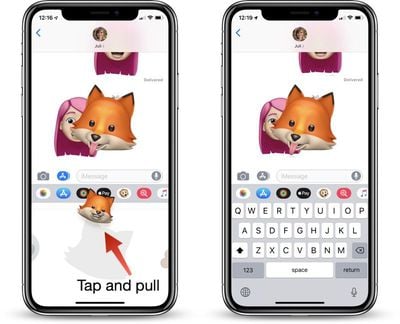
If you want to use the Animoji or Memoji as a sticker to react to another message or to decorate a photo, press a finger on the Animoji and then drag it upwards into the iMessage conversation.
While the sticker is attached to your finger, you can use gestures to rotate it and resize it to get the perfect position.
Animoji in the Messages Camera and in FaceTime
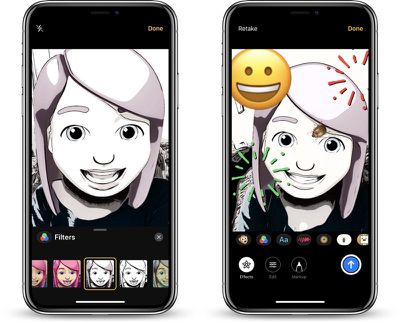
iOS 12 and later include a new Effects camera in both Messages and FaceTime, which includes support for Animoji and Memoji. You can use Animoji and Memoji to create photos in Messages and to entertain friends and family while in FaceTime conversations.
Animoji in the Messages Camera
Open the Messages app.
Choose a conversation.
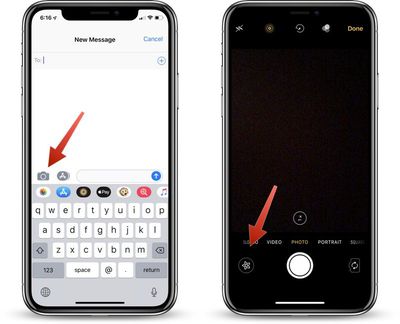
Tap on the Camera icon that's next to the iMessage chat bar.
Tap on the star-shaped icon in the bottom left corner.
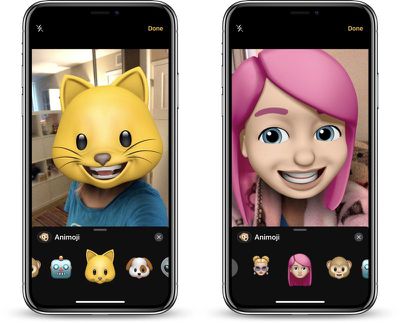
Select the Animoji icon, which looks like a little monkey.
Choose an Animoji or Memoji and it will pop up over your face.
After applying an Animoji, tap the small "X" in above the Animoji menu to exit out of the Animoji interface. Your Animoji will still be displayed, but you will also be able to add other camera effects.
When all of your desired effects are applied, tap the photo button to snap a photo that can then be edited, marked up further, or shared.
With the Messages camera, you can add Animoji, filters, text, shapes, and stickers to your images.
Animoji in FaceTime
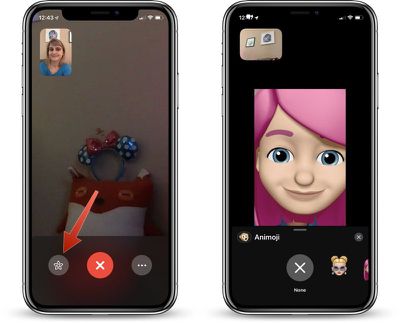
Initiate a FaceTime call.
After the call has started, tap on the star-shaped Effects icon.
Choose an Animoji or Memoji, tap it, and it will be displayed over your face.
As in the Messages Effects camera, tap on the "X" above the Animoji menu and you can also apply other effects while in the FaceTime call.
The person on the other end of the FaceTime call will see the Animoji and any other effects that you have applied, such as filters. You can complement your Animoji FaceTime calls with the aforementioned filters, stickers, text, and all of the other Effects camera options.
Animoji and Memoji only work with the front-facing camera in both Messages and FaceTime, because the TrueDepth camera system is required.
Memoji and Animoji Compatibility
You need a device with a TrueDepth camera system to create Memoji and Animoji, which includes the iPhone X, iPhone XS, iPhone XS Max, and iPhone 11 series. The iPhone XR and 2018 and later iPad Pro models also TrueDepth camera systems.
While it's just devices with a TrueDepth camera that can be used to create and display Animoji, others can still see them in FaceTime calls (including Group FaceTime calls) and in photos created with the Messages camera.
Memoji: A technique upon which a person can hide behind a computer generated 3D caricature of themselves to communicate with others in a very creepy manner.
Wiki post 14748
Since this would almost certainly be used between/among friends who are casually chatting on Facetime, how exactly is it "creepy?" I don't know anyone who does direct video calling to strangers from their personal cell device. [doublepost=1530564706][/doublepost]
It really doesn’t upset me that much but even the original emojis, the ascii character ones before the graphic picture versions I thought were a waste of time. Is there a way to refuse delivery of these?
Yes. You have to tell people in your contact list to not text you anymore, as they won't stop using them just because one guy in their rolodex doesn't like the thing that everyone else uses casually. Think of it as being the guy who says "Hey, I am going to Google+, so if you want to stay my social network friend, you all need to go there to find me as I'm not liking your Facebook and refuse to stay in touch there."
Major technological advancements for humankind in 2018? We are able to track all the features and expressions of a humans face to mimic these features and expressions in a semi-lifelike characature that has some resemblance to the subject face for the purpose of enhanced "social communication." Totally irrelevant to the advancement of anything. At all. But we did it. Because investors. And Keynotes.
Entertainment isn’t always about creating some grand cultural touchstone. Example/Apple's rebuttal:
Major technological advancements for humankind in 2018? We are able to track all the features and expressions of a humans face to mimic these features and expressions in a semi-lifelike characature that has some resemblance to the subject face for the purpose of enhanced "social communication." Totally irrelevant to the advancement of anything. At all. But we did it. Because investors. And Keynotes.
The worst and most useless gimmick I’ve ever layed my eyes upon.
I cringed when I saw them from Samsung in an S9 ad in the movie theater. I felt nauseous, and embarassed for Apple, when they showed it on the Keynote stage, devoted so much time to this infantile feature.
But I guess the masses are just that in the end, infantile and oh-so bored with their day to day lives they need crap like this.
I wonder how Steve would feel about gimmicks like this littering his keynote stage, and taking up so much time. (o yea I went durr)
[doublepost=1537350047][/doublepost]With such advanced cameras in the iPhone X, why the heck do we have to customize every detail of our own face? The camera can see us and choose the most appropriate features! Let people tweak it if need be but I quit even trying once met with a screen of women’s hairstyles, at least offer me intelligent suggestions.
I created one for myself and my two kids (for them to play around with) in just a few minutes. It's really not that difficult or time consuming to use, especially if you're used to playing any game made by Bethesda, lol. [doublepost=1537379126][/doublepost]
Remember kids: always remember to practice safe sexting and use a Memoji.
I just tried liking this comment. Then I realized I wrote it months ago and this story is recycled. Good job me, that was a funny comment!
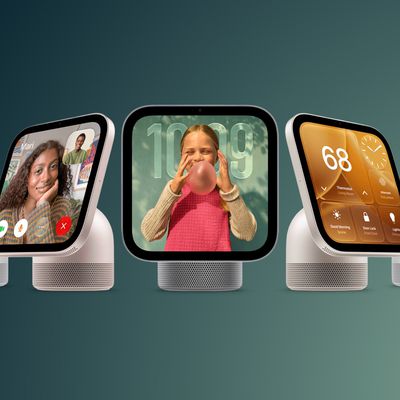
Apple today announced the "HomeView," an all-new kind of smart home hub featuring a 7-inch Liquid Retina display and Siri AI.
Apple's senior vice president of Worldwide Marketing Greg Joswiak said:
Apple HomeView is designed to be shared by everyone in the home yet feel completely personal to each user. It recognizes your face to shift from a household screen to your own experience,...
Tuesday October 13, 2026 6:08 am PDT by Joe Rossignol
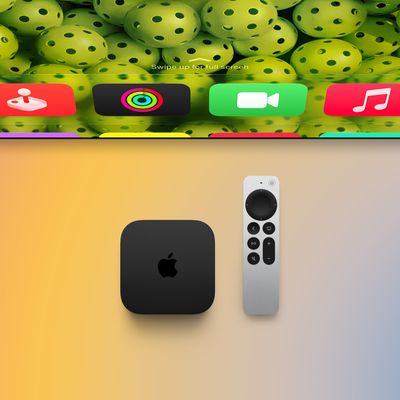
Apple today announced the fourth-generation Apple TV 4K, with key features including an A19 chip, Siri AI support, an updated Siri Remote that has Find My support with Precision Finding, built in far-field microphones, support for surround sound with four HomePods in front and rear pairs, and more.
The A19 chip in the new Apple TV 4K delivers up to 50% faster CPU performance and up to twice...
Tuesday October 13, 2026 9:39 am PDT by Joe Rossignol
MacRumors was first to reveal the name "HomeView" last week, after discovering a trademark filing from a secretive shell company that we correctly suspected was linked to Apple.
Apple was likely behind a "homeOS" trademark filing as well, but the company ultimately decided to stick with generic "HomeView software" naming, just like it refers to the HomePod's operating system as "HomePod...
Apple's first foldable iPhone, with a book-style design featuring a 5.4-inch outer display and a 7.6-inch inner display with a minimal crease down the middle.














































Top Rated Comments
[doublepost=1530564706][/doublepost]Yes. You have to tell people in your contact list to not text you anymore, as they won't stop using them just because one guy in their rolodex doesn't like the thing that everyone else uses casually. Think of it as being the guy who says "Hey, I am going to Google+, so if you want to stay my social network friend, you all need to go there to find me as I'm not liking your Facebook and refuse to stay in touch there."
We are able to track all the features and expressions of a humans face to mimic these features and expressions in a semi-lifelike characature that has some resemblance to the subject face for the purpose of enhanced "social communication."
Totally irrelevant to the advancement of anything. At all. But we did it. Because investors. And Keynotes.
I cringed when I saw them from Samsung in an S9 ad in the movie theater. I felt nauseous, and embarassed for Apple, when they showed it on the Keynote stage, devoted so much time to this infantile feature.
But I guess the masses are just that in the end, infantile and oh-so bored with their day to day lives they need crap like this.
I wonder how Steve would feel about gimmicks like this littering his keynote stage, and taking up so much time. (o yea I went durr)
[doublepost=1537379126][/doublepost]I just tried liking this comment. Then I realized I wrote it months ago and this story is recycled. Good job me, that was a funny comment!