Apple is set to release macOS Sonoma on September 26, and whenever a new operating system is released for the Mac, some users prefer to perform a clean installation. This article explains how to perform what is effectively a clean install of Sonoma using a built-in option that's available on Apple silicon-powered Macs and Intel Macs with a T2 security chip.

Clean installing macOS is often done to remove annoying quirks and strange behaviors that a Mac may have inherited over time, and can also help to reclaim disk space caused by junk files left by third-party apps. However, even if neither of these issues have arisen for you, sometimes it's just nice to start afresh for that "brand new Mac" feeling and then migrate your apps, documents, and data, either manually, or by migrating from a Time Machine backup.
Clean installing previous versions of macOS usually involves creating a bootable copy of the macOS installer on a flash drive or USB stick and then reformatting your drive before installing the bootable copy on your Mac, or using macOS Recovery to reinstall the Mac operating system over an internet connection. Since macOS Monterey, however, Apple has included a third option for newer Macs that offers a very simple and straightforward way to erase your Mac without needing to reinstall the operating system.
Following in the footsteps of the iPhone and iPad, Apple silicon Macs and Intel Macs with a T2 security chip (2017-2020 models) now have an "Erase All Content and Settings" option available in macOS Monterey and Sonoma. Because storage is always encrypted on Mac systems with Apple silicon or the T2 chip, the system is instantly and securely "erased" by destroying the encryption keys.
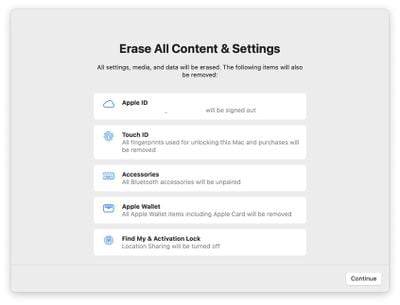
Not only does this effectively erase all user data and user-installed apps from your Mac without reinstalling macOS, it also signs out your Apple ID, removes your Touch ID fingerprints, purchases, and all Apple Wallet items, and turns off Find My and Activation Lock, making it far easier to restore your Mac to like-new factory settings.
This ability means you can simply download and install macOS Sonoma over your current macOS version when prompted, and then select the new erase function in Sonoma, which will erase your Mac and leave the core macOS system intact. After erasing the Mac, it will display the Setup Assistant and be ready to be set up like new. You can then migrate your data manually or by using the Setup Assistant's migration option. The following walkthrough breaks down the steps involved.
- Before you do anything else, back up your data using Time Machine or your preferred backup method.
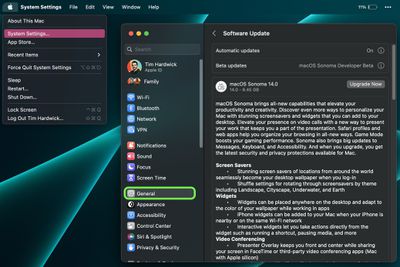
- In macOS, click the Apple () symbol in the menu bar and select System Settings.
- Click General -> Software Update.
- Allow Software Update to ping Apple's servers, then click Upgrade Now to download the Sonoma installer when it appears. You can continue to use your Mac while the installer is being downloaded. Once the installer has downloaded, you'll receive a prompt. Click to install the new version of macOS and wait for the installation to complete.

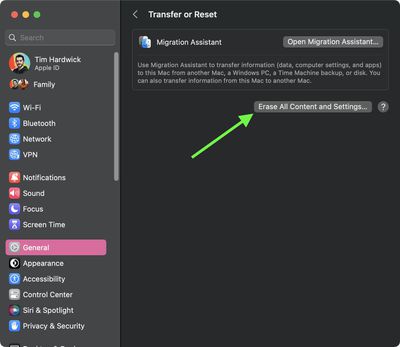
- Once your Mac has restarted into Sonoma, click the Apple () symbol in the menu bar and select System Settings....
- Select General -> Transfer or Reset -> Erase All Content and Settings.
- Enter your admin password in the Erase Assistant dialog prompt and click OK.
- Note all the settings, data, media, and other items that will be removed. Click Continue if you're sure.
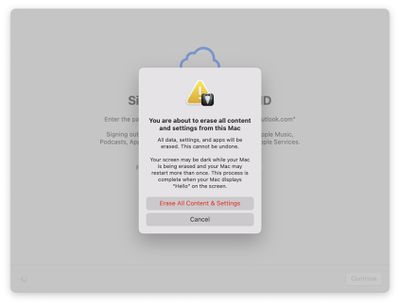
- Click to sign out of your Apple ID, then click Erase All Content & Settings in the prompt to confirm.
- Allow the erase process to complete. Your Mac may restart more than once during the process, after which you may be prompted to activate your Mac over Wi-Fi.
- Once finished, you'll see the "hello" message on your Mac's screen, indicating the Setup Assistant is ready. Follow the onscreen instructions, and if desired, elect to migrate your data from a Time Machine backup when the option appears.

That's all there is to it. Even if you're not clean installing macOS Sonoma today, the new option makes it far more convenient to restore your Mac to factory settings, whether you simply want to start afresh with your Mac in future or plan to sell or gift it to another person.