

The Apple Watch screen is small. So small that it can be difficult for some people to read messages and other text on the device. Also, even though the Home screen icons get bigger when they are centered on the screen, you might find yourself accidentally tapping the wrong one more often than you'd like.
Apple has included a couple of accessibility features that make dynamic text larger on the screen, and there are options to make all of the icons stay big on the Home screen instead of shrinking and growing when they are not centered. We have a tutorial to show you how to enable these features.
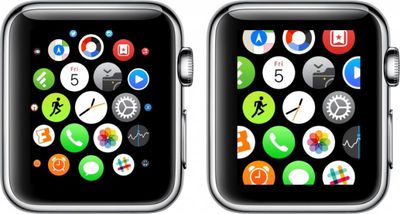
Reduce Motion
The same feature that helps keep people from getting motion sickness in iOS 8 makes app icons larger on the Home screen on Apple Watch. It makes it a little bit easier to tap those tiny icons.
- On Apple Watch, navigate to the Home screen and then open the Settings app.
- Select General. Then scroll down to Accessibility.
- Tap Reduce Motion and toggle the switch to the on position.
Or
- Open the Apple Watch app on your iPhone and go to My Watch.
- Select General, and then Accessibility.
- Tap Reduce Motion and toggle the switch to the on position.
Now, the icons on your Home screen will remain at their fullest size instead of shrinking down as they move away from the center of the screen, as seen in the image at the top of this post.
Tip: If an app is centered on the screen, you don't even have to tap it to open it. Instead, rotate the Digital Crown to open the app. The hard part is being able to tell which app is centered.
Larger Font
You can increase the size of the font for apps that are compatible with dynamic text. Apple's stock Mail, Messages, and Settings apps all have dynamic text.
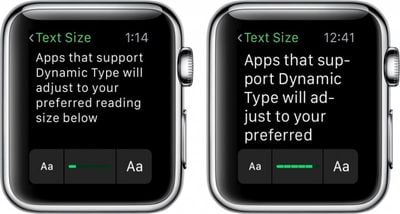
- On Apple Watch, navigate to the Home screen and open the Settings app.
- Select Brightness & Text Size. Then select Text Size.
- Rotate the Digital Crown up or down to increase or decrease the font size.
Or
- Open the Apple Watch app on your iPhone and go to My Watch.
- Select Brightness & Text.
- Drag the slider bar to the left or right to increase or decrease the font size.
You can also turn on Bold Text in the Brightness and Text sections in the Apple Watch Settings app or the Apple Watch app on iPhone to make text just a little bit easier to see.
Reduce Transparency
The iOS 8-style background transparency used in apps like Siri and Glances might also affect your ability to see things clearly on the Apple Watch. You can reduce the transparency to up the contrast and make text and graphics crisper against a solid black background, which may make it easier on your eyes.
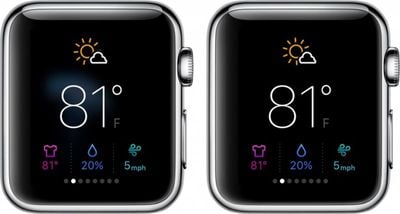
- Open the Apple Watch app on your iPhone and go to My Watch
- Select General. Then select Accessibility.
- Tap Reduce Transparency and toggle the switch to the on position.
With all of the above-mentioned options, it should make it a bit easier for you to read emails and messages, as well as navigate the Home screen icons.















































Top Rated Comments
If you would like to discuss adjusting font and icon sizes on your Apple Watch, this is the place.