How to Back Up Your iPhone or iPad to a Windows PC - MacRumorsOpen MenuShow RoundupsShow Forums menuVisit ForumsOpen Sidebar
Skip to Content

How to Back Up Your iPhone or iPad to a Windows PC

by

Not everyone who owns an iPhone or iPad has a Mac, which is why Apple made its mobile devices compatible with Windows PCs, too. Using USB, you can you can connect an iPhone or ‌iPad‌ to a Windows PC to set up the device, charge its battery, share its internet connection, transfer files, and sync content. This article shows you how to back up your iOS device on a Windows PC.
windows icloud hero pc iphone

Make Sure You Have the Correct USB Cable

As long as your PC has a USB port and is running Windows 7 or later, you can back up your iPhone or ‌iPad‌ to it. However, you'll need to make sure that you have a USB cable that terminates in the correct way to fit your PC's USB port.

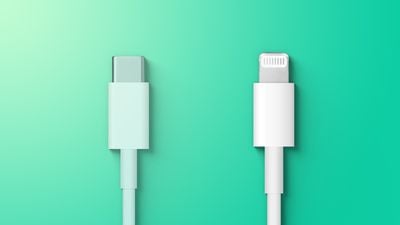
If your iPhone or ‌iPad‌ came with a Lightning to USB Cable and your computer has a USB-C port, you'll need to connect the USB end of the cable to a USB-C to USB Adapter (sold separately), or use a USB-C to Lightning Cable (sold separately).
Apple Prefer Lightning Over USB C Feature
If your iPhone or ‌iPad‌ came with a USB-C to Lightning Cable and your computer has a USB port, you'll need to use a Lightning to USB Cable (sold separately).

If your ‌iPad‌ came with a USB-C Charge Cable and your computer has a USB port, use a USB-C to USB Adapter and a USB-A cable.

How to Back Up iPhone or iPad to a Windows PC

  1. On your computer, go to the Microsoft Store to download and install the latest version of iTunes for Windows.
  2. Connect your iPhone or ‌iPad‌ to your computer using a compatible USB charging cable (see above).
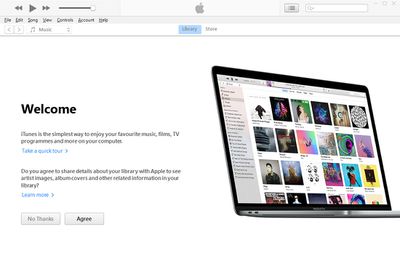
  3. Launch the iTunes app on your PC.
    itunes windows

  4. Click the iPhone button near the top-left of the iTunes window.
  5. Click Summary in the sidebar.
  6. Below "Backups," click Back Up Now.
  7. To encrypt your backup, select Encrypt local backup, type a password, then click Set Password.
    encryptedbackup

If you want to see the backups stored on your computer, choose Edit -> Preferences, then click Devices. Encrypted backups have a lock icon in the list of backups.


Related Forum: Mac Apps

Popular Stories

Apple Event Logo

Apple Working on All-New Operating System

Wednesday July 29, 2026 11:39 am PDT by
Apple is developing an all-new operating system that is essentially a mix of tvOS, watchOS, and iOS, according to Bloomberg's Mark Gurman. In a report this week, he said the operating system will feature a grid of icons, widgets, and apps, along with customizable clock faces. The new software platform is intended for Apple's long-rumored smart home hub. With built-in facial recognition,...


imac video apple feature

Apple Made Its Second-Biggest Acquisition Ever This Year

Wednesday July 29, 2026 12:03 pm PDT by
Apple this year acquired Israeli startup Q.ai for close to $2 billion, according to the Financial Times. That would make this Apple's second-biggest acquisition ever, after it paid $3 billion for the popular headphone maker Beats in 2014. This is also the largest known Apple acquisition since the company purchased Intel's smartphone modem business and patents for $1 billion in 2019. Q.ai...
Dynamic Island iPhone 18 Pro Feature

iPhone 18 Pro: Twelve Changes Coming to Apple's Next Flagship

Thursday July 30, 2026 3:43 am PDT by
We're less than two months out from the launch of Apple's premium next-generation smartphone lineup, and while we're not expecting a dramatic change in terms of functionality, there are still several enhancements rumored to be coming to the iPhone 18 Pro and iPhone 18 Pro Max. One thing worth noting is that Apple is reportedly planning a major change to its iPhone release cycle this year,...

🔗 Related Apple News & Rumors

Stay updated with the latest Apple ecosystem news and verified rumors