AirPods and AirPods Pro of all generations are designed to work seamlessly with Apple's Bluetooth-supporting devices, but they are not immune to battery draining issues of one sort or another.

Fortunately, these problems are usually fixable at home without having to contact Apple or return the AirPods. If you have a battery drain problem with your AirPods or are keen to avoid one, try the following tips before you do anything else.
1. Keep AirPods in Case When Not in Use
One of the most common reasons why AirPods lose their charge so fast is that people don't keep them in the charging case when they aren't in active use.
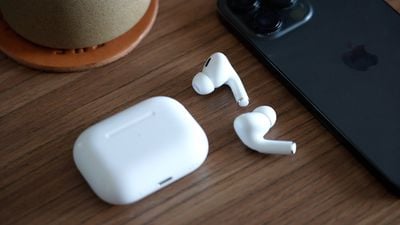
If you leave an AirPod hanging around outside of its case, the earbud is still using battery because it is connected to (or periodically trying to connect to) your device's Bluetooth. So if it's not in your ear, put it back in the case where it will charge.
2. Avoid Needlessly Flipping Open the Case
Every time you open the lid of your AirPods Charging Case, the Bluetooth chip is activated as your AirPods search for a nearby device to connect to.
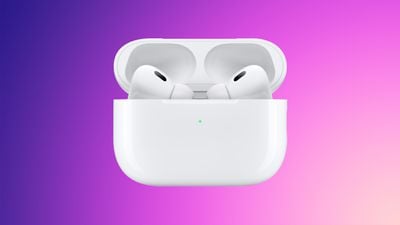
If you have a habit of idly flipping the lid of your AirPods case open and closed when they aren't in use, give it a rest if you can. The batteries in your earbuds will love you for it.
3. Disable Automatic Ear Detection
Apple's AirPods include a feature called Automatic Ear Detection that allows the audio routed from a connected device to seamlessly switch to the AirPods the moment that you put them in your ears. This allows the AirPods to automatically pause the audio track when you remove them, and resume playback when you put them back in again.
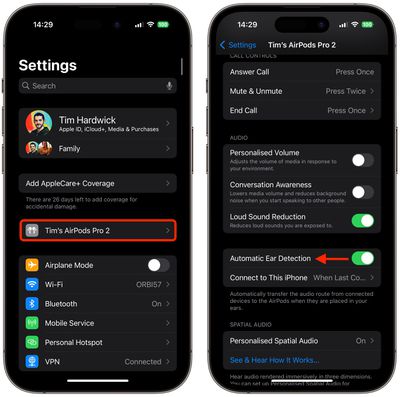
If relied on too frequently, Automatic Ear Detection can cause your AirPods batteries to drain faster, so if you can live without it, we recommend disabling the feature. On your iPhone or iPad, launch the Settings app and tap the name of your connected AirPods, then turn off the switch next to Automatic Ear Detection.
4. Avoid Using Only One AirPod at a Time
If one AirPod battery is draining quicker than the other AirPod, it could be because you are using it more. This causes the AirPod's battery to go through more cycles than its twin, which ultimately makes its ability to hold a charge deteriorate faster.
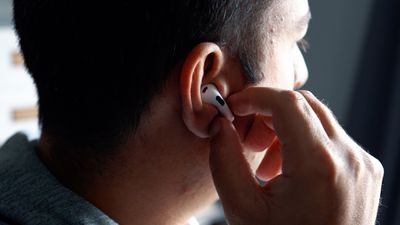
While using one AirPod first and then switching to the other AirPod is a convenient way to keep extending your listening time by keeping one charged in the case, it's best practice to avoid using one earbud more than the other one, otherwise battery life will not be balanced across left and right channels.
5. Enable Optimized Battery Charging
AirPods Pro and AirPods (3rd generation) include an Optimized Battery Charging feature that is designed to reduce the wear on your battery and improve its lifespan by reducing the time that AirPods spend fully charged.
When enabled, Optimized Battery Charging learns from your personal device habits and waits to finish charging your AirPods all the way up until it's time for you to use them. This keeps your AirPods at an optimal capacity for battery health by reducing the amount of time that they are sat in the Charging Case at 100% charged, which can reduce their life over time.
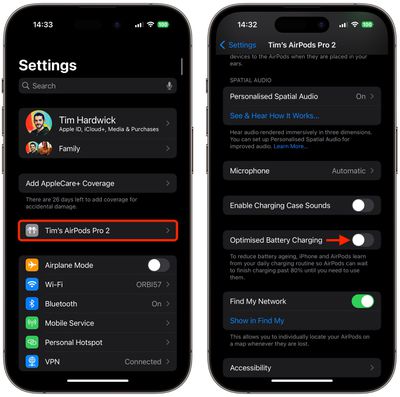
You can make sure Optimized Battery Charging is enabled by opening the AirPods case. Open Settings on your iPhone or iPad, tap the name of your AirPods, then turn on the switch next to Optimized Battery Charging.
6. Turn Off Spatial Audio
On AirPods Pro and AirPods (3rd generation), Spatial Audio uses Dolby Atmos to create a richer, more immersive soundstage when listening to supported songs in the Apple Music catalog.
If it's not something you appreciate, you're better off disabling Spatial Audio, which will extend your AirPods battery.
- Make sure your AirPods are connected to your iPhone.
- Launch the Control Center with a diagonal swipe down from the upper right of the screen.
- Touch and hold the volume control bar.
- Tap the Spatial Audio button to turn it on or off.
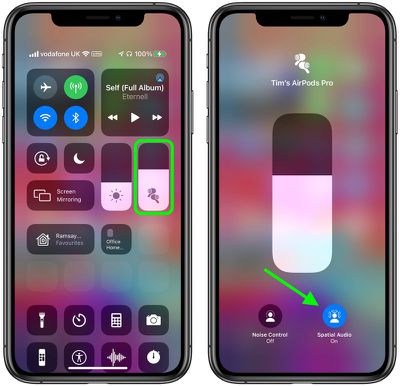
AirPods 3 are capable of up to 6 hours of listening time with a single charge (but only up to 5 hours with Spatial Audio enabled). Similarly, AirPods Pro are capable of up to 6 hours of listening time with a single charge (but only up to 5.5 hours with Spatial Audio and Head Tracking enabled).
7. Update AirPods Firmware
Apple occasionally releases firmware updates for its AirPods and AirPods Pro wireless earphones that can include performance improvements, feature tweaks, and bug fixes. If you're having a battery drain issue with your AirPods or AirPods Pro, or if you just want to make sure they're up to date with the latest software, then follow these steps.
- Insert your AirPods in their case if they aren't already.
- Connect the AirPods charging case to a power source using the included Lightning/USB-C cable, or alternatively, place the case on a Qi-compatible wireless charging mat if you have a Wireless Charging Case or AirPods Pro.
- Move the iPhone or iPad that the AirPods have been paired with near to the charging case, and make sure the iOS device has an internet connection.
After a short while, any available software updates should be automatically downloaded and installed. If you're having trouble updating your AirPods, make sure the charging case is fully charged.
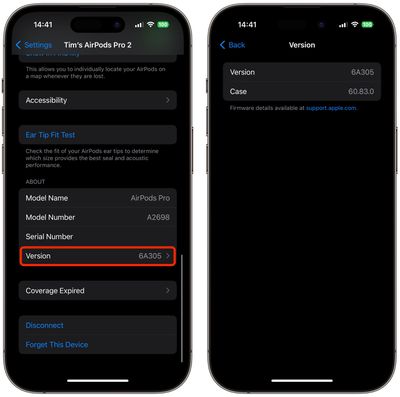
To check the version of the firmware that you have installed to make sure it's up to date, select your connected AirPods in Settings, scroll down to the "About" section, then tap Version.
8. Turn Off Find My
The Find My network and allows your AirPods to be located through connections with the Apple devices owned by other people, but the feature does draw from the battery. If you tend to keep your AirPods at home in a safe place, you can probably turn off the feature without issue.
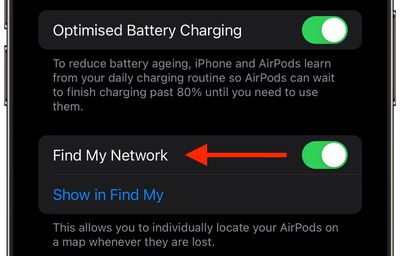
On your iPhone or iPad, launch the Settings app and tap the name of your connected AirPods, then turn off the switch next to Find My Network.
9. Reset Your AirPods
Apple's AirPods and AirPods Pro have a reset function that returns them to their factory settings. This can come in handy if you're having battery drainage problems with them.
- Put your AirPods in their case and close the lid.
- Wait 30 seconds, then open the lid.
- On your iOS device, go to Settings -> [Name of your AirPods].
- Scroll to the bottom and tap Forget This Device, then tap again to confirm.
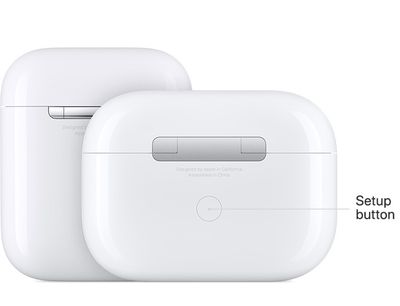
- With the AirPods case lid open, press and hold the button on the back of the case for about 15 seconds until you see the status light flashing amber. (If you have AirPods 4, Apple has moved the capacitive button to the front of the case, concealing it just below the status light.) If your AirPods case charges only over a wired connection, the status light is inside the case between the AirPods. If you have AirPods Pro or your AirPods case charges wirelessly, the status light is on the front of the case.

- With the case lid open, place your AirPods close to your device and follow the steps on your device's screen to reconnect your AirPods.
10. Regularly Clean AirPods
Perhaps the most common reason an AirPod loses battery charge is because the charging contacts are dirty and have grime on the AirPod stem, inside the Charging Case, or both. This prevents the electrical charge from passing through sufficiently, but you can clean things up using the method outlined below.
What You'll Need
- Lint-free or microfiber cloth
- Periodontal brush, straw cleaner, or Q-tip.
- 70% isopropyl alcohol (optional)
Using the dry, lint-free fabric, clean the stem of the AirPod, focusing around the silver contacts on the end.
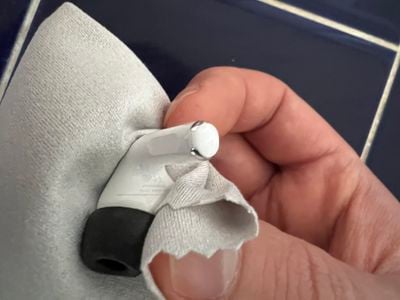
Then take a periodontal brush or similar tool, and clean the internal contact points in each AirPod bay inside the Charging Case. If you encounter any stubborn gunk, take a Q-tip and moisten it with water, or spray it with some isopropyl alcohol (DO NOT spray alcohol or water directly on the case) and work the Q-tip over the dirty area.
If you use your AirPods daily, to recover and maintain proper contact between the AirPods and the Charging Case, ideally you should clean them every week.