Since iOS 14, iPhone users have been able to customize their Home Screen with the help of widgets, which are similar to the widgets available on Android phones.
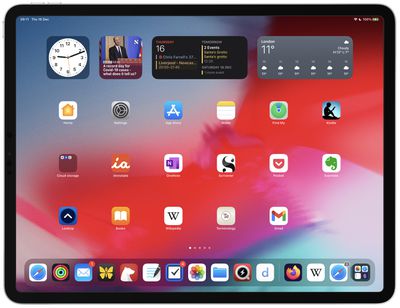
Widgets took a little longer to arrive on iPad, and their use was initially limited to the Today view on the left side of the Home Screen. With the release of iPadOS 15, however, widgets can be placed anywhere on the Home Screen of your iPad, offering just as much customization as iPhone users enjoy. Here's how it works.
How to Add Widgets to the Home Screen
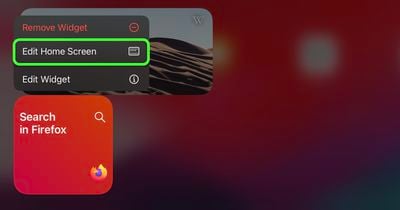
There a couple of ways you can add widgets to the Home Screen. If you long press on a widget in the Today View (swipe rightwards from the left side of the screen to reveal it), you'll see an Edit Home Screen option in the popup menu. Tapping this enters jiggle mode, and from there you can drag widgets out of the Today View and place them anywhere on the Home Screen.
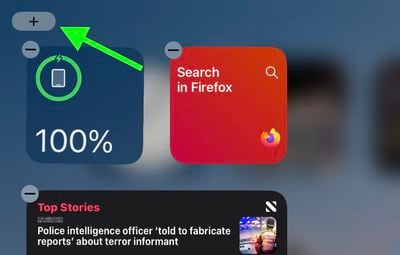
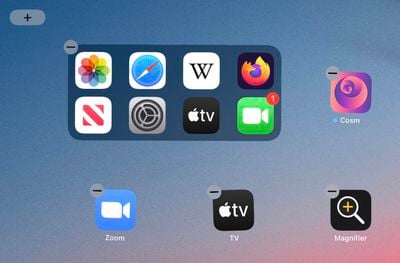
When in jiggle mode, notice the plus (+) button in the top-left corner of the screen. You'll find the same button appear if you long press on a blank area of the Home Screen or any additional page of apps. Tapping this button opens the Widget Gallery, where you can add and customize widgets.
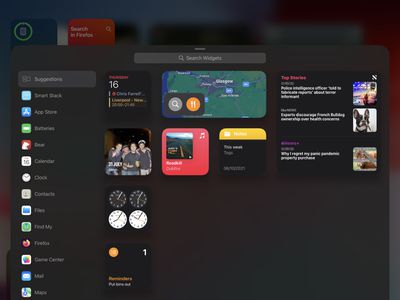
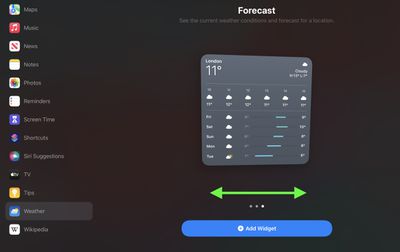
In the Widget Gallery, you can search for a specific widget or scroll through the available options. Tapping on a widget in the list lets you see the size and content options that are available for the widget. To add a widget to the Today View or the Home Screen, select it, choose a size (small, medium, or large), and then tap the Add Widget button.
Widget Sizes and Other Functions
When you customize a new widget, you'll notice that the larger the size of the widget, the more content it can display. In the Weather widget, for example, the smallest widget shows the current conditions, while the largest displays the forecast for the next few days.
Bear in mind that bigger widgets take up more space on your Home Screen. A small widget takes up the space of four apps in a square shape, but a medium widget takes up the space of eight apps in a rectangle shape, and a large widget takes up the space of 16 apps in a square shape.
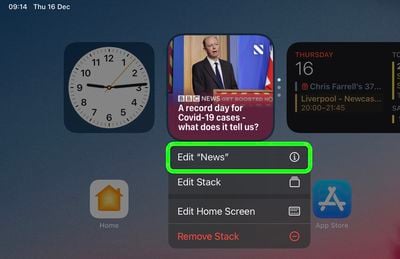
Some apps also have different widget options based on function. In the Apple News widget, for example, you can choose to see relevant news from the day or get stories about a specific topic of interest. You can change this function on an existing Apple News widget anytime. Just long press on the widget and then select Edit "News."
When you've got some widgets on your Home Screen, you can move them around, just like apps. Simply long press on the screen to enter jiggle mode and then drag a widget around with your finger.
Siri Suggestions Widget
In the Widget Gallery, if you scroll down to the list section you'll see a Siri Suggestions widget. This dynamic widget displays app suggestions based on your iPhone usage habits, similar to what shows up under Siri Suggestions when you use an iPhone's search function.
Widget Stacks
With widget stacks, you can stack multiple widgets on top of one another, so you can put all of your favorites together and then swap between them with an upward or downward swipe of the finger.
Apple has also added a special "Smart Stack," which is a widget stack that uses Siri Intelligence to surface the most relevant and useful widget based on your iPhone usage habits.
Third Party Widgets
Apple allows developers to create their own Home Screen widgets to augment in-app functions, so keep an eye out for available widgets for your most loved third-party apps.