

How to Add and Organize Images in Photos for OS X Yosemite - MacRumorsOpen MenuShow RoundupsShow Forums menuVisit ForumsOpen Sidebar
Skip to Content

How to Add and Organize Images in Photos for OS X Yosemite

by

Once you've migrated your image library from iPhotos or Aperture (or both), you'll probably want to add all the images from your iPhone or iPad and get everything organized so you can quickly find pictures from specific dates and events in the future.

To help you accomplish both of these tasks, we've written up a tutorial that provides an overview of how to import pictures into the Photos app on OS X Yosemite and gives a few suggestions for how to organize your collection.
How to add and organize photos for os x 2

Importing Pictures

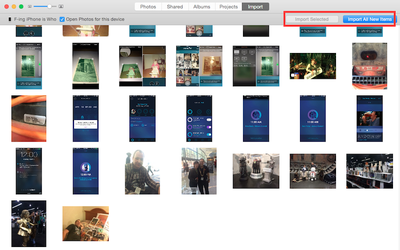
  1. Connect your device (iPhone, iPad, or digital camera) to your computer using the USB connector and open the Photos for OS X app.
  2. Select "Import" from the list of tabs at the top of the screen in the app.
  3. Select the images you wish to add to the Photos app, or select "Import All New Items" to add everything from your device.

Imported images will automatically be added to the "Last Import" album in Photos. You can see your photos using a number of different views, including the main Photos tab, which displays all pictures that you have added to the app and any pictures that you have taken using an iOS device that is connected using My Photo Stream.

Just like the Photos app on iOS, pictures in Photos for OS X are organized by Moments, Collections, and Years. To navigate between these timelines, click on the arrow buttons in the upper right corner of the app while in the main Photos view, or select a different view from the tabs at the top of the app.
How to add and organize photos for osx yosemite
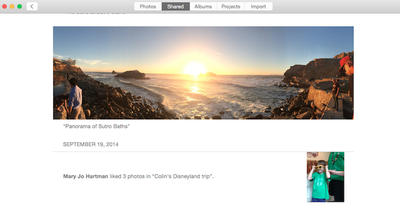
The "Shared" album houses photos and albums that you have shared with other people and those that have been shared with you. Select a shared album to see all pictures and add new photos to the album. Comments, Likes, and new pictures added will appear in the Activity section.

Under the Albums tab, you will see a list of albums that are created automatically within Photos for OS X, which may include All Photos, Faces, My Photo Stream, Last Import, Favorites, Panoramas, and Bursts. You can also create your own albums here, using the "+" button on the menu bar.

The Projects tab is where you will find books, cards, calendars, prints, or slideshows that you have created using Photos on that specific Mac.

You can also search for photos within the Photos app by typing the keyword you wish to filter into the search bar in the upper right corner. You can find groups of photos based on names, dates, locations, and more.
How to add and organize photos for os x 3

Adding Photos to Albums and Creating Albums

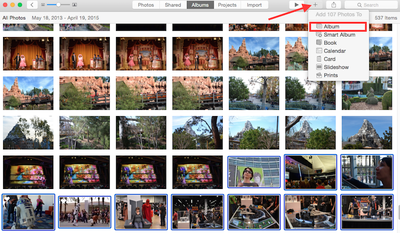
  1. With the Photos app on OS X Yosemite open, select "Albums" from the list of tabs at the top of the screen.
  2. Click on the "All Photos" option.
  3. Click on the pictures you would like to add to an album. You can select multiple pictures by using the command + left-click or grab a large group by using shift + left-click.
  4. Click the plus (+) button at the top right corner of the Photos app.
  5. Select "Album" from the dropdown menu.
  6. Select the album you wish to add the pictures to, or create a new album and name it.
  7. Click "OK."

Creating Smart Albums

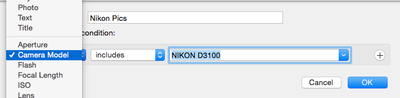
You can create a variety of Smart Albums based on specific conditions. When created, any image that fits the criteria will automatically be added to the Smart Album. You can create Smart Albums based on such categories as the date, a specific description, Face tags, file names, keywords, camera models, shutter speed, and more. Each category includes a condition, such as "Photos is RAW" or "Camera Model is iPhone 6."
How to add and organize photos for os x 1

  1. With the Photos app on OS X Yosemite open, select the "Albums" from the list of tabs at the top of the screen.
  2. Click on the plus (+) icon in the upper right corner of the Photos app.
  3. Select "Smart Album" from the drop down menu.
  4. Name the new Smart Album. It is a good idea to name the album after the action it will be based on. For example, "Edited Pictures" or "iPhone Photos."
  5. Select the condition you wish the Smart Album to produce. You can include multiple conditions. For example, "Camera Model is iPhone 6" combined with "Photo is Favorite" will aggregate all photos taken with an iPhone 6 that have been favorited.
  6. When you are happy with the conditions you have set, click "OK."

If the Smart Album did not produce the results you were looking for, you can adjust the conditions by selecting the gear icon under it in the Albums view.

If you have a large amount of pictures in Photos for OS X Yosemite, it is a good idea to begin organizing them. A great starting point is to create albums that make it easier for you to access events that you have customized yourself. Smart Albums are great for automatically sending certain pictures to a designated folder.

When your photos are better organized, you will be much more likely to look at them again in the future. It is like the difference between opening a shoebox full of loose pictures or a nicely bound photo album with pictures displayed by date.


Top Rated Comments

TMRJIJ Avatar
150 months ago
If you migrated from Aperture and need instructions for organizing your images in Photos, you already failed.
Score: 7 Votes (Like | Disagree)
ArtOfWarfare Avatar
150 months ago
The name of your iPhone is "F_ing iPhone is Who"?

Am I the only one who saw that in the screenshot in the article?

Edit: Not even allowed to post the name of your iPhone in the comments. I had to change the - to an _ for it to post.
Score: 6 Votes (Like | Disagree)
150 months ago
indeed, iCloud Photo on the other hand is too confusing and does too much of one thing and too little of other things
If you can't understand iCloud Photos, you must not be very good at this whole computer thing. I mean, you turn it on and all your photos are on every device. It works EXACTLY like IMAP email. It really can't get any simpler than that.


The old way worked like POP email where you have to figure out where a photo is and you could delete it on one device and it stupidly still showed up somewhere else. Edit a photo and it used to mean you have two different photos in different locations. Photo stream didn't do 2 way sync and your library would get all out of whack with reality on various different devices.

The iCloud Photos way is WAY better and much easier to understand. One single unified library just like how your Gmail, iCloud, Exchange email works.

When I delete an email in gmail, it's gone. I don't have to worry about it showing up on another device or another computer. iCloud photos works the same way.

----------

All photos taken on my phone go to Photo Stream, which Photos on my Mac saves to the hard drive. Perfect cable-less way for my Mac to be my digital hub of photos.
Except if you make an edit to a photo, update folders, make new albums, delete something, or do anything at all with your photos, now your library is all out of whack in different places because Photostream does not do a true SYNC. It's just a one way street. iCloud Photos is so much easier to understand and works better.
Score: 5 Votes (Like | Disagree)
bushido Avatar
150 months ago
how to delete duplicate photos:

step 1.) can't

how to exclude certain videos and albums

step 2.) you cant either
Score: 5 Votes (Like | Disagree)
150 months ago
how to delete duplicate photos:

step 1.) can't
Score: 5 Votes (Like | Disagree)
theBB Avatar
150 months ago
so how do i get rid of the downloaded full resolution picture once i have viewed it and no use for it anymore on my iDevice without it being deleted everywhere? if i download random pics just to view them its gonna fill up my iPhone after a while.
You don't have to do anything. If you need storage space on iOS device or Mac, it automatically replaces the full resolution pictures with smaller preview ones starting from the ones that you have not viewed for the longest time (assuming you told it to optimize storage rather than always keeping full size versions.)
Score: 4 Votes (Like | Disagree)

Popular Stories

iPhone Duo Display Cracking

Apple Alerts Stores to iPhone Duo's Display Cracking Issue

Friday October 30, 2026 3:20 pm PDT by
In a memo shared with Apple Stores and Apple Authorized Service Providers this week, and later obtained by MacRumors, Apple provided technicians with guidance on how to diagnose and address the iPhone Duo's inner display cracking issue. If a customer reports the issue, Apple advised technicians to inspect the iPhone Duo and repair or replace it in accordance with their standard procedures....
iPad mini OLED feature 1

Apple Executive Comments on New iPad Mini Lacking 120Hz Display

Thursday October 29, 2026 1:47 pm PDT by
While the new iPad mini has an OLED display, the device does not support ProMotion, meaning the display's refresh rate is limited to 60Hz instead of 120Hz. ProMotion support would have allowed for the iPad mini's refresh rate to automatically adjust from 10Hz to 120Hz depending on the content being displayed, but evidently Apple has kept the feature exclusive to the iPad Pro among iPad...
Pinched iPad Mini

Apple Avoids Showing Pinched Fingers on iPad Mini Page in South Korea

Thursday October 29, 2026 11:52 am PDT by
In the U.S. and most other countries, Apple's website shows the new iPad mini being held by pinched fingers, but this is not the case in South Korea. The new iPad mini shown with pinched fingers on Apple's website in the U.S. On its South Korean website, Apple simply shows an image of the iPad mini on its own. The new iPad mini shown without pinched fingers on Apple's website in South Korea ...
Latest Stories
Apple Watch Ultra 4 Hits All-Time Low Price With Amazon's $99 Discount
13 hours ago
Reminder: Apple's Big Discount on Beats 360 Ear Cushions Ends Today
14 hours ago
Here's a New Tour of Apple's HomeView Software
14 hours ago
Apple Reveals New iPad Mini's Battery Capacity
15 hours ago
Top Stories: Apple's Big MacBook Pro, iPad mini and iMac Updates
16 hours ago
'Pluribus' Season 2 Reportedly Starts Production Today
23 hours ago
iPhone 18 Pro Sales Surge in China, Offsetting Decline in U.S. and Japan
23 hours ago
HomeView Software 27.2: Wallpapers, Control Center, and More
1 day ago
Apple Alerts Stores to iPhone Duo's Display Cracking Issue
1 day ago
iOS 27.3 Will Enable These Apple Intelligence Features in China
1 day ago
Apple Says iOS 27.3 Beta Coming Next Week
1 day ago
Apple's Flash Storage Suppliers Are Finally 'Getting Their Revenge'
1 day ago
14 New Things Your iPhone Can Do in iOS 27.2
1 day ago
iPhone Duo Review: One Week Later
1 day ago
Samsung Mocks iPhone Duo Display Cracks in New Ad Campaign
2 days ago
The MacRumors Show: OLED MacBook Pro, iPad Mini 8, and More
2 days ago
MacBook Pro With Touch Display: 15 More Details Revealed
2 days ago
Russia Places Apple on State Surveillance Registry
2 days ago
Halloween Weekend Brings Discounts on Apple Accessories and Pre-Orders
2 days ago
Apple Has Released More Than 25 New Products in the Past Two Months
2 days ago
Local Code Launches as Free, Private AI Assistant Tool for Mac
2 days ago
Apple Acquires Ascend.io
2 days ago
HomePod Mini 2 Launches Today: All the New Features
2 days ago
AirTag 2 4-Pack Drops to New Low Price of $69.99
2 days ago
Rian Johnson's iPhone Camera App Goes Viral
2 days ago
Where Did All the iPhone Duos Go? Mostly to Apple's Stores
2 days ago
Apple's Touchscreen MacBook Pro Could Ship 1.5M Units in 2027
2 days ago
New Apple TV 4K and iPad Mini: RAM Amounts Revealed
2 days ago
Apple Executive Comments on New iPad Mini Lacking 120Hz Display
2 days ago
Here's a Hands-On Look at HomePod Mini 2's New Two-Tone Colors
2 days ago

🔗 Related Apple News & Rumors

Stay updated with the latest Apple ecosystem news and verified rumors










































