The Glances feature of Apple Watch allows you to see an overview of content from specific apps. It is a great way to get a quick update on the day's content without having to open an app, either on your iPhone or on Apple Watch.

For those interested in learning the basics of the Glances feature, today we are going to show you how to add, remove, and organize Glances on Apple Watch so you can customize your content for a more personalized experience.

How to organize Glances in Apple Watch 4

Viewing Glances

  1. Press the Digital Crown to navigate to the watch face on Apple Watch if necessary.
  2. Swipe up from the bottom of the screen.
  3. Swipe left or right to view all of your Glances.

There are several default Glances that will be immediately available on your Apple Watch right out of the box. These include a Control Center for pinging the iPhone and controlling features like Airplane Mode/Do Not Disturb, a battery Glance that offers up current battery life plus an option for Power Reserve mode, and Glances for Weather, Calendar events, current heart rate, activity level, world clock, and stocks.
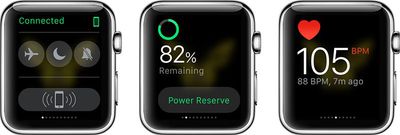
applewatchglances
You can't interact with Glances (there are no special Force Press options here) but tapping on many of the Glances with accompanying apps will open up the app. For example, tapping the Weather Glance will open up the full Weather app. You can add additional Glances through third-party apps and control which Glances are displayed and in which order, as outlined below.

Adding Glances

Some third-party Apple Watch apps include Glances, which need to be manually enabled using the Apple Watch companion app on your iPhone. Once turned on, you can access the Glances as you would the default Glances.
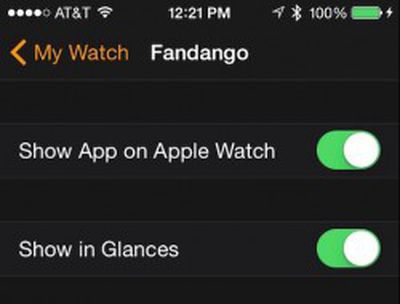
How to organize Glances in Apple Watch 1

  1. Open the Apple Watch app on your iPhone.
  2. Tap the My Watch tab.
  3. Scroll down to the list of compatible apps and select the one you wish to add.
  4. If it is not already on your Apple Watch, toggle the "Show App on Apple Watch" switch to the On position.
  5. Toggle the "Show in Glances" switch to the On position.
  6. The app will automatically be added to your list of Glances.

You can also add a Glance via the Apple Watch app on your iPhone under the Glances section in the My Watch tab. Simply scroll down to the "Do Not Include" section and tap the green add icon on the left side of the app.
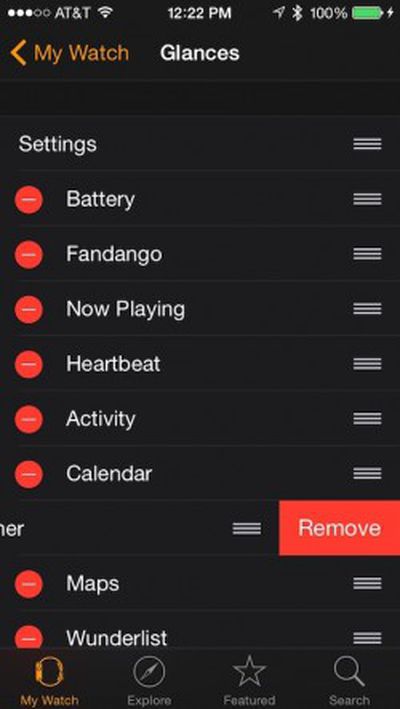
How to organize Glances in Apple Watch 3

Organizing and Removing Glances

Similar to the way you organize the Today View widgets on your iPhone, you can also organize Glances for your Apple Watch.

  1. Open the Apple Watch app on your iPhone
  2. Tap the My Watch tab.
  3. Select Glances.
  4. To remove an app, tap the red remove icon on the left side of the app.
  5. To reorder apps, hold and drag the reorder icon on the right side of the app and move it to the new location on the list.

Experiment with your Glances. You may discover that some are more important to you than others, and keeping this section culled down to your most used apps can make it easy to access them quickly. Once your Glances are in order, you will be able to quickly see a short summary of the content of your most important apps.
Related Roundup: Apple Watch 11
Buyer's Guide: Apple Watch (Neutral)

Top Rated Comments

acctman Avatar
140 months ago
No offense to the author or macrumor but these Apple Watch how-to articles are laughable. You have videos, manual and common sense already built into the Apple Watch app and watch itself. It's not like you're teaching anything hidden. How about showing the non-common sense features.

- Like sending your location from within a watch message
- Chaning the colors of animated emojis
- Managing and controlling your storage space
- etc ... Useful stuff not saying these articles aren't useful but it more like duh we know this.
Score: 10 Votes (Like | Disagree)
mrjr101 Avatar
140 months ago
Neat, next up, how to glance at the time on Apple Watch...
Score: 8 Votes (Like | Disagree)
FieldingMellish Avatar
140 months ago
So much for glances. How about Apple addressing glimpses, gazes, looks and the cold stare?
Score: 5 Votes (Like | Disagree)
RickInHouston Avatar
140 months ago
The amount of articles about this watch seem disproportionate to the amount of readers that have one. Several comments are always along the lines of, "still waiting for mine...."

Maybe these articles should be held back until June or July when their watches actually ship!
Score: 2 Votes (Like | Disagree)
C DM Avatar
140 months ago
The amount of articles about this watch seem disproportionate to the amount of readers that have one. Several comments are always along the lines of, "still waiting for mine...."

Maybe these articles should be held back until June or July when their watches actually ship!
Plenty of people who read articles here don't participate in the forums or even register. Why not have the information available when the product is available so that those who might want it (no matter how many there might be) would have access to it. And when more people get the product the information will already be there. Waiting for some number or something like that doesn't make much sense.
Score: 1 Votes (Like | Disagree)
bushido Avatar
140 months ago
for some reason Apple decides to call them "Checks" in german which isn't even a German word. took me forever to realize that these are in fact the glances
Score: 1 Votes (Like | Disagree)

Popular Stories

Aston Martin CarPlay Ultra Screen

Apple's CarPlay Ultra to Expand to These Vehicle Brands Later This Year

Sunday February 1, 2026 10:08 am PST by
Last year, Apple launched CarPlay Ultra, the long-awaited next-generation version of its CarPlay software system for vehicles. Nearly nine months later, CarPlay Ultra is still limited to Aston Martin's latest luxury vehicles, but that should change fairly soon. In May 2025, Apple said many other vehicle brands planned to offer CarPlay Ultra, including Hyundai, Kia, and Genesis. In his Powe...
Apple Logo Black

Apple's Next Launch is 'Imminent'

Sunday February 1, 2026 12:31 pm PST by
The calendar has turned to February, and a new report indicates that Apple's next product launch is "imminent," in the form of new MacBook Pro models. "All signs point to an imminent launch of next-generation MacBook Pros that retain the current form factor but deliver faster chips," Bloomberg's Mark Gurman said on Sunday. "I'm told the new models — code-named J714 and J716 — are slated...
iOS 26

iOS 26.3 and iOS 26.4 Will Add These New Features to Your iPhone

Tuesday February 3, 2026 7:47 am PST by
We are still waiting for the iOS 26.3 Release Candidate to come out, so the first iOS 26.4 beta is likely still at least a week or two away. Following beta testing, iOS 26.4 will likely be released to the general public in March or April. Below, we have recapped known or rumored iOS 26.3 and iOS 26.4 features so far. iOS 26.3 iPhone to Android Transfer Tool iOS 26.3 makes it easier...
Apple MacBook Pro M4 hero

New MacBook Pros Reportedly Launching Alongside macOS 26.3

Sunday February 1, 2026 5:42 am PST by
Apple is planning to launch new MacBook Pro models with M5 Pro and M5 Max chips alongside macOS 26.3, according to Bloomberg's Mark Gurman. "Apple's faster MacBook Pros are planned for the macOS 26.3 release cycle," wrote Gurman, in his Power On newsletter today. "I'm told the new models — code-named J714 and J716 — are slated for the macOS 26.3 software cycle, which runs from...
iOS 26 Home Feature

Apple Gives Final Warning to Home App Users

Tuesday February 3, 2026 8:55 am PST by
In 2022, Apple introduced a new Apple Home architecture that is "more reliable and efficient," and the deadline to upgrade and avoid issues is fast approaching. In an email this week, Apple gave customers a final reminder to upgrade their Home app by February 10, 2026. Apple says users who do not upgrade may experience issues with accessories and automations, or lose access to their smart...