How to Add a Second Home to Apple HomeKit - MacRumorsOpen MenuShow RoundupsShow Forums menuVisit ForumsOpen Sidebar
Skip to Content

How to Add a Second Home to Apple HomeKit

by

If you have a second home outfitted with HomeKit devices, you can easily add it to Apple's Home app and keep all of the device settings you own in that location completely separate from your primary home.
HomeKit Twitter
Once you've set up a second home in the Home app, you can set up rooms and zones in it and control any device remotely, just like you can in your main home. To add a second home to ‌HomeKit‌, just follow these steps.

How to Add a Second Home to HomeKit

  1. Launch the Home app on your iPhone or iPad.
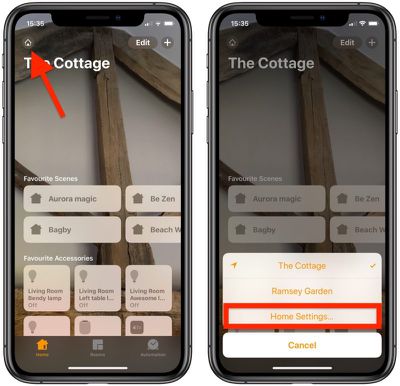
  2. Tap the Home icon or location arrow in the top left of the screen.
  3. Tap Add Home in the top left of the screen.
    how to add a second home apple homekit

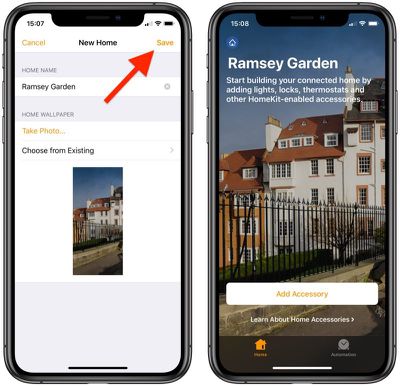
  4. Give your second home a name.
  5. To add a recognizable backdrop to your second home's main screen, either tap Take Photo... or Choose from Existing.
    how to add a second home apple homekit 1

  6. Tap Save.
  7. Tap Invite... to give other people smart device access to your second connected home.
  8. You can optionally add notes for people who are sharing your home under Home Notes.
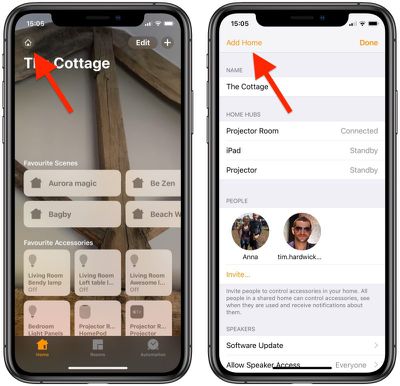
Now that your second home is set up, tap Add Accessory to start adding smart devices to it. You can switch between homes within the Home app anytime by tapping the Home icon in the top left of the screen.

You can also have the Home app automatically switch between homes based on your location. To do so, tap the Home icon, select Home Settings... and toggle on the switch next to Home Switching, then press Done.

How to Remove a Second Home From HomeKit

  1. Launch the Home App on your iPhone or ‌iPad‌.
  2. Tap the Home icon or location arrow in the top left of the screen.
    how to remove a second home apple homekit 2

  3. Tap Home Settings....
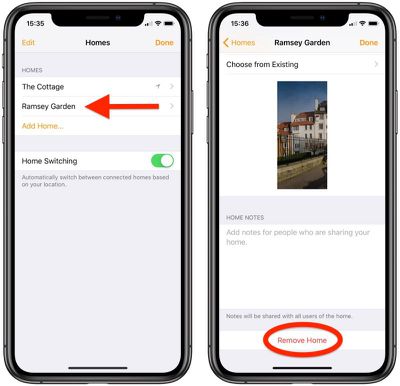
  4. Tap the name of the home that you want to remove.
    how to remove a second home apple homekit 3

  5. Scroll down to the bottom and select Remove Home.
  6. Tap Remove to confirm.

Removing a home from ‌HomeKit‌ will delete all of your accessories and settings, so make sure that's what you want to do before hitting that delete button.

Popular Stories

ecovacs black friday

FCC Bans New Foreign-Made Robot Vacuums, Threatening Future Matter and HomeKit Models

Thursday July 30, 2026 11:55 am PDT by
The FCC this week banned all new "foreign-produced advanced robotic devices" because of an "unacceptable risk to the national security of the United States." The government says networked robotic systems lead to vulnerabilities that allow bad actors to control the devices and collect surveillance data from Americans. Advanced robotic devices are defined as software-controlled autonomous...
Apple Event Logo

Apple Working on All-New Operating System

Wednesday July 29, 2026 11:39 am PDT by
Apple is developing an all-new operating system that is essentially a mix of tvOS, watchOS, and iOS, according to Bloomberg's Mark Gurman. In a report this week, he said the operating system will feature a grid of icons, widgets, and apps, along with customizable clock faces. The new software platform is intended for Apple's long-rumored smart home hub. With built-in facial recognition,...


imac video apple feature

Apple Made Its Second-Biggest Acquisition Ever This Year

Wednesday July 29, 2026 12:03 pm PDT by
Apple this year acquired Israeli startup Q.ai for close to $2 billion, according to the Financial Times. That would make this Apple's second-biggest acquisition ever, after it paid $3 billion for the popular headphone maker Beats in 2014. This is also the largest known Apple acquisition since the company purchased Intel's smartphone modem business and patents for $1 billion in 2019. Q.ai...

🔗 Related Apple News & Rumors

Stay updated with the latest Apple ecosystem news and verified rumors