 In iOS 13 and iPadOS, Apple has combined the Find My Friends and the Find My iPhone apps into a single app, simply called "Find My."
Find My works similarly to the Find My iPhone and Find My Friends apps that it replaces, but it also allows you to locate lost devices that aren't connected to Wi-Fi or LTE by using the Bluetooth signal of other nearby Apple devices. When your lost device is offline but close to another device, it can connect to that device over Bluetooth and relay its location. The feature makes your devices are more trackable than ever, and gives you a better chance of finding a device that's been lost.
Of course, if the device you're trying to find isn't in proximity to another device, then the feature won't work. In such cases, you can put the device into Lost Mode. This ensures your passcode is required on the device before anyone can turn off its Find My status or erase it.
Lost Mode also lets you to include contact details on the lost device's screen, so that anyone who recovers it can make sure it finds its way back to you. Keep reading to learn how to enable Lost Mode on a device in Apple's new Find My app.
How to Put a Device into Lost Mode
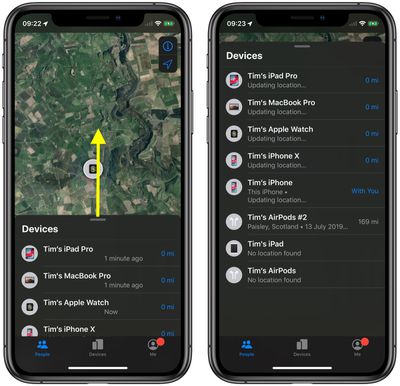
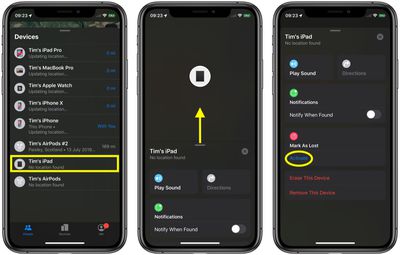
- Launch the Find My app on your iPhone or iPad.
- Swipe up with your finger to reveal the full list of devices.

- Tap the lost device in the devices list.
- If you can't see the Mark as Lost option for the selected device, swipe up with your finger to reveal the full menu.
- Under Mark As Lost, tap Activate.
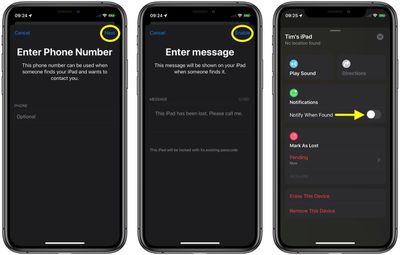
- Tap Continue to confirm.
- Optionally, enter the phone number you'd like to appear on the device's screen. This can be used when someone finds your device and wants to contact you.
- Tap Next.
- Enter a message to be shown on your device when someone finds it. The example Apple gives is "This iPad has been lost. Please call me," but you can add your own custom message.
- If you don't want to get emails regarding the status of the device, toggle the switch beside Receive Email Updates to the off position.
- Tap Enable to mark the device as lost.
- To receive a notification on this device if the lost device is found, toggle the switch beside Notify When Found to the green ON position.
How to Turn off Lost Mode
- Launch the Find My app on your iPhone or iPad.
- Tap the device designated "lost" in the devices list (you'll see a padlock on the device icon to signify that it's locked). If you can't see it on the screen, swipe up with your finger to reveal the full list of devices.
- If you can't see the Mark as Lost section for the selected device, swipe up with your finger and reveal the full menu.
- Under Mark as Lost, tap Pending.
- Tap Turn Off Mark as Lost at the bottom of the Lost Mode screen.
- Tap Turn Off to confirm.
Lost Mode can also be disabled by entering your passcode and unlocking a device that was put into Lost Mode but has now been found.