

 Apple includes a raft of accessibility options in iOS to meet the various needs of its users, allowing them to customize their iPhone and iPad interface in several helpful ways. To make these features quicker to access, Apple also includes an Accessibility Shortcut feature in iOS that, once set up, can be invoked using a triple click of the Home button (or Side button if you have a device with Face ID).
This shortcut feature is ideal for users who could benefit from fast access to a customized menu of accessibility options. It's also a great solution if you just want a quick way to control a single accessibility mode like Reduce White Point, for example, which dims the screen below standard low brightness levels. Here we'll show you how to set up Accessibility Shortcut for either use case.
How to Set up Accessibility Shortcut in iOS
- Launch the Settings app on your iPhone or iPad.
- Tap Accessibility.
- Scroll down to the bottom of the list and tap Accessibility Shortcut.
- Tap the options you'd like to include in the shortcut menu. You can also drag on the bars at the far right of each option to change the order in which they appear.

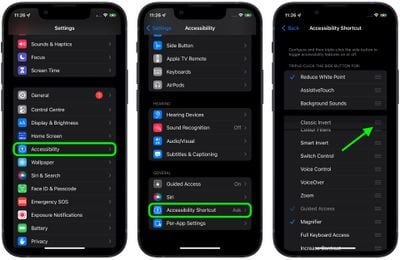
Here are just some of the Accessibility options available to you:
- AssistiveTouch: Enables the AssistiveTouch onscreen menu, which can help users perform gestures, and find and adjust certain settings like volume, Rotate Screen, Lock Screen, and more.
- Classic Invert Colors: Inverts all colors on the screen, which can be invaluable for users with certain visual impairments.
- Color Filters: Specific filters and tint options for users with different types of color blindness.
- Reduce White Point: Dims the brightness of whites and bright colors on the screen.
- Smart Invert Colors: Like classic invert, above, but inverts only certain areas of the user interface and leaves images and some graphical elements in their original format and colors.
- Switch Control: Management hub for controlling ability switches and other adaptive devices, for users with limited mobility.
- VoiceOver: Makes your iOS device speak to you during use – helpful for people who have trouble seeing display information.
- Zoom: Three-fingered double tap zoom function that makes display elements bigger and easier to read.
Note that if you tick only one option for your Accessibility Shortcut, you can enable it instantly with a triple-click of the Side/Home button. If you've ticked several, the triple-click action brings up the Accessibility Shortcut menu. Then just tap the option you want to use.
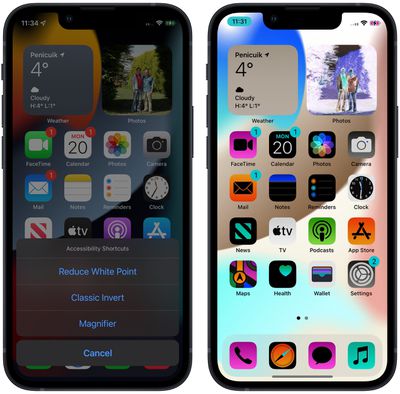
If you're having trouble pressing the Side/Home button three times in quick succession, you can adjust the triple-click speed by going to Settings -> Accessibility -> Side Button / Home Button. Alternatively, you can add the Accessibility Shortcut to Control Center in the following way.
How to Add Accessibility Shortcut to Control Center
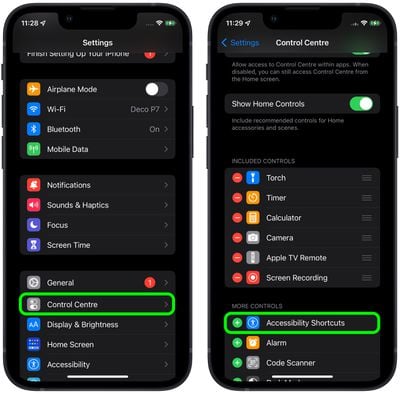
- Launch the Settings app.
- Tap Control Center.
- Find Accessibility Shortcuts under the "More Controls" list and then tap the entry to include it in Control Center.
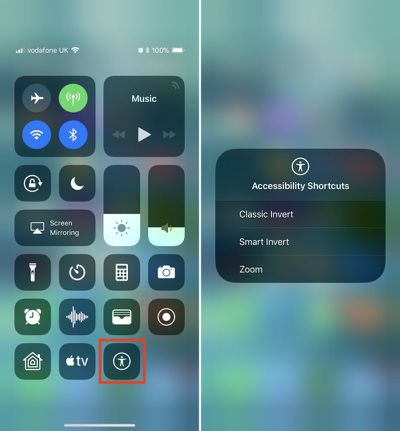
- Next, launch Control Center on your iOS device in the following manner: On iPad, double-tap the Home button; on iPhone 8 or earlier, swipe up from the bottom of the screen; or on an iPhone with Face ID, swipe down from the upper right "ear".
- Tap the Accessibility Shortcut button in the Control Center grid and select the desired accessibility option from the onscreen menu.


















































Top Rated Comments