macOS Big Sur is finally here. Version 11 of Apple's operating system for Mac features a completely overhauled look that's designed to be both fresh and familiar, but it's not just the design that's new. Apple has also rethought and retooled many features of macOS to improve the user experience, so whether you're running on Intel or Apple Silicon, there's plenty that's new to explore.
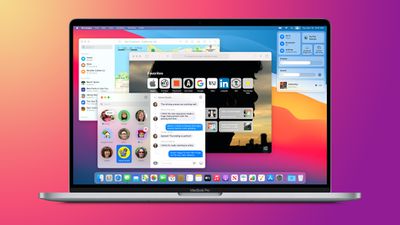
In this article, we've picked out some of our favorite additions and improvements in the public release of macOS Big Sur, including some smaller changes that you might not know about.
8 Quick Start Tips Video
This video gives you a quick overview on where to start with macOS Big Sur right after you get it installed:
If you've got more time to dig in, we've also collected this more comprehensive list of tips and tricks for the latest macOS release.
50 Tips and Tricks for macOS Big Sur
1. Setup Assistant Accessibility
When you first set up macOS, there's a new step in the setup wizard that offers you an opportunity to configure various accessibility features before you log in.

In previous versions of macOS, the only accessibility option you could enable in the setup wizard was VoiceOver, so this should come as a welcome addition for users who find the accessibility features useful.
2. "Now Playing" Media Menu Bar Item
A new menu bar item for media that's currently playing is now available. It's similar to the widget that you can add to the Notification Center.
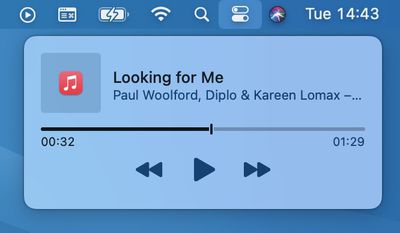
To enable the Now Playing menu bar item, go to System Preferences -> Dock & Menu Bar, click Now Playing in the side column, then check the box next to Show in Menu Bar.
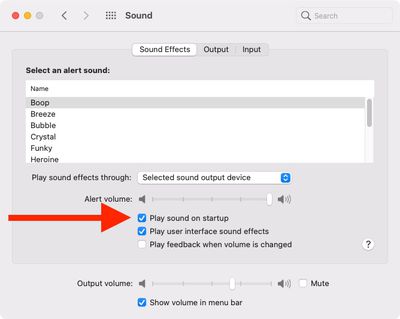
3. Play Sound on Startup Option
You can now choose whether your Mac plays the traditional startup chime or not without having to mess with Terminal commands. Go to System Preferences -> Sound, and check the box next to Play sound on startup.
4. Tab Search Field
In Safari, you can search all your open tabs using a new Search Tabs input field in the upper right corner of the Tab Overview screen.
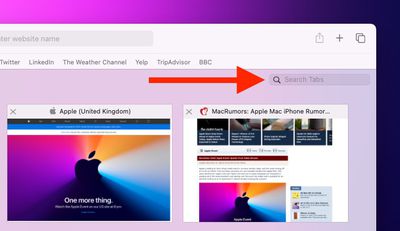
The functionality has actually been available in the Tab Overview screen in earlier versions of Safari, but the search field would only appear once you started typing, so many users probably didn't realize that it was even a thing. This higher visibility should make more users aware of the feature.
5. Safari Start Page Customization
Safari in macOS 11 features a customizable Start Page that allows you to personalize various aspects of it.
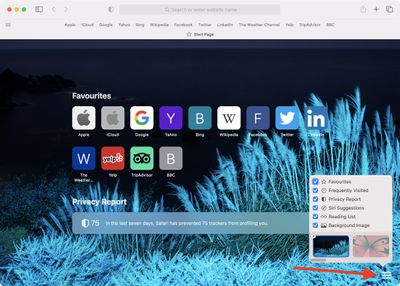
With the Start Page open, click the Settings icon in the bottom-right corner of the window, and you'll see checkboxes to control the appearance of Favorites, Frequently Visited, Privacy Report, Siri Suggestions, Reading List, iCloud Tabs, and the Background Image. You can even select a wallpaper for the background, or choose your own image by using the big + button.
6. Control Wallpaper Tinting in Windows
In macOS Big Sur, windows are tinted based on the color of the desktop wallpaper by default, even if there's something between the window and the wallpaper.
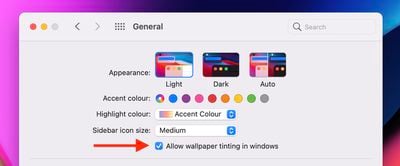
If that gets your goat, you can disable the colored tinting of windows by going to System Preferences -> General and unchecking the box next to Allow wallpaper tinting in windows.
7. Safari Tab Website Previews
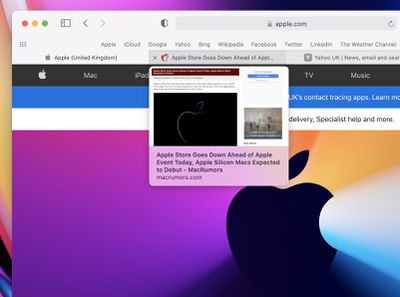
Another neat addition in Safari is website previews for tabs. Instead of opening a tab to get a better idea of what it's about, simply hover your cursor over the tab in question, and you'll see a small preview of the website appear.
8. Override Battery Health Management
In macOS Catalina 10.15.5, Apple introduced battery health management, which limits the charge of your MacBook's battery to extend its lifespan if your Mac is connected to a power source more often than not.
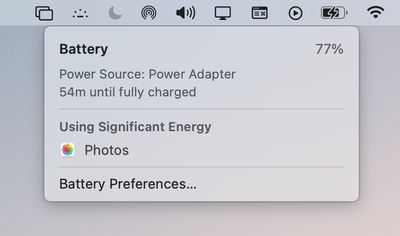
Previously it wasn't clear if or when your Mac's battery charge was being limited, but in Big Sur you can find this information right in the battery menu bar item, and even force a full charge when you need it using the Charge to Full Now option.
9. Safari Privacy Report
Safari now has an integrated Privacy Report that provides a list of trackers on a website and the number of trackers that were blocked, preventing websites from keeping tabs on your browsing habits across the web.
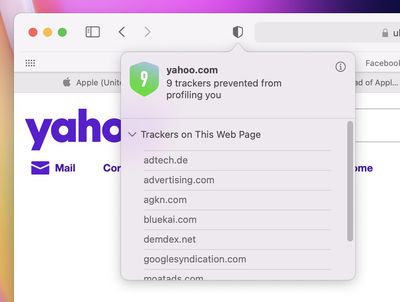
From the Privacy Report toolbar option, you can see how many trackers have been blocked in the last 30 days. You can also view a rundown on how many trackers have been blocked from profiling you on the Start Page.
10. Cycling Directions in Apple Maps
In Maps, routes with cycling directions can be planned on your Mac and sent to your iPhone or iPad, with the directions taking into account elevation, busy roads, stairs, and more, plus there are options for planning routes that incorporate electric vehicle charging stations.

11. Keyboard Shortcuts in Reminders
Reminders has some new keyboard shortcuts that make it easier to navigate between lists and make changes like setting due dates.
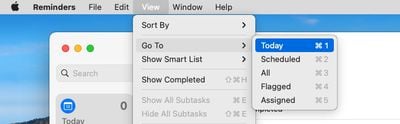
12. Redesigned Wi-Fi Status Icon
The Wi-Fi connection status icon has been redesigned to include three segments like in iOS, rather than the traditional four.
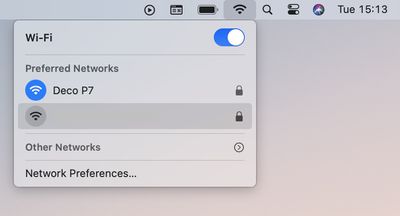
This isn't exactly a new trick or feature, but we thought it was a worthwhile tip so users don't have the impression that their Wi-Fi connection signal isn't as strong as it used to be.
13. Guides in Apple Maps
You can now use Guides in Apple Maps to explore places. Guides provide recommendations for the best places to visit in a city, offering up suggestions on places to eat, shop, and explore.
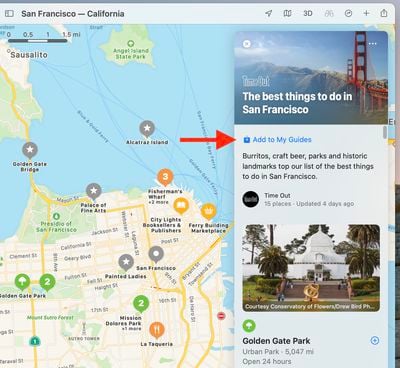
Some of Apple's partners for these Guides include Lonely Planet, the Washington Post, AllTrails, The Infatuation, and more. You can save Guides with the Add to My Guides button, and they automatically update when new places are added, so you always have the latest recommendations.
14. Relocated New Tab Button in Safari
In Safari, the button to create a new tab has been relocated from the right of the tab bar to the main toolbar above.
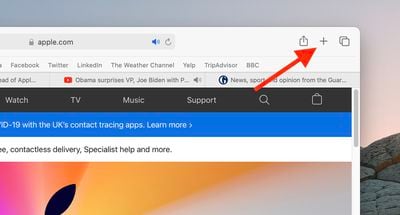
This allows you to move it where you like using the Customize Toolbar... option (right-click the toolbar), just like you can rearrange the rest of the toolbar buttons.
15. Pin Messages in the Messages App
Just like in iOS 14, you can now pin messages in the Messages app in macOS 11 to make it easier to refer back to conversations with people that you're regularly in contact with.
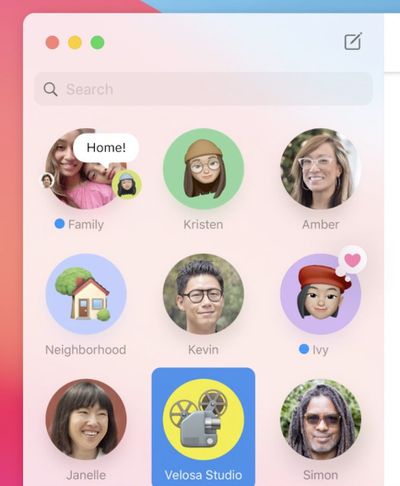
Up to nine of your most important conversations can be pinned to the top of the Messages app, with pinned conversations depicted as circular icons. Simply drag a chat thread to the top of the sidebar, or swipe right on the thread and click the yellow Pin button.
16. Enhance Voice Memo Recordings
The new Enhance Recording option in the Voice Memos app attempts to improve the quality of your recording. It does this by using machine learning to remove potentially unwanted sounds such as background noise and echoes. Think of it as the audio equivalent of the Photos app's magic wand button that enhances the quality of the selected image.
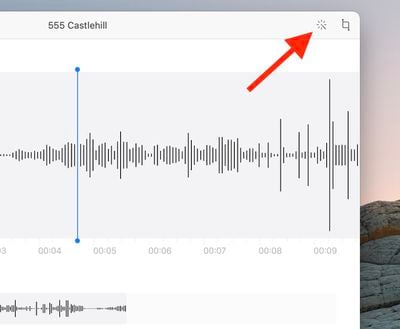
Just click the Enhance button in the top-right of the window when you're editing a recording's waveform. The result won't always be all that dramatic and may not even be particularly desirable for what you're recording, but it's worth a try and you can easily remove the enhancement if you don't like it.
17. Safari Built-In Translation
Safari now has a built-in web translator that translates seven languages with just a click, so you can read an entire webpage in another language without having to have an extension installed.
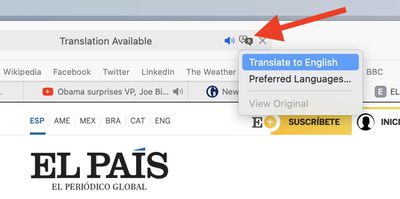
When you load up a page in a language you don't understand, check for the translation icon at the right end of the address bar. Built-in translation works for English, Spanish, Chinese, French, German, Russian, and Brazilian Portuguese.
18. Prefer Tabs When Opening Documents
This option lets you force a new document to open in a tab instead of a new window. It isn't exactly new, but it has moved, so it's worth highlighting.
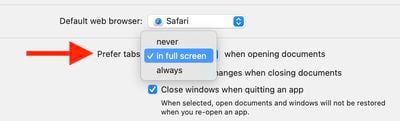
"Prefer tabs when opening documents" has been relocated in System Preferences from the Dock pane to the General pane. It's also now simply called Prefer tabs and the options have been rephrased to Never, In full screen, and Always.
19. Battery Usage History
In the new Battery section that replaces "Energy Saver" in System Preferences, a new Usage History feature provides details on your Mac's battery life over the course of the last 24 hours or the last 10 days, broken down into Battery Level and Screen On Usage so you can see how your battery is performing.
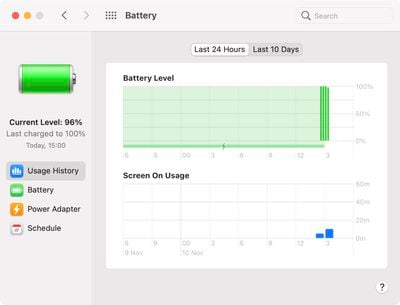
Along with the Usage History section, there are Battery and Power Adapter sections that replace the functionality that was previously available through Energy Saver. You can choose when to turn the display off, enable or disable power nap, and more, with the settings split for battery usage and usage when connected to power. The Schedule feature is also present.
20. Assign Reminders to People
In the Reminders app, you can now assign reminders to specific people in group reminder lists.
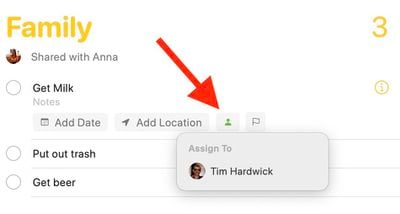
Click a reminder and then click the Assign To button, or right-click the reminder and select the same option from the contextual dropdown menu.
21. Speak Typing Feedback
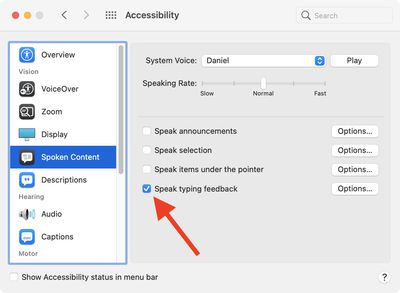
In System Preferences, the "Speech" section in the Accessibility pane has been renamed Spoken Content, and it includes a new feature called Speak typing feedback which, when enabled, will speak back to you what you're typing, as you type it.
22. Hide Menu Bar
In macOS 11, Apple has moved the setting that lets you hide the menu bar. Previously this could be found in the "General" pane of System Preferences. It's now located in the Dock & Menu Bar section.
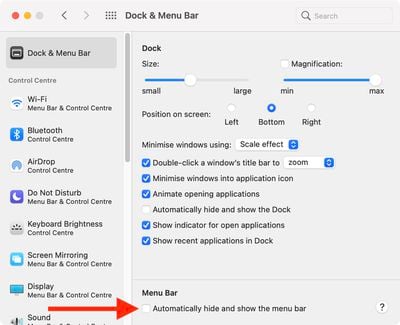
To set the menu bar to hide and show when you move the cursor to the top of the screen, check the box next to Automatically hide and show the menu bar.
23. Customize Control Center
In System Preferences, the Dock & Menu Bar pane lets you choose what appears in the Control Center. You can turn on/off individual controls such as Wi-Fi, Bluetooth, AirDrop, Do Not Disturb, Keyboard Brightness, and more.
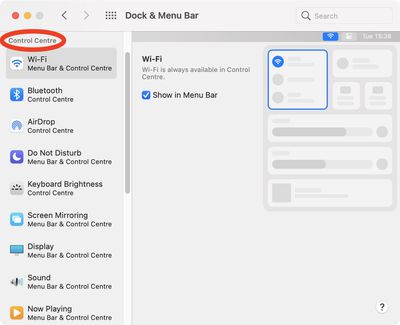
You'll also find additional optional Control Center modules available including Accessibility Shortcuts, Battery, and Fast User Switching.
24. Pin Control Center Options to Menu Bar
Your favorite Control Center menu items can be pinned to the top of the menu bar for quick access.
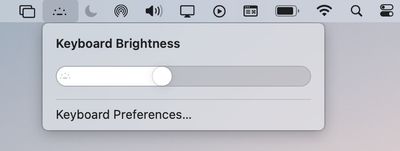
Simply click-hold a menu item in the Control Center and drag it to the menu bar with your cursor.
25. Access Notification Options
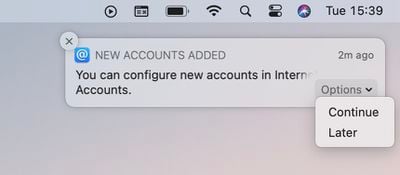
Notifications are now grouped by app and have additional interactive features, so you can do things like play a new podcast or reply to an email without having to open up the associated app. Simply click the Options button to get a dropdown menu of additional interactivity.
26. Numbered Grid Voice Control
In System Preferences, the Voice Control section in the Accessibility pane now lists the Numbered Grid option in the Overlay dropdown.
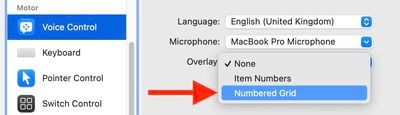
When selected, this option segments the entire screen into numbered zones, allowing you to interact with parts of the screen that don't have a control, or that Voice Control doesn't recognize as clickable.
To click the item behind a grid number, say "Click" and the number. Or say "Zoom" and the number to zoom in on that area of the grid, then automatically hide the grid. You can also use grid numbers to drag a selected item from one area of the grid to another: "Drag 3 to 14."
27. Customize Notification Center Widgets
Widgets have been redesigned in macOS Big Sur and are similar to the widgets introduced in iOS 14. Open the widget gallery and you can customize them in three sizes using the (S)mall, (M)edium and (L)arge buttons.
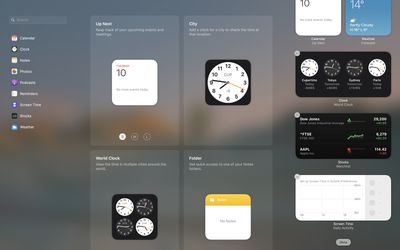
Then just drag them from the library to add them to the Notification Center.
28. Photos Picker in Messages
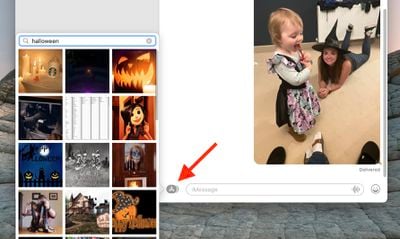
There's a new Photos picker in the Messages app that's accompanied by Memoji stickers (which can be created on the Mac for the first time with the Memoji editor), an #images search for finding trending images and GIFs, and Message effects, which have been available on iOS for several years.
29. Look Around in Maps
macOS 11 adds Look Around to the Maps app, so you can explore cities in a detailed, street-level view, similar to Google Maps.
Just click the Look Around icon (it's a pair of binoculars) and move the binoculars around the map to change location.
30. Use Quick Styles in Notes
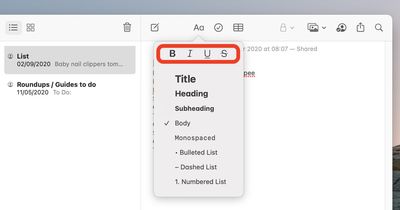
Apple has added Quick Styles to the text style menu in Notes, so now you don't have to open a Font window or dig into dropdown menus to go bold, italic, underline, or strikethrough.
31. Show Battery Percentage in Menu Bar
By default, the battery percentage no longer appears next to the Battery icon in the menu bar. Fortunately, you can reinstate it.
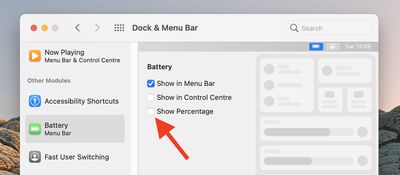
Go to System Preferences > Dock & Menu Bar, scroll down in the sidebar, then click Battery under Other Control Center Modules and tick the Show Percentage checkbox.
32. Show Individual Note With Light Background
If you're using Dark Mode, individual notes in the Notes app can be set to have a light background for better legibility.
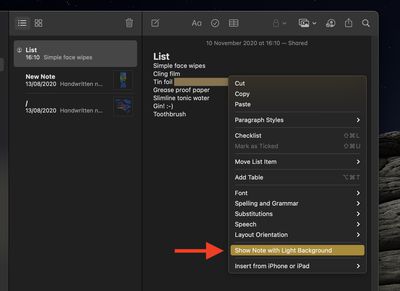
Just right-click inside the note and select Show Note with Light Background from the contextual dropdown menu.
33. Delete Old SDKs and Xcode Caches
You can now delete Xcode caches and older SDK versions in the storage management section of About this Mac (Apple menu -> About This Mac).
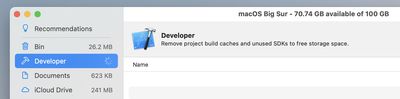
Click the Storage tab, then click the Manage... button and select Developer in the side column, and you'll be able to select which caches and unused SDKs to delete.
34. Set Profile Picture in Messages
Like iOS 14, you can now customize your profile picture in the Messages app.
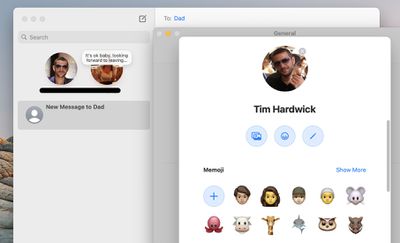
Simply select Messages -> Preferences and click your profile shot. You can choose your own photo or select a Memoji, and that's how message recipients will see you if they're also using iMessage.
35. Use Folders for Voice Memos
You can now organize your voice memo recordings in the Voice Memos app using folders.
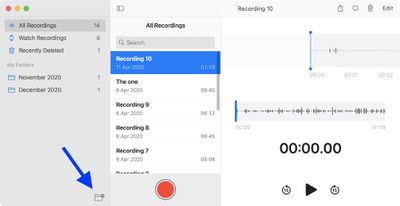
Just click the New Folder icon in the bottom-right corner of the sidebar, give your new folder a name, then click Save. You can drag and drop recordings into folders, and even select specific folders as Favorites to make them easier to access.
36. Edit Videos
The Photos app has inherited the video editing options that first debuted in iPadOS 14, so now you can go into editing mode and not only trim your video clips, but also add filters, crop, make color adjustments, change saturation and exposure intensity, change highlights, shadows, and more.

37. Accent and Highlight Colors
In Big Sur, Apple has made a subtle but significant change to the macOS interface with the addition of new Accent color and Highlight color options. In System Preferences, the General pane gives you various Accent color radio buttons and Highlight colors that together change the appearance of interface buttons, selection highlighting, and sidebar glyphs across the system.
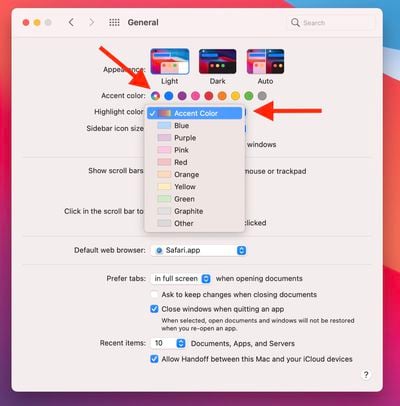
But if you select the new multicolored radio button (first in the row of Accent color radio buttons) and the Accent Color option in the Highlight color dropdown menu, this will apply the accent and highlighting colors that developers personally chose to represent their own third-party interfaces, making each app feel that bit different.
38. Get Precipitation Weather Forecast
Apple's acquisition of Dark Sky has brought minute-by-minute hourly rain forecasting to the Weather widget.

Just click the time in the menu bar to reveal the Notification Center, click Edit Widgets, then drag the medium or large Weather widget from the widget gallery to the Notification Center.
39. APFS Time Machine Backups
With macOS Catalina and previous versions of the operating system, Time Machine was only compatible with HFS+ disks. In macOS Big Sur, however, you can now make Time Machine backups to an APFS disk.
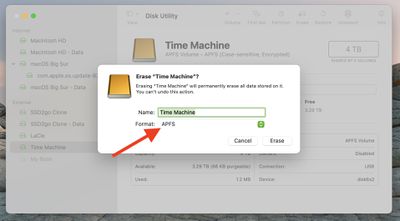
To prepare an external disk for use as an encrypted Time Machine drive, simply select it in Disk Utility, click Erase, and choose APFS in the format options.
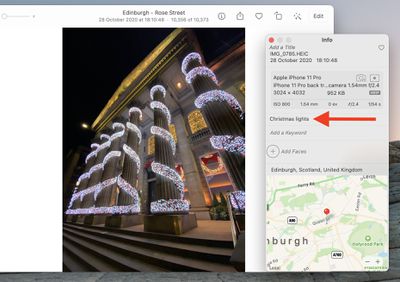
40. Add Captions to Photos and Videos
iOS 14 allows you to add captions to photos and videos, and these sync across all devices if iCloud Photo Library is enabled, so the "Description" field in Photos has been renamed to Captions for continuity.
41. Import Passwords and Settings From Chrome
Safari now lets you import passwords and settings from Google's Chrome browser, including your history and bookmarks.
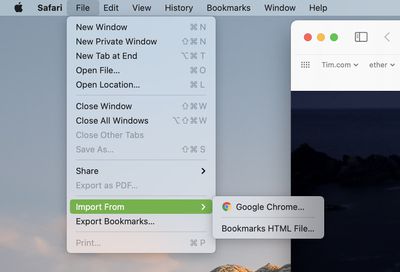
You can find the new setting in Safari's menu bar, under File -> Import From -> Google Chrome....
42. Safari Extensions
The Mac App Store now has a Safari Extensions section in its Categories, so it's easier than ever to find Safari extensions.
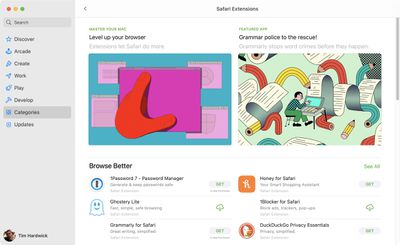
When you install a new extension, Safari will ask you which websites it can access, ensuring your browsing habits to remain private. Apple has also introduced support for its WebExtensions API that makes it easier for developers to bring extensions designed for other browsers to Safari.
43. Messages Inline Replies
Inline replies is a Messages feature that's designed to make it easier to organize chats that involve multiple people and/or multiple subjects. If you're in a chat with several people and there are conversations going on that cover multiple topics, you can make it clear who you want to reply to by using an inline reply.

Simply long-click the message that you want to reply to and choose the Reply option. Inline replies will show up threaded under the original reply, and if you tap on one, you can see the entire conversation separate from the main chat conversation.
44. Maps: Save Locations as Favorites
In Maps, you can now create a selection of favorite locations for easy access from the sidebar.
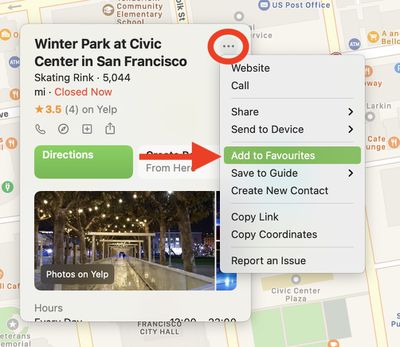
Just select a location on the map, click the circular ellipsis button in the top-right corner of the location card, then select Add to Favorites.
45. Check Privacy 'Nutrition Labels' for Apps
You'll soon be able to check "nutrition labels" for third-party apps in the Mac App Store.
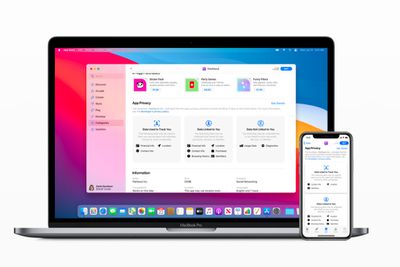
A new section on every app's page called App Privacy includes information from developers on what data is collected and whether that data is used to track you across other apps and websites, allowing you to make more informed decisions about the apps you download.
Apple is still collecting this information from developers, but starting in early December, developers will be required to submit it before they can have a new app or an update approved.
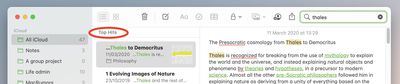
46. Top Hits in Notes Search
When you search notes in the Notes app using the Search field, Top Hits appear at the top of your search results and surface the most relevant results, making it easier to find what you need.
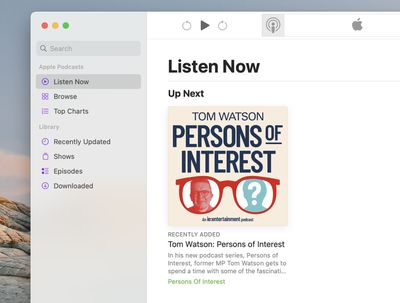
47. Podcasts "Listen Now" Feature
The Podcasts app now has a Listen Now section similar to iOS 14, making it easier to find what to play next. You can use it to resume the next episode in your queue from Up Next, discover the latest episodes in shows you follow, and browse hand-picked episode recommendations.
48. Indoor Maps
The Maps app features more detailed indoor maps than ever, taking in major airports and shopping centers around the world.

Indoor maps provide full layouts of each mall or airport location with icons for restaurants, elevators, bathrooms, shops, and other notable landmarks. Different floors are clearly marked, making it easy to navigate through unknown areas. You can use it to locate restaurants, restrooms, or store at the mall before you step out your front door.
49. New Wallpapers
Big Sur brings 40 new wallpapers to macOS, some of which may look familiar. That's because many of them take cues from wallpapers that Apple introduced in iOS 14.2.
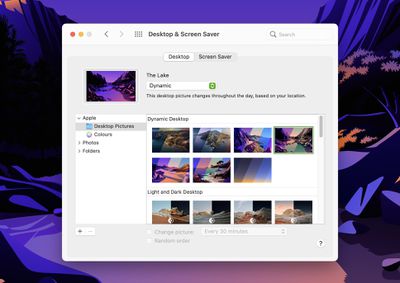
True to the Big Sur theme, you'll find more pictures of mountains and rock formations in System Preferences -> Desktop & Screen Saver, as well as illustrated landscapes with different lighting conditions for dynamic desktops.
50. Headphones Icon on Connect
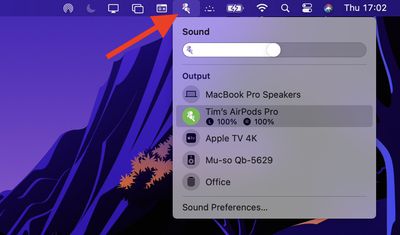
In macOS 11, when you attempt to pair your AirPods or other Apple headphones to your Mac, you'll get a notification, and an identifying icon will replace the generic volume icon in the menu bar, so you always know when you're connected. You'll also see a battery percentage for your Apple headphones in the dropdown menu.
Got any of your own favorite tips or feature changes that we haven't mentioned here? Let us know in the comments below.